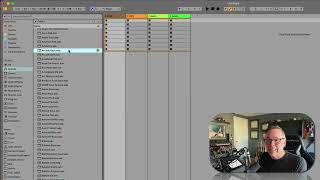
In this segment of J. Anthony Allen's Ableton Live tutorial, he explains how the audio preview you hear when auditioning a synth preset is merely a short recording of a single note (typically middle C) and not a full representation of the instrument. He then introduces ADG files, which stand for Ableton Device Group, describing them as collections of instruments combined into a rack—a powerful feature in Live. Allen clarifies that ADG files function like regular Ableton device files for loading purposes, differing only in their icon. He demonstrates how to load presets by double‑clicking or dragging them onto a track, and shows how instrument racks can be opened, closed, and displayed. He also walks through the extensive list of preset sounds available in the "Sounds" browser, noting that the list length depends on having Ableton Suite. Finally, he renames the preset folder to "Synth Presets," highlighting a new ability to rename categories that was not possible in earlier Live versions.
Chapters
Okay, now I'm going to point out. Turn off for a second. I'm going to point out something about this audition that we're hearing right now. So with a synth, it does depend on what note we play, right? Like we have to play a synth or put in a clip or something. So this little audio file that we hear is just kind of a preview. They've just kind of picked a note, and usually it's middle C and said, here's a recording of what this preset sounds like. You can modify it all day long, but that little audio file that we hear when we audition, it is just kind of a preview. So it kind of gives you an idea of what the synth is. Okay. Then the other type of file we see here is adg. Okay, now, an ADG file stands for Ableton device group. So Ableton has this way of combining instruments together into what it calls a rack, okay? R, A, C, K. So a rack of instruments is a group of instruments put together. We're going to spend a whole bunch of time on Ableton instrument racks because they are a super powerful thing. So what you need to know for right now is that these ADG files are just another instrument, but they're like a group of instruments. That's the easy way to think about them. But for the purposes of just loading up a cool sound that you like, based on all of these presets, they work the same as Ableton devices. Okay. Whether you've got an Ableton device or an Ableton device group, for right now, they're functionally the same. You can kind of see the icon is a little different. An Ableton device shows a rectangle sort of, and a device group shows like kind of two rectangles or maybe two squares. So that tells you it's a group. And then to load one of these things, both you would do the same. You can double click on it, or you can drag it right over onto the track you want or onto empty space and it'll make a new track. And there's our instrument that we made. A group looks a little different. It can look like that. Sometimes it'll look like that. You can open and close and show more stuff in the group, but it works the same. Okay, so under this sounds setting, what we're getting is a giant list of basically every preset for every Ableton instrument on our computer. It's a monstrous list. And this is even the whole list. If I go to the bottom, it says, show more. Sure. And it keeps going on and on and on and on. There's so much stuff here. Okay. Now, if your list isn't as long, it might be because you don't have Suite or something like that. But in Suite, it's a very, very, very long list. Okay, so that's what's in our sounds. Now, if we want, we could control. Click on it and rename this. And I kind of want to, because in previous versions of Live, you couldn't rename it, so now we can. So I want to call it Synth Presets. That's what I'm going to call mine. So I'm going to leave it like that. Okay, so that was Sounds, and now I'm going to call it Synth Presets. Cool. Let's move on.