In this beginner‑focused Ableton Live 12 tutorial, J. Anthony Allen walks viewers through the essential workflow for making sound from scratch. He starts a new session, switches to Arrangement View, and demonstrates how to create a MIDI clip by double‑clicking on the timeline, entering notes in the piano roll, and then adding an instrument (using the Analog synth) so the clip produces audible sound. Allen explains the three ways to generate MIDI clips—double‑click, recording from a controller, and importing existing MIDI files. He then covers audio clip creation, contrasting recording via a microphone with importing samples from the browser, and shows how to drag samples onto audio tracks. Throughout, he highlights that each track can host only one instrument, explores the Analog preset menu for different timbres, and encourages experimentation with the browser’s sample library. The tutorial emphasizes hands‑on exploration, basic navigation, and the foundational steps needed to start making music in Ableton.
Chapters
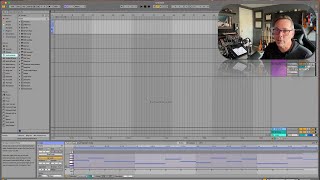
All right, so you're saying to yourself, jay, this is all cool. I like knowing my way around and stuff, but I just want to make some sound. I want to make some noise. Let's do that. So, yeah, let's do that. So here's what we're going to do. I'm going to make a new session. You might not need to do this, but I'm going to hit Command N. Or you can go to File, Create new, say, don't save. Okay, so should we use Session View or Arrangement View? Let's use Arrangement view first. So I'm going to hit tab Arrangement View. I'm going to go to a MIDI track and I'm going to make a MIDI clip. Okay? So the way I'm going to do that is I'm going to go right to the beginning, right under where it says one, and I'm going to write on the timeline for this first track, and I'm going to double click. Okay, that's going to make me a MIDI clip. Now I'm going to go down here and you see the piano roll editor. Okay. I'm just going to click in some notes. Okay. I'm just clicking on some spots here just for fun. This is going to be really fast and frantic and chromatic, but that's okay. So play around. Have some fun with this. Okay, cool. Now if we hit play right now, we're not going to hear this. Let's do it just to prove it. Play. Nope, not going to hear it. MIDI track needs to have an instrument on it. You're not going to hear anything until you put an instrument on it. So let's go over here to our browser. I know I'm getting ahead of myself a little bit, but I just want to make some sound. Right? So click on instruments. We're going to go through all of these instruments sooner or later, but let's just say analog. Okay, let's click and drag. Put that. Drop that right on that clip. Okay, now move your cursor back to the beginning. Or just click on the clip and hit play. We did it. We're making some sound. Okay. From that you can start having fun. Make some more clips, Put some notes in them. You can copy, you can paste, you can move notes around, but that's how you make a MIDI clip. Okay, so there are basically three ways to make a MIDI clip. We can double click like I just did to make one. We can record one in. I can hit record and then play my keyboard, or I can import a MIDI clip. If I have a bunch of MIDI clips, which I do. With audio clips, there are really two ways I can record. One, I can plug in a microphone, hit record, and go, wah, wah, wah, wah, wah, and record one. Or option two, I can. I can import one. So in my case, if I go down here where it says samples in my browser, I've got all these clips. Cool. I can just drag right onto an audio track, which is these bottom two are audio tracks. These top two are MIDI tracks. Just by default. That's what they are. And now I've got a clip. I can click and drag it around, and I can have some fun. I can make some music with it. Okay. You probably don't see as many audio files as I do here, because this is finding them all over my system. And there's, you know, tons of them, but you should have a few here. Okay, so take some time, experiment with that. Just make some sounds, Go to the instruments, drag different instruments on to your clip. You can only have one instrument per track, so if you want a different instrument, it's got to go on a different track. Okay. And if you want to get even crazier, any of these instruments, like, analog is the name of the instrument. If I click this little triangle here, these are all presets. These are different sounds. So here's like a bass sound and a buzzing B sound kind of thing. Strings, stuff like that. Okay. So experiment with that goof around, have some fun. And then we're going to move into really starting to navigate our way around the browser.