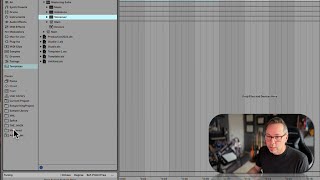
In this segment of the "Free Ableton Live 12 Music Production Class," J. Anthony Allen walks viewers through the "Places" section of Ableton Live’s browser. He explains that Places functions like a bookmark bar, allowing users to add any folder for instant access. Allen demonstrates adding folders such as a mastering project, a large sample library, and a Splice download folder, showing how these shortcuts speed up workflow. He also covers the default entries (Packs, Cloud Push, User Library, Current Project) and how to remove unwanted entries via control‑click. The segment emphasizes the practical benefits of customizing Places for frequently accessed resources and hints at a deeper discussion of "PACs" to follow.
Chapters
Okay, so we've gone through all of our library places here. Cool. So in so doing, we learned an awful lot about the different ways in which Live works. But let's keep going through the browser. We've got two more big areas to look at, places and collections. So let's talk about places first and now this one in your computer. I bet you don't see what I see. You probably see a few things here, but all of these ones in the middle, you probably don't see. Almost for sure you don't see, because the thing about places is that we can add whatever we want to places. You can think of this as your bookmarks bar. Okay. There's a couple things that just stay here, like packs, cloud push, user library, and current project. Those just live here and those are useful. But these things, these are folders I go to all the time for different projects. And I've added them so you can see add folder. So I could say click on a folder and say mastered. Here's a mastering project I was just working on. Sure. So now if I click on that master folder that's now here, I can get access to these files quickly. So the reason you would want to do that is if you are constantly going to the same folder over and over, just give it to yourself right here in the browser and save yourself a bunch of time. That's all. It's a bookmark. So you can see here. I put my giant sample library in here. And that was cool. Maybe I didn't need to do that. Here's some files. I put a Splice link here because I downloaded a bunch of files from Splice, which is a sample purchasing website. So I bought a bunch of stuff and I just put a link here so I could see it quick. This, the hack was some library that somebody put out and I was playing with it for a little while just to try it out and see what it was like. And then here's this. Mastered. Going to get rid of this by just control clicking on it and say remove from sidebar. Cool. So there's some cool stuff here. You're always going to see current project, which is going to show you all the samples and files of your current project. For me, there are none in this current project. So that's a good way to get into the files should you need to for your current project. Sometimes you do. Now the rest of these things, these other four things I want to address kind of separately because they deserve a little more conversation. So let's start with PACs.