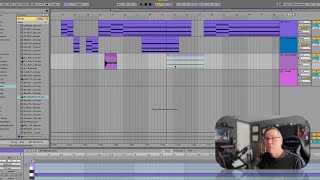
J. Anthony Allen shows how Ableton Live 12 converts tracks when you drag audio and MIDI clips between them. Learn the keyboard shortcuts (Cmd+T for audio, Shift+Cmd+T for MIDI) and how Live's Convert Audio to MIDI feature works, including choosing between Harmony, Melody, and Drums modes.
Chapters
Okay, so I've said to you before, MIDI clips go on MIDI tracks, audio clips go on audio tracks. That is still true. But if you drag a MIDI clip to an audio track or an audio track to a MIDI clip, different things are going to happen depending on what your setup is and what you're trying to do. Okay, so let's look at that. First of all, I have an audio clip here, and I have a MIDI clip here, okay? So if I take this audio clip and I drag it onto the MIDI clip and I let go, this is going to be fairly simple. What happened was it converted this to a MIDI track. It said, so Live said, you have an audio track and you're trying to put a MIDI track on it, but that audio track isn't doing anything right now. So it's fine, I'll just make it a MIDI track because that audio track was empty. Okay, let's undo that. Just command Z. And now let's not make that audio track empty. Let me put an audio file on it. Okay, so now there's an audio file on that track. So now when I drag this down, Live is just gonna say, no, I can't put that MIDI clip on that track because that is an audio track. And because there's other things on it, I can't just convert it to a MIDI track. So that isn't going to work. Okay, it's just going to say no. Now the same thing is kind of true for the opposite. I'm going to make a new MIDI track, which I can do by going to track, insert MIDI track. Or if you want, command T will make you a new audio track. And shift command T will make you a new MIDI track. Okay, so this is how you make more tracks. Okay, so now I have a new MIDI track. Okay, now there's nothing on this track right now. So it's a MIDI track. So if I drag an audio file up to it, Live is going to say the same thing. It's going to say, oh, well, there's nothing on that MIDI track. So I'm just going to convert it to an audio track for you. And that's exactly what it just did here. Okay, now let's undo that. Now let's go here. So now that MIDI track has some MIDI information on it. It is now firmly a MIDI track. Okay, so now I'm going to drag this audio track to it. And this is where it's different, because Live isn't going to say no here. It's going to say, okay, I can take that audio track, but tell me what you want me to do with it. Okay, so I'm gonna let go. Okay. And this is LIVE saying, tell me what you want me to do with it. What it's saying is, I can convert this to MIDI information. So if you have notes or drums or something in that audio file, I'm gonna figure out what those notes are and make a MIDI clip for you. That's what LIVE is saying here. So you want to help it out a little bit by saying, is this harmony? Does it have a bunch of chords in it? Is this a melody? Is it a single note thing? Or is this drums? Is it drum patterns? Now, this was just one note, so I'm just going to say it's a melody, and there it found out what note it was.