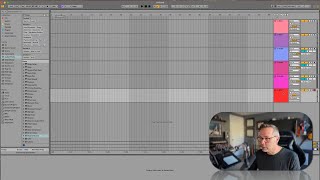
In this tutorial segment, J. Anthony Allen walks viewers through the process of setting up a new session in Ableton Live, focusing on the Arrangement View. He demonstrates how to create and delete tracks using keyboard shortcuts (Cmd+T for audio, Shift+Cmd+T for MIDI), and explains how to configure the track’s input source via the Inputs/Outputs panel, selecting between external inputs and stereo versus mono recording. Allen clarifies when to use a stereo track—such as capturing ambient drum mics—and advises that single sound sources like a solo microphone, guitar, or banjo should generally be recorded in mono. The segment emphasizes clean workflow, proper routing through the audio interface, and practical considerations for recording quality.
Chapters
Okay, back to live. Let's set up a track to record. So I think first I'm going to go to a new session. Let's not save that one. Okay, now we could do this in Session View or Arrangement View. And in fact, we're going to do it in both in a minute. But just to keep things simple, I'm going to start with Arrangement View. So the first thing we need to do is find our audio track. So remember, we have two MIDI tracks here and two audio tracks here. So if you want to make more tracks, remember that it's command T to make a new audio track and shift command T to make a new MIDI track. But what I'm going to do here is just for the sake of simplicity, I'm going to delete my track. So I'm going to delete this MIDI track. I'm just going to click on the header over here, hit delete and delete. So I have one audio track. That's all I want for right now. You don't have to do that. It's just cleaner. And now we have to go to our inputs and outputs section. Okay, so inputs I need external in, because I have an a microphone from outside of live that is external to live and it's coming in. Okay, I could configure that if I need to, but I don't. So now it says from external in, meaning that it's looking at my audio interface, because that's what I told it in the settings was, my input interface. It's looking at the settings and it sees three possible things that I could do. I could use the first input on it, I could use the second input on it. Or I could do a stereo track where I use both inputs, 1 and 2. So let's talk about stereo track really quick. A stereo track is going to record two things at once, basically, one for each speaker. I might want to do a stereo track. If I was setting up two microphones like this and I was talking into it and wanted to record both microphones, that wouldn't be a great idea. But I could record them as one track, two microphones as one track. Maybe I'm recording like drums, and I'm putting two microphones over the top of the drums just to get the ambience of the drums, that could be a good stereo track. But if I'm recording a single sound source, something that is just one thing, like one microphone or one guitar or one banjo, then I probably almost always want to record it mono, meaning not stereo. So mono means just the one input. Okay.