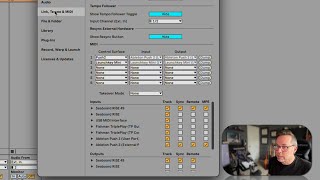
In this segment of the Free Ableton Live 12 Music Production Class, J. Anthony Allen walks viewers through the process of configuring MIDI devices in Ableton Live. He demonstrates connecting a Roli C‑Board MIDI keyboard via USB, explains the distinction between MIDI inputs (notes sent from the controller to Live) and outputs (MIDI data sent from Live to a controller), and reviews the MIDI Preferences window where connected devices are listed. Allen showcases several of his own devices—including two Roli Seaboard models, a USB MIDI interface, a Fishman Triple Play guitar controller, and an Ableton Push 3—highlighting that any MIDI controller will work and that many are inexpensive. He emphasizes the need for the controller to appear in Live’s input list, advises checking the device manual and installing drivers if it does not, and notes that most keyboards do not require output configuration unless they support receiving MIDI from Live. The segment serves as a practical, step‑by‑step guide for beginners to ensure their MIDI hardware is recognized and ready for use in Ableton Live.
Chapters
Okay, let's get our MIDI settings all set up now. So what I have is a MIDI keyboard. Mine is a Rollei cboard. It looks like this. This is the small Rolly cboard. But any MIDI controller will do. Most MIDI controllers have a couple octaves of notes, and they're actually pretty cheap. Maybe 100, 200 bucks. It's not a major investment for a decent MIDI controller. This is kind of a fancy one. I wouldn't recommend starting off with this, although I do love it. Okay, so this just has a USB connection, and I'm just gonna plug it in right now. All right, so let's go back to our settings, And let's go to link tempo and midi. Okay, so this MIDI stuff down here is what we're looking at. Specifically right now, we're looking at this area. Okay. What this says. Can I make this window bigger? I don't think I can. Okay. What this says is my inputs and my outputs. Okay. So if you have a MIDI keyboard, you're going to play in notes. That's all input that is coming from your MIDI keyboard into Live. So that's inputs. Okay. Outputs would be live. Going back to our MIDI keyboard, now, in most cases, there's not a need for that. Most MIDI keyboards can't receive information from live. Some can, and that can give you some cool features. But if we just want to play in notes, we generally don't have to worry about the output. Okay, so let's look at the input. So these are things that live knows about that I've plugged in either currently or recently. So cboard rise 49. That is not the keyboard I just showed you. That is my other Roli seaboard. That is a full 49 key that is like right there. There. Seaboard Rise is the little one that I just showed you. So I have two of these fancy keyboards because I'm a dork. Sorry. USB MIDI interface. That is my. I think that's my universal audio that can also route MIDI if it needs to Fishman Triple Play. This is a MIDI guitar, actually, that I have plugged in. And then my Ableton push three that I have plugged in. And there's two different settings for both of those. Let's not worry about that for now. So first thing you need is your keyboard to show up in this list. If it does show up, that's great. If it doesn't show up, read the manual and see if you need to install any drivers. A lot of keyboards, Ableton already knows about them, and so you don't need to install anything extra. But sometimes you do. So that should get it to show up in this list.