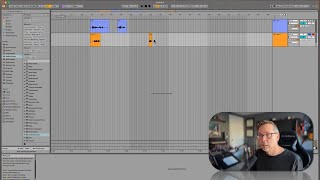
In this segment of the Free Ableton Live 12 Music Production Class, instructor J. Anthony Allen walks viewers through the metronome feature in Ableton Live. He demonstrates how to turn the metronome on, adjust its tempo, and explore the dropdown options that include count‑in lengths (1, 2, or 4 bars), sound selection, and rhythmic feel (triplet, half‑time, etc.). Allen shows a practical recording workflow where a count‑in precedes a vocal take, illustrating how the metronome can help musicians line up with the downbeat. He then reveals the hidden control for metronome volume, located in Session View on the master channel’s solo button, and explains how to route the metronome output to specific speakers or headphones using the Q output selector. Finally, he emphasizes that the metronome follows any tempo, meter, or time‑signature changes, making it a reliable click track for recording instruments.
Chapters
Okay, let's spend a minute and talk about the metronome. Metronome is up here is these two little dots. If I click on it, it's going to turn it on. And now when I press play, we're going to hear a metronome going at our session tempo, which is 120 beats per minute. Okay. That's what our metronome sounds like. If I click on the little arrow next to the metronome, I've got some options. I can do a count in where, meaning if I hit record on something, it's going to do one bar before it starts recording, or two bars or four bars. I can change the sound to these three things. They're all fine. And. And I can change the rhythm a little bit. I can give it like a triplet feel, half time feel a few other things. I can say turn it on only when we're recording, whatever. So if I did like a one bar count in, it's going to look like this. So I'm going to hit record and record on this vocal. Two track. Ready, go. Yo, now we're recording. See, it counted four and then it started recording. This can be really useful, especially like when I'm recording my guitar or something. I might set that to two bars so that I can hit record, grab my guitar, get all comfy, and then hit the downbeat right where I want it. Now, if you want to adjust the volume of the metronome, this is something that is surprisingly tricky to find. It's buried in a really weird place. So let me show you where it is. First, you can only get to it in Session View. So we go over to Session View and we go all the way down to our master channel down here and what looks like the solo button. This is actually going to be our metronome output volume. Okay. And if you want to do something weird with the outputs, it's this Q out here. You can say, I want that just to go to my left speaker or my right speaker or something like that. Okay. But you can only get it in session view, as far as I know anyway. So that will now go to our headphones. If I turn on headphones and I hit record, I'm gonna hear the metronome in my ears and it'll work just like a click track. The metronome will follow any time changes, meter changes, tempo changes, anything like that. So it's very easy to work with. So that's where your metronome is super important for when you're recording. Trying to stay on a beat.