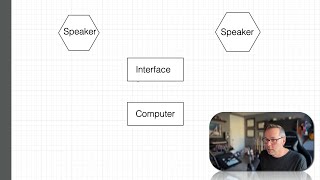
In this segment of the Free Ableton Live 12 Music Production Class, J. Anthony Allen walks through the basic physical setup for a home studio. He explains how to position two matching speakers, connect an audio interface to a computer (preferably via USB‑C or faster), and discusses the limitations of older USB‑1/2 connections for multi‑track recording. He then shows how to identify and select the monitor output ports on the interface, typically labeled left and right, to route audio to the speakers. The tutorial emphasizes practical, hands‑on steps for getting a microphone and speakers correctly wired to the interface for immediate use in Ableton Live.
Chapters
Okay, really quickly, let's talk about how you set this up. So let's assume you got an interface and you want to set up a microphone to go to it and speakers to go out of it. Here's how you're going to set that up. So you've got your computer. Let's say you've got a speaker here and a speaker here. Okay. So these are your speakers. Just put whoops. Speaker. Bring to front. Okay. Speaker, speaker. Okay. We always want two speakers. Don't look lined up. They should be the same size. I don't know why one's bigger than the other. That's weird. Doesn't matter. Okay. I'm not a graphics person. I'm really like a sound person. Okay, so now let's go to our interface. Interface. So the first thing we're going to do is we're going to connect our interface to our computer with whatever it needs, probably USB C. I wouldn't at this point buy anything that's not using USB C or, or faster. If anything is old school USB one, you might find some used gear that's using USB one that can be. Okay, that's pretty dicey. It's just not quite fast enough. But if you only have one input and two outputs, meaning like one microphone and two speakers, you could probably be okay with an old school USB one connection. As long as you're not doing like a whole bunch of tracks at once USB 2 and anything faster than that, it's just fine. Okay, so now we're going to go to. Audio output. This may also be called monitor out or something like that. Usually be labeled left and right. I'm going to make this smaller just to make it easier to fit. Okay.