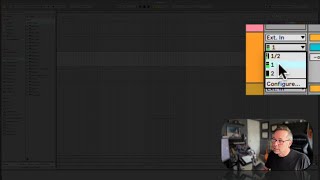
In this tutorial segment, J. Anthony Allen demonstrates how to record audio in Ableton Live, focusing on the arrangement view (with a brief nod to session view). He walks through selecting an audio track, configuring input and output settings, choosing between mono and stereo inputs, and understanding the monitor mode options (Off, Auto, In). Allen explains how improper monitor settings can cause speaker feedback and emphasizes the importance of using headphones when monitoring through speakers is enabled. He also shows how to arm a track for recording using the record button, highlighting the need to set the correct input destination before recording.
Chapters
All right, let's record some audio. So we're going to go to an audio track. I'm going to do this in arrangement view, but you can do this in session view, too, and I'll show you that in a second. So here's an audio track. You can see my voice coming in here. So remember, this little block of stuff is our I O settings, in other words, our inputs and our outputs. So external in means I have an external microphone, a microphone that's outside of live. So that's good. That's what I want. And now I'm going to see which one my. Remember when we hit that button that said input and output configurations, this is where we're seeing that. Right. I could record one stereo track, which would mean I have two microphones plugged in to this at the same time. You might do that if you're recording like an acoustic guitar and you put two microphones on it. Right. But if I'm just recording with one microphone, I want to select just one input. So input one, and you can see a tiny little meter there showing that it sees the correct microphone. It's the one I'm currently talking into. Okay. But this is our main meter. So why don't we see that going? It's because of our monitor modes here. Okay. It kind of means what am I going to hear while I'm recording? And this is important because it's very easy to create feedback. Feedback, okay, so right now it's off. That means that I'm not going to hear my microphone through my speakers right now, because it's off. If I turn it on auto, that means that I'm going to hear it through the speakers when I'm playing it back, but not when I'm recording. And if I turn it to 8 in, that means I'm automatically going to route my microphone through my speakers. In this case, that's going to be bad. That's going to immediately make feedback because my speakers are going to play the sound. My microphone is going to pick it up, which is going to play through the speakers, which is going to get picked up by the microphone that goes in a circle. It gets louder and louder and louder every time, and then things start to explode, including my eardrums. So I definitely don't want to do that. When would I want to do that? When I'm wearing headphones. If I'm wearing headphones, that won't feed back. So I need to wear headphones in order to turn that on. And I don't want to wear headphones right now, so I'm not going to. Okay. So if I want to record on this track, the record button is up here. But I can't just hit this button because I need to tell live where I want to record, and that's what this button is for. So I click this button and now you can see I am monitoring through. I don't know if you can hear that in the way the screen is capturing me, but. But there is sound coming out of my speakers. That is my voice. So I'm hearing myself twice now, and it's driving me a little nuts, and I am in danger of feeding back. So I'm going to turn that off so that it doesn't play through.