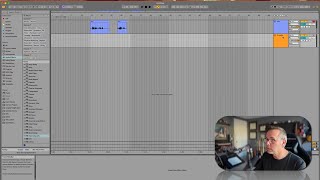
In this tutorial segment, J. Anthony Allen demonstrates a practical recording workflow in Ableton Live 12. He walks through arming a track, disabling monitoring, positioning the cursor, and recording a vocal snippet, then playing it back. He shows how to continue recording by setting a new point and hitting record again. Allen creates a second vocal track using the shortcut T, sets its input, renames it, and arms it, which automatically unarms the previous track. He explains how to monitor while recording, mute unwanted tracks, and avoid audio bleed by using headphones. He briefly mentions click tracks and multitrack recording as the next topics. The demo emphasizes hands‑on steps, useful shortcuts, and best practices for clean vocal recordings in Ableton.
Chapters
Okay, let's record something. So I'm all set up to record my voice here on this track. Okay, I'm armed to record. My monitoring is off. I can see my signal here, but I can't hear it perfect. So let's record something. I'm going to put my cursor where I want the recording to start. Then I'm going to hit record. Now. Here we go. So you can see my signal coming in here. Nice and healthy. You can see the track I'm recording on. Everything is good. So now I've recorded a little snippet. I can go back and hear it by just putting the cursor at the beginning and pressing Play Record. Now here we go. So you can see my signal coming in here. There it is. Everything looks great. If I want to continue recording, I can set another point and just hit record. And now I'm going to pick up right where I left off. Hooray. Okay, great. Now let's say that this was good, but now I want to record another track. Okay, easy enough. Let's make a new track command T. Okay, in this one we're going to say listen to input 1. I can rename this, let's call this vocals 2. Arm this to record and it automatically unarmed that one and I can do it again. Now if I hit record here, I'm going to hear this while I'm recording. Record now here we go. Now my track two. So this is vocal track. This is the track I'm recording. Okay, so we heard this one while we recorded this one. Now if I. I didn't want to hear that. I could easily just mute that track while I'm recording this one. That would be fine. I could also deactivate that clip with the zero key. But easier is just to mute what you don't want to hear. Now you might be wondering if that causes any bleed issue. Bleed would be the playback sound coming in through my microphone. And yes, that would create a bleed issue. And it is not the best way to do it the way I just did it where I recorded this. While listening to this, I would really need to be wearing headphones to do that correctly so that there would be no bleed because then this would be in my headphones and not get picked up in this recording. If we just listen to this recording, we might be able to hear this track. Let's find out now. Here we go. Yeah, it's there. It's really quiet, but it's there. Okay, let's talk about click tracks and then multi track. Recording.