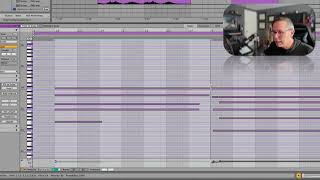
In this segment of the free Ableton Live 12 music production class, instructor J. Anthony Allen walks viewers through the piano roll editor, the primary interface for MIDI note editing in Ableton. He demonstrates how to open a MIDI clip, resize the editor window, and scroll or zoom within it. Allen explains the historical analogy to player piano rolls, emphasizing that the visual representation of notes (lines with start and end points) is standard across audio software. He then shows practical editing actions: trimming note lengths, aligning notes to specific beats or measures, deleting stray notes, and using arrow keys for precise nudging. The tutorial highlights the most useful shortcuts—arrow keys for moving notes, Shift + arrow for extending/reducing note length, and Shift + up/down for octave transposition. Throughout, he provides real‑time examples, adjusts note positions, and ends by playing back the edited MIDI to illustrate the results.
Chapters
Okay, let's go down here to the piano roll editor. Okay. So to get there, I'm going to go to any MIDI clip and I'm going to double click on it if it's not already open. Okay. If I want to see more of it, I can grab the little dark bar here and click and drag to make it nice and big. Now you can scroll up and scroll down in here just like before. You can put your mouse up here and do the click and drag thing. You can also do it over here on these notes to zoom in that way. Okay, so this is called the piano roll editor. If you've never seen one of these before, this is kind of emulating an old school player piano. If you've ever seen one of those, they were a piano that had that you would pump with your feet and it had air in it. And you would punch out these little holes on this paper that would spin. That's what your feet would pump. And if air could get through the little hole, it played a note. They were called the rolls were called piano rolls, and those pianos were called player pianos. Or sometimes they were called pianolas. Look it up. They're fascinating. You can still find them here and there. So that's kind of what this is modeled after. Now, this model of the piano roll editor is not unique to Ableton. You'll see this in virtually every professional audio tool everywhere, even non professional audio tools. If you want to represent notes, this is just how everyware does it. So each one of these lines is a note. Okay. So it has a start and an end. We can grab the ends and shorten it. We can grab the start and shorten it. So let's tidy up these chords. Let's make them so they all start right on this measure. One beat two line right here. So I'm just going to tuck these in a little bit now in that one, instead of tucking it in, I slid the whole thing over. That's okay. Do that too. Let's make these end right on beat three. So I'm going to drag them right up till the edge there. Okay, looks good. Let's do it with this one too. So I've got these two kind of stray notes here. I'm just going to click on that and press delete and delete. I can select all of these. I can use the arrow keys to move backwards and forwards and I can use shift arrow keys backwards and forwards to extend the length of it or reduce the length of it just going forward and back. Okay, so now just normal arrow keys back. Do that with this one, too, and it's just going to help me get it right on the line quickly. Now, some other things you can do with arrow keys. The most valuable arrow key for me while I'm actually producing music is if you click on a note, you can move it to a different note by going up or down. That's really handy. But to me, the most valuable thing is shift up will flip it up an octave. Okay, so you can say, I like this whole thing, but it's too low. Let's make it an octave higher. Shift up. Okay, still too low. Shift up. Down, down. So you can move things by a whole octave that way. And it's really quite nice. Okay, let's set this to end on beat four. Or, sorry, on measure four. So I'm just going to drag the end of these in. Now if we want to. And we got the stray one over here. I'm just going to delete. Okay, so let's just hear this now.