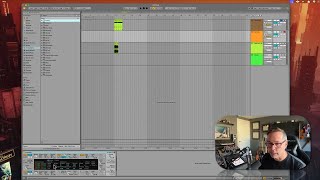
In this segment of the Free Ableton Live 12 Music Production Class, J. Anthony Allen walks viewers through the Ableton Live instrument library, highlighting how the suite, standard, and Lite editions differ in the number of available synthesizers and samplers. He demonstrates loading the Analog synthesizer onto a MIDI track, playing its default preset, and creating a MIDI clip to hear the sound. Allen then explains that instrument presets are organized by device rather than a single global list, clarifying that the same presets are shown but grouped under each instrument (e.g., Collision, Drift). The lesson emphasizes practical steps for accessing instruments, understanding version-based limitations, and navigating preset folders.
Chapters
Okay, up next, we have instruments. Now, what you're going to find here is all of the Ableton Live instruments. These are the synthesizers and the samplers that come with live. Now, this is where we really see. This is one of the places where we really see the difference between the suite version, the standard version, and the Lite version. Live. I have the suite version, obviously. So these are all the instruments that are available to me. If you have standard or the intro or light versions, you won't see as long of a list as I have. But all of these are basically different synthesizers, and they make different kinds of sounds. So what we can do here is, let's take analog, for example. Analog is a synthesizer. I can put it onto a MIDI track. Just drag it over there and put it on a MIDI track. That's what analog looks like. Okay? I can dial in a sound. I can mess with this, and we'll learn how to use this later. But I can make a sound if I want, and that's cool. But when I did that, when I drug that over onto a MIDI track, what I made there was the default analog patch. Okay, that's just like the default. What it sounds like right out of the box, which is this. I'm going to make a MIDI clip. Let's solo this track, and let's hear it. Okay. That's what analog sounds like right out of the box. Cool. Nothing amazing, but not bad. It's kind of cool. But all of these devices are. Are also folders that we can open with this little arrow. And then we have all of these presets for each device. Okay, now the thought that maybe just came into your head is, oh, when we were looking at synth presets or sounds, we saw all the synth presets, and now I'm seeing more presets for the synths, right? No, you're seeing the same presets. They're just organized different here. Okay, so what we have in instruments is each of our instruments with all of their presets organized by instruments. Here's the collision instrument and the collision presets. Here's the drift instrument and the drift presets. Okay? So it's the same information organized differently.