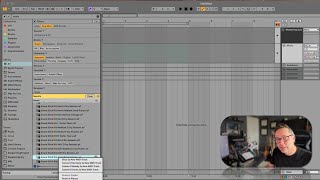
In this segment of the "Free Ableton Live 12 Music Production Class," J. Anthony Allen introduces Ableton's Sound Similarity Search feature. He walks through selecting a snare sample, using the "Show similar files" control, and listening to a list of sonically related samples, noting that the algorithm likely combines name tags and audio analysis. He then repeats the process with a drum loop (shaker) to illustrate how the tool can provide alternative but related sounds for different sections of a track, positioning the feature as a compositional aid for adding variety without drastic changes. After the demonstration, he encourages viewers to pause, reflect, and prepare for the next lesson on basic recording workflow.
Chapters
Okay, there's a new feature that will help you find things in kind of a freaky way. So it. And it's called the sound similarity search. So check this out. Let's go to what's a good sound? Let's do snare again, because that's easy to all snare. And let's do sample. One shot snare. Let's do acoustic. And that should do it. Okay, so let's pick one of these. So here's a bunch of rims. Let's go here. Okay, here's kind of a bright snare sound. Okay, so let's say I'm working with this snare sound and it's cool and I'm liking it and I want to find more sounds like that. Here's what I can do. Watch this control. Click on it. Show similar files. Okay, now it's going to say, here's the snare you started with. And here's a whole bunch that are pretty close to it. Let's hear. Right. They're all kind of sonically similar. I don't know how this works. It's like, I think they take the name into account. Supposedly they take some degree of. Of analysis of the sound into account. I don't know how it's tagged into account, I'm sure, but it's kind of wild. What I really like it for is watch this. If I go to loop. Okay, so let's clear out our search and let's just say I'm gonna search drums and I'm gonna search drum loop. So I'm gonna do drum sample loop. Okay, Drum loops. Say acoustic. Okay, so here's a shaker. Right? That's cool. Now let's do. Let's say I'm using that shaker in a track and I like it. It sounds cool. But now I'm going to like a new section of the tune. And so I want something a little different, but not totally different. So for that, I'm going to go sound similarity search. Now here's my original. And I've got all these other things, And these are all good options for the next section of my tune to add some diversity but not get too far away. So the sound similarity search is not only good for finding your files, but it's actually like a really good compositional tool to help you find things that are close but not the same to work in the next section of your tune. So super valuable. Okay, enough of the browser. We've learned a lot. What I want you to do now is take a step back, take a deep breath, go for a walk. We're learning a lot of stuff here. When you're ready, we're going to move on and we're going to talk about basic recording workflow in Laugh. So when you're ready, move on to the next section.