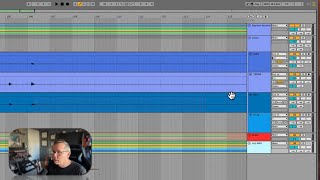
J. Anthony Allen shows how to organize Ableton Live 12 sessions with track groups. Select multiple tracks, press Cmd+G to group them, then rename and arrange by instrument section. You can nest groups within groups and ungroup with Shift+Cmd+G.
Chapters
Okay, I want to circle back around to this big recording session here because I just want to talk about organizing your session just a little bit, particularly how we do these groups. You may have seen this as when I opened this before. So basically, you can select any tracks that you want by clicking on one and then shift, clicking another one, and then command G. That's going to turn them into a group. So here's the group I just made. Then I can go command R on the group and rename them. What do we have here? Bass, guitar and guitar. So I'll say bass and guitar. Okay. There's a couple advantages to doing this. One is just to organize your session so you can see what's what. You can see how I did it here. I've got rhythm section, saxes, brass, a whole ton of MIDI stuff, and then more MIDI stuff that I didn't put in the group yet. But if I wanted to, I could easily take this track. Let's open this midi. I could take this track and drag it up into Almidi, and now it's in there. So I could do that with these, all of these, if I wanted to. In fact, let's do it. I should be able to go down to the bottom and shift, click to select all of those. Click and drag to move them up there. And now they're all in this all MIDI tab. Okay, so now here's my whole session, right? I have this big, huge session, just narrowed down to four things. So when I'm ready to work on the saxes, I can open up the saxes and get to work on them. When I'm ready to work on the brass, I can get in there this way. And the rhythm section, I can get in this way. Within the rhythm section, I have more groups like drums, bass and guitar, etc. You can have groups within groups. In fact, you can have groups within groups within groups. Someone in one of the Ableton Trainer forums tried to figure out how many groups you could go deep on Groups within Groups within groups. And I think they got to like a thousand. And. And it still works just fine. So you can make groups within groups until your heart's content. If you want to ungroup something, I think it's shift command G. Or you can just control click and go to ungroup. Yeah, Shift command G. So grouping tracks is super helpful when you've got a big session going. Even when I'm producing something not recording, but I'm just working on building an electronic track. I'll group my drum stuff, my synth stuff, my bass stuff, and then my live stuff, like guitars or whatever, into different groups so that I can focus in on them as I like.