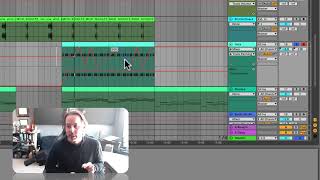
In this tutorial J. Anthony Allen walks viewers through automating panning (left‑right balance) in Ableton Live. He first reviews a simple volume fade‑in automation, then shows three ways to switch between volume and panning parameters: using the device/parameter dropdown, clicking directly on the desired parameter, and opening a second automation lane. He demonstrates drawing a panning curve that moves the sound from left to right, explains how to listen to the effect on headphones versus laptop speakers, and notes that some web browsers may ignore panning data. The video also covers how to add additional automation lanes, hide/show lanes for a cleaner view, and return to normal playback mode with the “A” key while keeping automation active. Throughout, Allen emphasizes practical workflow tips for managing automation lanes and troubleshooting playback issues.
Chapters
Okay, so I've got volume automation here. Let's do our panning, which is this right here. Remember, panning is the left and right balance of our sound. If we automate our panning, we can swoosh our sound all over the place. Right. Let's stick with the same sound, but I'm gonna make this a little less dumb. I'm gonna get rid of some of these points. We'll keep our initial fade in, but I'm going to do it faster. We'll get rid of these points. So it's just flat after that. Okay, so now this is just fading in with our volume and then it stays up. So if I want to automate the panning, I can do a few things. First of all, you can look at this little list right here. And this is Ableton specific. But you, you should be able to find this in whatever program you're working in. This little double drop down here is going to show me first the device that I'm automating on and then second, the parameter. So the mixer is this stuff over here. And I'm on track volume. But if I'm on the mixer, I can switch to track panning. Now you'll see my volume line goes away and I have a dotted line because there's no panning. So that's one way to do it. Now I can start drawing my panning, but let me go back to volume. Another way I can do it is the easier way, and that's just click on the thing I want to automate. If I just go over here to panning and click on it, that's going to automatically switch to panning. Okay. And if I click on volume, it's going to automatically switch back to volume. So you can always just click on the thing that you want to automate. And that works with just about any parameter. A third way you could do it is if you want to see the volume panning and, or the volume automation and the panning automation at the same time, you can click this little button down here. So I'm going to go back to volume automation. I'm going to click this, and that's going to open a new automation lane is what we call it. And that shows us the volume of the volume automation. Now up here I can go to panning and I can do whatever I want here. Okay, so all of these are going to have the exact same result. It's just different ways of getting to something. All right, so now let's do some whooshy stuff, spin this sound around a little bit. Okay, now we're going to be panning. Now you should be able to hear this going from left to right speakers. If you put headphones on, if you're just listening on a laptop, you might not be able to hear it very well. And there are some browsers or I'm not really sure why, but there are some times when the web browser that you're watching this video on doesn't obey panning. It just kind of, it gets rid of panning information. So if you can't hear it, then it might just be the player that you're on, but you should be able to hear this. So let's hear it. So what you're going to hear before I play it, you're going to hear the volume fade in because this is our volume automation. Then you're going to hear the panning start to move around. All the way to the top is all the way right, all the way to the bottom is all the way left. In the center is center right. So here we go. Cool. So now we've automated panning. If we want, we can hit this plus and move that down into its own automation lane and automate more stuff or we can hide all of our automation lanes if we want. Now, one important thing about automation, at least in Ableton, is if when you're done working on automation, you can press a again just to go back to normal automatic. Our automation is still working, We just don't see it keeps things nice and tidy. So let's go back to automation, show our automation lanes and let's do some more stuff to this.