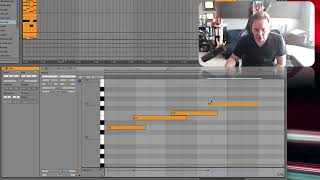
J. Anthony Allen shows how to tighten sloppy MIDI timing with quantization. Use Command U to snap notes to the grid, then open Quantize Settings with Control-click to choose whether to quantize note starts, ends, or both. Clean MIDI data matters when you're using arpeggiators or delay effects.
Chapters
Okay, moving outside of MIDI effects for just a second, there's a couple other things we can do with MIDI that I don't think I've pointed out yet. I'm going to make a new MIDI clip out here. Not loop it, just make it this long. I just want to remind you about quantizing. Okay, so quantizing means. I think we've talked about quantizing, but. Okay, so let's do this. I'm going to just turn my grid off for a second, Adjust my notes, then I'm going to turn my grid back on. So let's say I played this in. Okay, so let's say I played these notes in on my MIDI keyboard and they're a little off. They're not right on the grid the way I want them. So remember that if you're using something like an Arpeggiator or something like that, and it's going to generate a lot of these rhythmic ideas or a delay or something like that, then it's going to turn into a super mess if you're not quantized really well. Quantizing means getting everything right on the grid. There's an easy way to do it. Command A in your MIDI clip to select all the notes, then not Command Q. Don't press Command Q to quantize. I've seen people make this mistake a lot. Command Q is going to quit program. That's not what you want to do. So instead of Command Q, we're going to use Command U. Now, you see what happened when I did that? Everything just snapped to the grid. So Command U is quantize. So if you've got something in here and you want it to, and you're going to start playing around with arpeggiators and note delays and things like that, you want to make sure that you're right on the grid. Otherwise you're going to make a big mess. So quantize it. Select all the notes. Command U. That will get you in there. Now, if you want a little more control over your quantizing, you can control quick and go to Control. Click and go to Quantize Settings. Here you can say quantize to the current grid is what I did. And adjust the start of the note or the end of the note or both. The end of the note can be handy sometimes. As you see right now, the ends of my notes are all over the place. So if I do that now, the ends of my notes are right on the grid as well. That doesn't really matter in my case. But there are times when that can matter. So don't forget about quantizing.