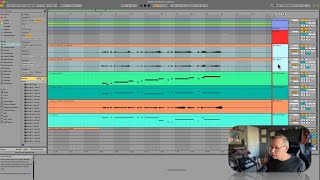
J. Anthony Allen shows how to link tracks in Ableton Live 12 so multiple takes stay in sync. Move, cut, or fade one track and the linked track follows automatically. Unlink anytime to work independently again.
Chapters
Okay, one last organizing thing is linked tracks. If you're working on something and you say, for example, this trumpet one and trumpet two, I want to make sure that those don't fall out of sync. And when I edit one of them, I want to edit the other one of them. Okay, so I'm going to move these right next to each other for the moment so we can look at them. Trumpet one, trumpet two. Okay, so what I'm going to do is I'm going to select both and then I'm going to go down here and I'm going to select link tracks. Okay, now they get a little thing there. Okay, now watch what happens if I move these tracks. If I move this one, I'm moving the other one, right? If I select something in one of those tracks, it's selecting it in both. If I cut something, it's in both. If I draw a fade in one of them, it gets drawn in both. These are linked. You can link like tons of tracks together to do stuff. You can even warp this way, which is sometimes really useful. See, it says two audio class with different warp markers are selected in two tracks. If I hit reset warp markers, it's going to get rid of them, but then it's going to let me warp these together, which can be really useful. I don't want to do that now because I've already worked these a whole bunch. I can change some settings around it. I can change the volume of both of them at the same time, the pitch, anything I need to. So linking things together that you need to stay together is a really important tool. To unlink them. I'm going to select the same two tracks and just go to unlink tracks. Okay, now they're separated. Alright, so explore linked tracks. If you ever need to keep a bunch of stuff together.