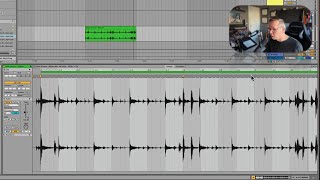
J. Anthony Allen shows how to use warp markers in Ableton Live 12 to lock drums to the grid. Each marker shifts time within a clip and can create artifacts, so you want the fewest possible. Double-click to place them on the beat, then test by raising the tempo back up.
Chapters
Okay, so what I'm going to do now is I'm going to go through, and I'm going to try to latch on to any significant beats, and then I'm going to adjust them with warp markers to make sure they're on the beat correctly. Every time I do that, it's going to live is going to kind of renegotiate what it thinks different things are, and it'll get closer and closer every time. The key to this is to remember that the more warp markers you use, the more you are degrading the sound. Okay. Every time we put a warp marker, it's asking LIVE to, like, shift time around in this clip. And the more you have, the more likely you're gonna get artifacts and weird sounds. Okay. So if you want things to sound realistic, you want as few warp markers as you need. So let's see if we can find the moment that is this beat three. Okay, so here we go. I'm going to turn off the metronome and listen. Yeah, I still believe it is this kick right there. Okay, so I'm going to take that. I'm going to make my warp marker on it, and I'm going to push it forward. Okay, now let's hear it again. Okay, so what did you hear? You heard this sounded slower, and this sounded faster because it's trying to smush all of that into that beat. So it might be that our first half is right and our second half is not. So let's find another point in the second half that we can do. Let's try to find what goes on beat four, see if we can find that. Okay. I think it's this hi hat hit right here. Now, the way I'm figuring this out is I'm just counting it. I'm counting one, two, three, four. One, two, three, four. 1. And I see that this hi hat is happening right here. If that's too hard, remember, you can slow it down. You can just use the session tempo. Slow the whole thing down, like, a lot. It's going to sound kind of weird, but it might help you locate what's supposed to go where. So I'm looking for the start of the fourth measure here. Three, four. One, two, three, four. One, two, 3, 4. One, two, 3, four. Okay, so I think it's this. Now, there's not an automatic warp marker here. Oh, there is. There is an automatic warp marker here. If there wasn't, it doesn't really matter. You can make warp markers anywhere you want. Just double click, and you'll make one. There doesn't need to be one of these gray warp markers here for you to make a warp marker. You can do whatever you want. Okay, so I'm going to pull that forward to where I think it goes, which is the start of beat four. Okay. So now what I think we're going to hear, I'm going to speed back up my tempo a little bit. What I think we're going to hear is that it's going to sound good all the way to this beat four. And then it's going to get really fast and strange at the end here. Let's find out.