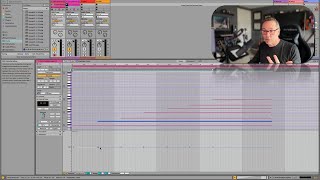
J. Anthony Allen shows how MIDI velocity controls loudness in Ableton Live 12 and walks through five editing tools: viewing the velocity lane, flattening velocities, adding deviation for subtle humanization, using ramps for gradual changes, and randomizing for extreme variation.
Chapters
Okay, let's talk about velocity and editing our velocity. Now, I know that we looked at this a little bit already in the first class in this series, but I want to go into a little bit more detail here while it's in. Well, it's in context of MIDI recording. So remember, the velocity is the volume. If I play a note really soft on my keyboard, it's going to send a low velocity and therefore play a quiet note. If I play a note really hard, it's going to play a loud note using a loud velocity. But I can change it. Let's go to this one. So let's look at one of these clips. If I go down here, I'm going to grab this little bar and make this bigger. This is my velocity. Okay, so why are they set the way they are? Because this is how I played it in. It recorded the pressure of me pushing every key and this is how I did it. Okay, So I can do a few things with this. First, I could level them out if I wanted to just flatten this. What I could do is select them all. I'm just going to click in this area and then select Command A. Okay, so they're all highlighted. So now I can grab one of them, it doesn't matter which one, and pull them down or pull them up and move them around. But if I want to just flatten them out, the fastest way to do it is just to smash them all up to the top and then pull them back down. That's going to like set them all to the top, top, top, and then you can pull them down. And now they're all even. There's not a great reason to level to flatten them off like this, especially if you want them to sound natural and human. This is going to not do that. It'll be subtle though. So I'm going to say undo. Go back to the way I naturally played it in. Now another thing I could do here is give them a variation amount. So if we go to this deviation, I'm going to select all again. And this deviation, I'm going to turn up a little bit here. So what that's going to do is each one of these is going to play within this range now. Okay. So it adds a little bit of randomness and that can add a little bit of humanization and natural sound to it. So I've been having a lot of fun with this deviation thing lately, so that it just gives it a little more expressivity. Again, very subtle, but it's, it's rather nice I can use this ramp feature just to say I'm going to turn off deviation for the moment. With this ramp. I can kind of say, start low and go high, you know, and. Or the opposite. A high start, start high, go low. I can do just kind of, you know, ramps with it. Kind of give it direction. And then, of course, if I really just want to annihilate the stuff I played in, I can just hit randomize here, and I can keep hitting it over and over, and it's going to send a random velocity to all the notes. This can be fun if you're just trying to switch things up and come up with some new ideas. So something to play with. Now, if I should have said earlier, if you don't see your velocity window here, the place to get it is down here, okay? This tiny little arrow click and then say, show velocity lane. Okay, so now that we've done that, let's go to the chance lane and play around with that for a minute.