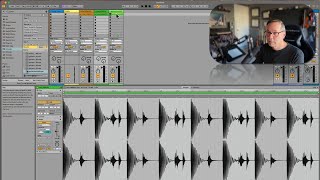
J. Anthony Allen shows how Ableton Live warps audio clips to match your project tempo. When clip tempo differs too much from session tempo, you get artifacts and unnatural stretching because the software guesses missing information. Change the global session tempo instead, not individual clip tempos, and disable warping on clips that should keep their original timing.
Chapters
Okay, this works in both Session View and Arrangement View, by the way, I'm just using Session View right now to give a little. Have a little bit fun with Session View. However, I'll switch over to Arrangement View in a minute. But this warping works completely the same both in Session View and Arrangement View. Okay, so we have our clip tempo here, this bpm, okay? We can divide it in half to half time it or X2 to double time it. Okay, so in a clip, like let's go to the guitar one, If I hit X2, it's going to sound like it's going half time. And you can hear how it starts to get a little glitchy when you do that. Right. The reason is the farther away this tempo is from your session tempo up here, the more kind of glitchy it's going to get. The more it has to stretch it out, the more artifacts that are going to get introduced. Artifacts are basically when your computer is like, guessing because there's not enough information. So when we really stretch it out, we start to get artifacts like that. Okay, so let's go back down to half, go half again. And similarly, we start to get something that sounds unnatural. Some of those artifacts that has to do with the same reason 37.9 is quite far away from 95. So either direction, the farther away we get from our session tempo, the more unnatural it's going to sound. Now, if you want to change the tempo of something here, what you want to do is not change it here. Okay? This is not a good place to change the tempo because it's going to mess up all your warping. You want to change it up here. If you want to say, I just want this track to go faster, you just change it here. And then the beauty of live is that it knows how to do the math. So if I say 1:03 bpm, it's going to play all my clips, my whole track at 103BPM. Okay. And it's going to adjust everything for me. So if you're in a situation where you're saying, I don't want live to play it at the session tempo, I want live to just to play that audio file. How I brought it in. It was perfect where it was. This happens to me, like, kind of a lot, right? So let's say this guitar thing was exactly where I wanted it. And I don't want this warping to happen for this clip, but I want warping to happen for these other clips. Okay? Then I'm gonna leave these two alone. And this one I'm gonna turn warping off. If I turn warping off, that means ignore what LIVE thinks its BPM is and ignore my session tempo and just play that clip when I tell it to play that clip. That's all it does. So to recap, the farther away your clip tempo is from your session tempo, the more kind of distorted and glitchy it's going to be. However, I will talk about something called warp modes in just a video or two. That'll help with that. And thing too that we learned in this video is if you don't want LIVE to do that, if you don't want LIVE to warp your clip, you just want that clip to play exactly how you have it. You can turn off warping here.