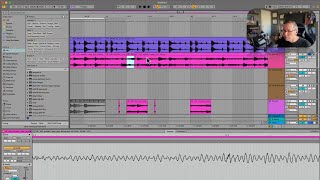
J. Anthony Allen shows how to split audio clips in Ableton Live using grid resolution and keyboard shortcuts. Use Command + E to create cut points, or delete a highlighted region to slice while keeping the rest of the audio intact. Move the pieces around to build glitchy, rhythmic edits.
Chapters
Okay. Another kind of often overlooked thing is how to split up a clip. Now, I end up spending a lot of time doing this because I like little glitchy things. So there's a few ways we can do this. One is that we can just kind of highlight something by our grid resolution, which in this case is a quarter note. So I can grab a quarter note, copy it, go to a new track, and paste it. So I can grab little things here and there. If I want to do more, I can zoom in deeper. Now I'm looking at 64th notes, so that's much finer. So that's one way is you can just highlight little bits and do it that way. But if you want to split a track, you have two options. Like, if I want to cut a little piece of this out, I could put my cursor somewhere and press command E. That's going to just kind of slice it, right? So now these are separate. And if I want to do it again, then I just cut out this little piece and I can move it around. Or I'm going to undo that one thing that I do, which is actually, like, faster in a weird way. Just delete something. Like, if I want to cut these two apart, just highlight something, delete it, and then if I just drag this back out, you won't hear that. It'll go right through it. But it's. They've been cut into two. So command E or just delete something from within it and you'll get a slice. Okay, so I could just go, command E. Command E. Command E. And just chop this up all over the place. Move these little slices around. 64th notes. This will be frantic and kind of neat, maybe. Let's hear it. I'm gonna solo just this track. Here we go. Cool. Sort of. Whatever. I'm gonna undo all that.