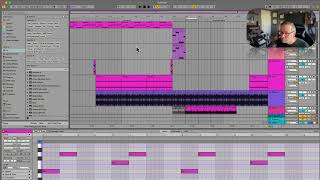
J. Anthony Allen shows how to consolidate clips in Ableton Live with Command-J, which merges multiple clips and prints effects and automation into one. Command-E splits clips. Consolidation works even with gaps between slices, creating a continuous file that's easier to copy and reposition.
Chapters
Now, if you want to rejoin them, okay, here I have all these slices all over the place. Rejoining them is super easy. We looked at this key command earlier in the other class. What we're going to do is we're going to select the whole clip, everything we want to be in one clip. And this could even go farther. I could select both of these two clips. Okay. And command J. Command J means consolidate. Now, what this is going to do is it's going to rejoin everything together, but it's also going to kind of print the track. So if there's effects, if there's warping anything like that, it's going to save it into the clip. Okay, Command J. So now it's one clip. So I often do this. This works on MIDI tracks, too. MIDI clips, too. So if I have something like there's nothing really great here. But let's say. Let's say this baseline. So this is a baseline. And let's say this base clip. I'm always going to do this twice, and so I don't want to have to copy this twice every time. I just want this to be one clip because that's the full, like, statement of this riff. Okay? So sure, I'm going to go through command J, merge them into one clip. Okay, Now I can just move this whole thing all over the place, and it's nice and easy. So command J is consolidate. That means re put it back together or put disparate things together. And command E is to break them apart. One more thing about consolidating. You can consolidate with empty space too. Like, let's say these little swoosh things. I can consolidate this and it's going to make an audio file that fills up that space. So I'm going to hit command J. Okay, so there is my swoosh, bunch of empty space and another swoosh. This could be useful if I want to put this somewhere else. And I don't want to have to find, you know, really dive in there and figure out how to line up those swooshes. This will make it a lot easier to line them up because they're lined up correct here. So if I copy and paste them somewhere else, it'll be fairly easy to do. Okay, let's talk about something that I haven't talked about yet, and that is using the finder.