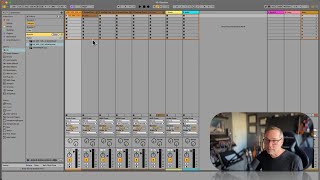
J. Anthony Allen shows how to stop clips in Ableton Live 12. The spacebar stops everything and restarts all clips when pressed again, which can be confusing. Use individual stop buttons beneath clips or tracks if you want to stop just one without restarting the rest.
Okay, this deserves special attention because it can be confusing and it can be a little frustrating. So if I play a clip, okay,
I hit the little play button on a clip. Okay? Now, to stop it, I can press
spacebar if I want. Now, this can actually be kind of problematic because sometimes you might stop something and other things will keep going.
See, I just started this clip, and my drum clip just took off. Okay? So to stop the drum clip, I'm gonna hit that. But now this one's still going, okay?
So I'm gonna go down here and hit stop down there. So here's what you should keep in mind. Spacebar will stop everything, okay? But when you restart, when you start up again, it's gonna start all the clips that were just playing. It's gonna start those playing again, too. If you want to stop a clip individually, you can hit the stop button underneath it, or actually any stop button in that track. Or if you don't see one, you always have one down here at the bottom. Or if you just want to stop everything, there is a kind of master stop everything button, and it's right here. Okay, that's just going to hit all your big stop buttons. So stop all clips. And of course, you can always hit the big stop button at the top, too, but that will function the same way that your spacebar functions. So just keep that in mind. Those are our kind of main stop buttons. They're kind of peppered all over the place in a way. It's kind of strange, but you'll get used to it, trust me. Okay, next, let's talk about the behavior of the clip slot grid here.