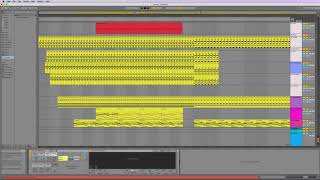
J. Anthony Allen shows you the seven main sections of Ableton Live 10's interface: Content Area, Transport, Browser, Info View, Clip View, Mixer, and Help View. He explains where each lives and how to toggle hidden panels like Instruments & Effects. The Info View gets special attention as a particularly useful feature.
Chapters
All right, everyone, up next, let's talk about the main navigation of Live. So what that means is we're going to look through all the different areas of the program in this section and kind of show you how to get around what's what and why. You need each of those things. There's not a lot that changes in Live over the years. It's actually really kind of fascinating. There are very few windows that have come up that have been added to Live since they first launched it. The Live version one looks pretty similar to this. Well, to this, because Arrangement View didn't get added until later. But in terms of the browser window, the clip window, all this stuff looked pre pretty similar. They don't change it very often. I don't know if that's bad or good, but I think it's kind of good. I think it means that everything that's here really needs to be here, and nothing that isn't here doesn't need to be here. So there are kind of seven main areas that we're gonna see here. We have our main content area. I'm gonna call this the content area for now. We have our transport area up here. We have our browser area over here. We have our info view down here. We have our clip view down here. Also down here, kind of hidden away, is our effects view. So instruments and effects. So this is the clip view. And. And if I hit this little tab over here, then this is our instruments and effects. So this area fills two things. Okay, right there. And I'll show you a trick for getting through those really quickly. We have our mixer view up here. This is really part of our content area, but it is worth a little extra pointing out. And then we have something called the Help view, which is hidden right now. Help view, it's this over here. So we'll talk about that in just a minute. So let's dive in, and let's start with InfoView, this little box down here, because it is a lifesaver.