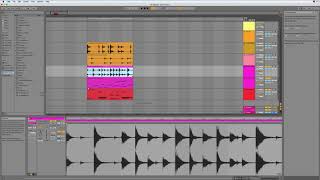
J. Anthony Allen shows how to clean up a beat in Ableton Live 10 using shift-click deletion and one-bar loops, then adds a MIDI track to layer in synths. He skips the deep parameter stuff and focuses on the practical workflow: loop management, track creation, and getting ready to play.
Chapters
Okay, in this section, we're going to talk about using Live's synths. So we're going to look at some of the different synths in live. We're not going to comprehensively go through how to use every single synth in live and every instrument in Live, but we are going to do that in the next class. The next class is all about the instruments in Lives in Live. The synthesizers and the samplers, all the instruments. But in this section, what I want to do is talk about in general, how we can make some music using them. Right. Without going into every nitty gritty dial. Just like, how can we rock out using them? So what I'm gonna do, I think, in this section is I'm gonna continue using this beat that I made because it's messy and it's dense, but I'm kind of into it. So I'm gonna delete all this stuff. That was a shift click and then just delete. Key, key. I'm going to take this. Make sure all of these are set to loop. So I'm looking down here. That one is not. So let's turn on loop there. Now I'm just going to drag this out a little ways. See, this one is tricky because it's got all this extra stuff that I recorded. So let's just. Let's set the loop to be just this bar. So command L. That should keep us to just a loop. Yeah. Before we were. We had all this other stuff out here that I didn't really want. So I just looped this section. Okay. And now these I'm going to pull out. I just want. Oops. This one. The loop is also not what I want. So what I want here is. I think I wanted the loop to be just one bar, but let's try setting it to. Well, let's do just one bar. So I want just this to loop, actually just this command L. Now we see this all shaped up. Same deal here. That looks good. And here. That looks good. Okay, so now we've got a longer pattern I can work with. So now I'm going to layer some stuff down here. So let's add a new MIDI track. That's Command shift T. Give me a new MIDI track. And then let's explore putting some instruments on it. So here we go. Let's go to a new video and dive into doing that.