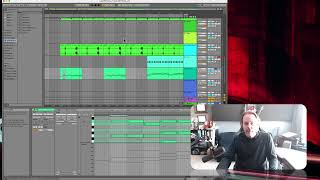
J. Anthony Allen shows how to automate parameters in Ableton Live by pressing A to enter automation mode, then clicking to create breakpoints and dragging them to shape how any dial, knob, or toggle changes over time. Pink lines show active automation, and you can add unlimited points to create movement and life in a track.
Chapters
Okay, so automation, this is something that is probably the biggest tool that we have to really bring a track to life. So far what we've done is we've placed little nuggets of music all over the place. We have audio files, audio clips, we have MIDI clips, we have instruments and we can play them or not play them. But what we really want to be able to do is finesse what's happening, right? And the way we do that is automation. So automation by its strictest definition is changing something over time. Okay, super simple. So let's say I have a, an effect like a delay. And I want that delay to turn up over time, right? Like as the track goes on, I want that delay to get, to get more and more and more and just build up and build up and build up till there's this big cacophony of delay. The way we would do that is with automation, we would set the point at the beginning of the track to be no delay and the end of the track to be all the delay. And then we would draw a line and say turn that delay up over the course of the whole track or whatever we're doing. That's kind of an extreme example, but that's how automation works. In most programs you can automate just about everything. Anything that's a dial or a knob or even a toggle, like an on off can be automated. You can set that to turn on or off at certain points. And the way automation works is almost always with something called breakpoints. Okay, so let me show you. Let me just go to this. This is that little clap from before. And let's just loop it. Okay, so if I turn on automation and in live you do this with the letter A. So I'm going to press A. And now my screen changes and looks a little weird. But you see these kind of pinkish colored lines all over the place. These are automation lines. So I'm going to click a parameter on this track. I'm going to click volume. Okay? So now here's my volume. And now I get a little pink line. It's dotted. If it's dotted, that means there's no automation on it. It's just sitting there. So that's my volume. It's cool. But as soon as I put a point on it or a break point, it's going to become a solid line. So I'm going to put a point right there and double click. Oops, single click and make a point there. Okay, now if I move that point by clicking and dragging it My volume goes up and down. You can see over here, my volume going up and down as well. Okay, you can also see over here that there's a little square, a little pink, kind of pink colored square right there. Also, wherever you see those little pink squares on something, that means that that parameter is automated. We have automation written for that parameter, which is important because at some point you might lose track of why something is changing over time. And then you'll be able to see, oh, I put in automation for that. Okay, so let's pull this all the way down to zero and then let's make another point and pull it all the way up. Maybe not all the way up, but all the way up to where it was. So right about there. Okay. Now this particular automation line is affecting our volume. Okay. So that means this is going to slowly turn up in volume. Okay. And then it's going to stay up all the rest of the track. Now if I want to finesse this line a little bit more, I can make another point on it and you know, do something like this. If I want it to kind of arc in, I can actually, if I want to get rid of a point, you can double click on it to get rid of it. In some programs they'll let you do kind of arched lines like this. In live you have to hold option on the line to do that, but now it'll kind of ramp in a little smoother. It's cool. I can make more points if I wanted to do this, have it drop out, do something fast. You can make as many points as you want. There is no limit. So if I just wanted to frantically jump around, I can do that. Here we go. Cool. So each one of these little points kind of is like an anchor. So you set the point where you want and it's going to automatically draw a line between the two points. You can make as many points as you want. All automation works this way, but we can do it on any parameter. So let's go to a new video and figure out how we would add this to another parameter.