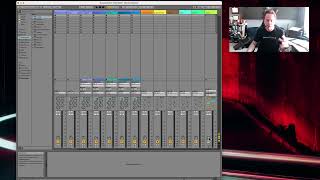
J. Anthony Allen shows how to use Ableton Live's mixer to adjust track volume, pan stereo, mute and solo tracks, and arm recordings. The record button turns red when ready, but pressing global record without arming a track captures nothing. These core controls work the same way in every DAW.
Chapters
The mixer section for me is over here. You might also have it on the bottom. And you might have to open this in a different window. So if you go in your program, if you go up to the menu that says view and then select Mixer, you can see the mixer. I have a few different ways I can look at the mixer in live. I can look at it like this over here, or I can press the tab key and then look at it in a way that might look more like how it looks in the other programs. So I'm going to stay on this view because most of you are probably seeing something that looks like this. Now, there are a few things in the mixer section that all mixers have. The first is the ability to control the volume for that track. Okay, so let's look at this one. Okay, so I can turn it up, I can turn it down. Okay, so I can control the volume of it. The other thing that is common in just about every mixer section is panning. Okay? Panning means the left to right balance. We always, almost always working with two speakers. Okay, so you have one on the left side and one on the right side. The reason we do that is because we have two ears, one on the left side and one on the right side. We want to kind of emulate that. So with this knob, which is called panning, we can decide how much of the sound goes to the left speaker and how much to the right speaker. When it's straight up, that means the sound is going equally to both speakers. Okay, so if I push this to the left, we're gonna hear it move to the left side. If I push it to the right, we're gonna hear it move to the right side. Now, if that was backwards for you, my camera does a weird mirror imaging thing. So I'm not sure if that's going the right direction, but to me, that's left and that's right. So let me demonstrate that by going over to the master channel, which is another thing that all mixers will have a master. This is the last thing. This is a composite of all of our tracks go here. Okay, so this is everything. So if I go all the way left. Now it should all the way be in your left speaker only. You should hear nothing out of your right speaker except my voice. Let's send it over to the right. Now it's all the way. Okay, now it's both. If you didn't hear that panning, it could be because of the way this video is compressed. Sometimes the panning doesn't come with it. And they just get rid of the panning and the video compression. It's weird, but you can see in the meter here, see two signals. Now you only see the left signal. Now you only see the right signal, so you can tell it's working okay. Another thing that is common in all mixer sections is a mute. Mute means turn this track off. So for me, it's this big yellow button in live, so I can say, mute this one. So now you can see it kind of got grayed out and we're not hearing this anymore. I can mute a whole bunch of stuff, commute all the drums. Okay, now all the drums are gone. So you can unmute them by turning them back on. Now we have drums. We also have solo. That's the S For me, solo means mute everything else except this track. Okay, so for listening the whole thing, and I say solo, we're just going to hear this kick drum, right? I can see what's on this. It's here. Turn it up. So solo mutes everything except what we are currently hearing or except what we've selected solo on. And then the last thing that almost all mixers will have on each track is a record button. This means ARM to record. It doesn't mean start recording. So what these always mean is if I press record on one of these, it'll turn red. Red is like the universal color for record. So it'll turn red, and then it'll wait for me to press the big record button up here. And when I do, it will start recording on that track that I've said to record to. So we call this ARM to record, meaning when I start recording, we're going to record on that track. If I don't select, if I don't press that button on any track and I just hit record, it's going, but it's not recording anywhere. There's no track that was actually just recording. So you'll find those controls in every mixer on any program. They might look a little different, but all of those things are going to be in all of the programs.