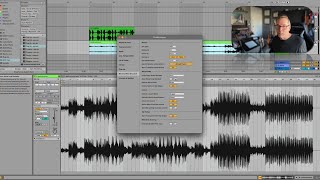
In this tutorial segment, J. Anthony Allen demonstrates how to import a complete student track into Ableton Live and manage the software’s automatic warping behavior. He walks through the relevant Live preferences—auto‑warp long samples, auto‑warp short samples, and default warp mode—explaining when to enable or disable each option, especially for mastering projects where warping may be undesirable. After loading the track, Allen inspects the automatically generated warp markers, uses visual cues (absence of initial silence, waveform section alignment) to hypothesize that the warp is correct, and then validates his assessment by turning on the metronome and listening to the track’s start. The segment blends practical UI navigation with auditory verification techniques for reliable full‑track warping.
Chapters
Okay, I'm gonna pull in a whole finished track. Okay, this is a. This is a student of mine, his track. I don't think he'll mind me using it. Okay. So I'm just gonna drop this right into my session solo, this track. Okay, now you see how it took a second before it was enabled. Now, that was live doing its analysis. So you can see this is a full track. And all of these little tiny ticks here, those are the warp markers where it says, something's going on. So this is going to be a tricky one. Now, the first thing that I want to tell you about warping hole tracks is that there's. There is a setting in live. If we go to our preferences and we go to record warp and launch warp settings, there is auto warp long samples on. You can turn that off. You would turn this off. If you're constantly loading in whole tracks or like long things, whole tracks, and you don't want it to warp them, you can turn that off. And then it's just going to open this, a track like this, and it's not going to warp it for you. That's actually, like, kind of beneficial sometimes, because most of the time if I'm loading in a whole track, it's to do a mastering project or something like that where I don't want warping on, but I'm gonna leave it on for now. You can also do this. Where you can say warp short samples. And I always leave that set to auto. But there are some controls for that. You can say default warp mode beats. You can adjust that here, too. But let's go back. So it warped this automatically. Now, is this correct? Did it warp it correctly without even listening to it? I'm going to take a guess and say that. Surprisingly, I think it did. And here's my clue. My clue is that there's no silence at the beginning. I see a new section here. Like, the waveform changes here, and it's pretty much right on. Same thing here and same thing here. Like, I see things happening right where they're supposed to happen. Kind of like sections are lining up. So I think this actually warped pretty well. So I'm going to turn on the metronome and listen to the beginning of it. Okay, so so far it sounds right on.