Notion Productivity Workshop
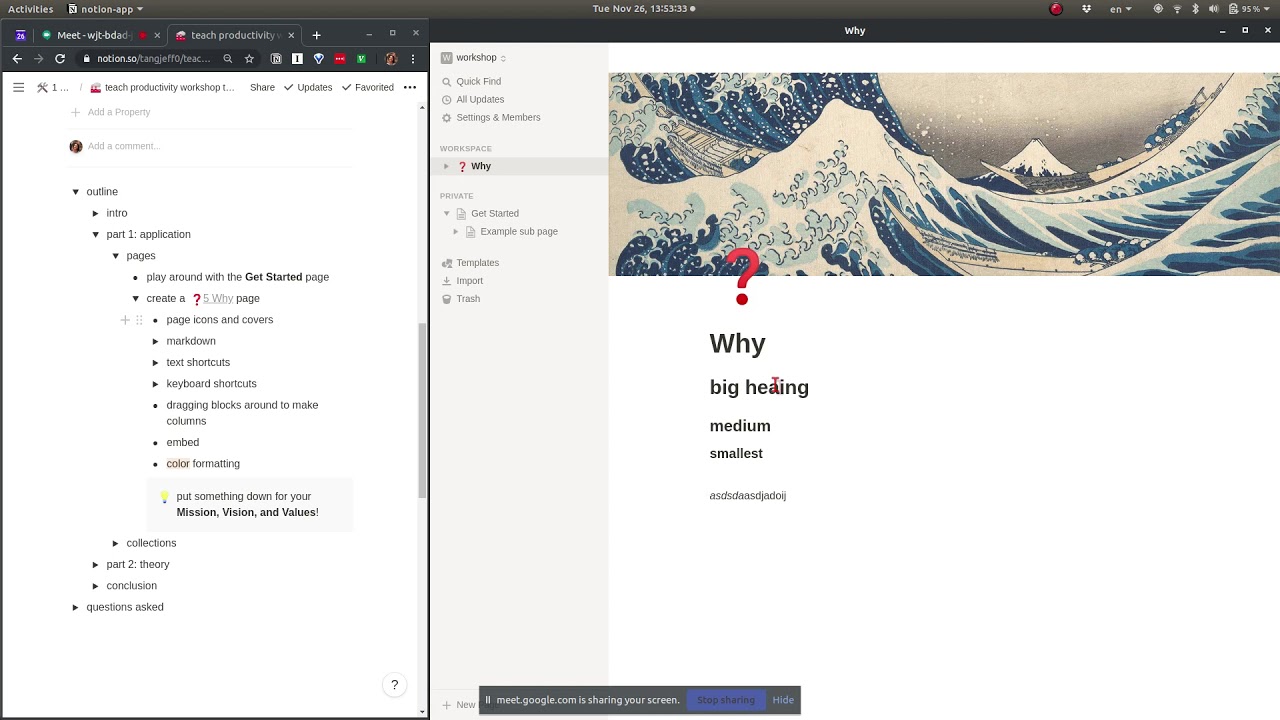
In this two‑hour live workshop the presenter walks participants through building a personal productivity system in Notion from scratch. After brief introductions, he demonstrates the basic Notion UI (account creation, desktop/mobile apps, Chrome extension) and explains the block‑based architecture, keyboard shortcuts, and markdown‑style formatting. Participants create a new workspace, a private “Get Started” page, and then a “Why” page to capture purpose, mission, and values. The session then dives into Notion’s databases: creating an Inbox table (GTD capture), a Goals board (Kanban view with status and type properties), and using relations, rollups, and templates to break projects into tasks. He shows how to build a master Notebook for habit tracking, tables for shopping lists, and a Content library that aggregates articles, videos, books, etc., using multi‑select tags. A central Tags gallery ties together all items via relations, illustrating his CDE (Convergence‑Divergence‑Emergence) framework that unifies action and knowledge management. The presenter compares classic productivity systems (David Allen’s GTD, Tiago Forte’s PARA) and argues that Notion uniquely supports both. He then explores emerging “second‑brain” tools (Roam, TiddlyWiki, Memex concepts) and futuristic interfaces (XR, HoloLens, intent‑driven UI) as the next evolution of work. The workshop ends with a Q&A, encouragement to iterate the system, and a promise to share the recording.
Chapters
Great. That was an awesome intro, Dino. Thanks for letting me stay in your room. And I— yeah, I sleep very well knowing that you also sleep in this bed. So let's see. Terry is also here. I'll do introductions for Terry and Nikita. Hi. And then we'll let Pranav go. So Terry is a friend of Nikita's. He is a software engineer/data scientist, I think, at what? I mean, I forget the name. TrustToken? Yeah, TrustToken. Yes, which is just a crypto stablecoin. And let's see, Nikita is a data scientist at Haystack, which is a startup. Doing e-commerce stuff. And yeah, Nikita also went to Horizons along with me, Andross Haytham, and Andross. Yeah. So Pranav, are you there? Hey, Pranav. We were just doing introductions. You— thanks for joining us. You're the last one. So if you could just kind of talk about who you are, how you know me, and why you're interested in this workshop. That'd be great. Thanks. Thanks. Awesome. Yeah, thanks guys. So we'll start getting into the meat of this workshop now that we've got the presentations over. So I'm going to share my screen and you guys are free to share your screen as well or just share your video. Just to keep this like pretty human and interactive. But yeah, let's all pull it up together, the, the Notion page I shared with you. And it's also linked to in the group chat of this Google Meet. And yeah, let's see. I should be presenting now. Yep. Let me pull this guy up right here. Wow, look at that sick effect. Yeah, so Notion, let me just get into this. This is a Notion page right here. And yeah, this is a Notion page and basically it looks like a normal note-taking app. We already did this. So if you open that link, you can drop down, click on these toggles. And first, you know, create an account, download the desktop application. This is optional. Download the mobile app. It's on iOS and Android and download the Chrome extension. Definitely. Um, Do these first three. You need an account. The app is pretty crucial, and the Chrome extension is pretty important too. Desktop application also recommended, but not necessary. It's just a it's just a web application at the end of day. So this is a note-taking app, and we can just jump straight into this. So the structure of this workshop will be with an application-based approach. So doing exercises, getting your hands dirty. So it doesn't have to be so abstract. And then we can dive deeper into the theory if you guys are interested in some of it. It's super important to know, but some of it is also just like nice to know and gives you more context on what productivity is and how I think about it. So yeah, let's just get started first. Let's all create a workspace, create a new one. If you already have one, that's fine. We'll create a new one just for the sake of this. So I've got both a Notion open in my browser as well as a web application, and you can create a new workspace right here. So for this one, we'll just say this is a workshop. And yeah, everyone just like can follow along. If it's too fast, you have questions, feel free to Interrupt or ask, no big deal. And yeah, if— keep in mind, some people, yeah, they haven't used Notion before. Some people have used it a good amount for work. So everyone's kind of at a different level, but this workshop is going to assume you don't have much experience at all. If you do, that's fine. Just, you know, play around more. So we're— we created a new workspace. And we've got this get started page. You can play around with it, mess around. It's just like a note-taking app. You can mess around and click on these checkboxes. They've got a GIF. You can drag things around, which is cool. You can right-click, delete it. You can type slash for slash commands. Looks like you have a lot of different commands and options. Whoops, go back. So there's a bunch of keyboard shortcuts. I'll get to those later on. Not all of them are as important. Some of them are pretty good though. And then you can create subpages inside a subpage. So make this a little bit bigger. You can click on this double arrow, pop it open, or you can— if you just hover over, you'll see you can use the keyboard command Control and the forward slash just to keep it open. Keep it open right now just to show you kind of architecture of this workspace. So we've got a private get started page that they generated for us. We've got a workspace. And if you look at this get started page, you'll see that there's an arrow on the left. You can click on that and you can see that the example subpage is there. So we've got example subpage both in the page itself as well as in this dropdown arrow. And this is a pretty powerful idea. Basically, you're just nesting pages within pages so that a page is both its own file, but it's also its own folder from like your desktop. Now if we click on the example subpage, we can see that there's no page inside. But if we click on it and then we say create a page, then we've created a third subpage, sub-subpage, and you can see it's nested. We can click here to go back up. We can click Get Started to go back up. And yeah, the power of nesting pages within pages is pretty powerful, and you'll see this pattern continue to appear again. So the first thing we'll do after playing around with this Get Started page is create a Why page. Now the Get Started page is in the private section. But I like to use the workspace. It's just a little more easier to use. So we can create a Y page. So if you hover over, you can see that only you can access these pages. They're private. And a workspace, anyone in the workspace could access it. So this is kind of assuming you're in a company or like an organization where multiple people use it. And it's, I forget how exactly, but workspace is just a little more fluid. But if it's just using this yourself, then just use the workspace because no one else is gonna be able to look at it anyways. But say like if we're working at a company, we can all have workspace for like company docs, like our, our work boards or whatever. But private will just be your private notes that no one else will be able to see. So Notion's pretty nice because it's super user-friendly. The design is a big part of it. There's a lot of designers there. And you can add emojis, you can add images, and it just makes it really nice and personal. You can get your images from NASA, museums, etc. And you can add emojis, whatever you like. Just a random one. So we'll start off with a why page, and you don't need to figure out what your purpose in life is yet, but You know, it's something you should probably figure out someday, or at least it's something you should work on every day. I do at the very least. And, you know, we could say it's for a company. You know, we can put it in this company as well. Just like, why does this company exist? What is its purpose? We can get to that later when we go back to my actual workspace. But in general, it's probably just to, you know, make an impact. It's the same thing. But it's something that I do ask every day. When I wake up just to like really figure out, because it is different every day and it's not an endpoint, it's a process. So we can look, and if any of you guys are developers, then you probably use Markdown before. A hashtag creates a big heading, a hashtag creates a smaller one, a medium one, and then 3 creates the smallest. You can use an asterisk. And it'll automatically italicize it. Italics. If you do 2, you'll do bold. Strikethrough. So very smooth editing experience, just like Markdown. Yeah, you can do code snippets too if you like to code. Now there are text shortcuts, and all of those text shortcuts were essentially the Markdown just being converted to a nice format. But there are other ones too that are not necessarily strictly Markdown. So you can do the greater than sign to create a toggle, and then you can press Ctrl+Enter to open and close it. This is good if you have a ton of information you want to hide it. I mean, that's basically the exact structure of my outline, just a bunch of toggles. You can do checkboxes, which are really nice when you have to do things. Task 1. And you can again press Ctrl or Enter to toggle it. Just a nice little shortcut. Quotes. Bullet lists. You can use a hyphen or you can use an asterisk. That's pretty much Markdown behavior. And ordered lists. So 1, 2, 3, 4. 1, 2, 3, 4. And it will auto-order them for you. Oh, don't want that. Control Z works, of course. So move on to some other shortcuts. Control Shift 1, uh, that's a quote. Yeah, it's all there. So I'm gonna move fast. Yeah, you guys have this as reference to always look back at. And Ctrl+Shift+1, 2, 3, 4, 5, 6, 7, 8, 9 is pretty useful. Just another way to format things and convert them between one another. Yeah, shortcuts are nice. So you can open the side drawer with Ctrl+Backslash and And then Ctrl+/ to do a menu. This is just another way to do some Notion operations. You can do the normal formatting stuff. So you can just convert that into other types of lists. Lists. But there's other things too as well. So like there's an embed command and I can embed images. Let's see. This guy right here. And see, Ctrl+Enter to toggle, Ctrl+Bracket left and right to go forward and backwards. So this is nice if you go to a bunch of pages. If I click on a private and then I want to go back to where I was before, yeah, you can just do Ctrl+Open Bracket, Ctrl+Left Bracket, Right Bracket, Left Bracket, Right Bracket. Basically just like a browser. Right. You just go back and forth. Shift+Enter, it's useful when you want to create a new item or you want to create a new line but you don't want to create a new item in a list. So this is just like description. Normally if you press Enter, it'll create a new item. What do you mean? I don't know what you mean. But yeah, so that'll exit. But say if you want to have just information below, so info about 6, you could press Shift+Enter. And basically everything in Notion is a block. If it has this like plus sign and the dots, it's a block. You can move it around. You can play with it. It is the fundamental like primitive of Notion. It's a block. But if you want to create a new, new line without creating a new block, you press Shift+Enter. And so you can drag around blocks and stuff to play around with them. And that's just, again, more formatting stuff that you wouldn't get with native Markdown. You can create columns, very smooth, and you can also resize them as you would like. Just very friendly, very minimal formatting. And then you can do color formatting as well. So I can highlight this. I can add color. So I can just click it or I can just do highlight and then, well, I can just, yeah, I could do highlight this, press Ctrl+Backslash, and then just look up a color. Very easily. So now that we got that all done, I would ask you guys to put something down for your why page. Usually it's something along the lines of like a mission, a vision, and about values. You know, that's pretty corporate, but that's just like a place to get started for like why you, why you get up in the morning. Kind of important. Don't expect to have an answer right now, but it's just, it's again, it's more of a question than an answer. And don't really need any of this stuff right now, but I can just create a scratch thing right here, highlight all this, and just drop it down into that. And I don't have to— oh, didn't get this, but I can just throw it all in this toggle. It's all there waiting for me. Don't have to throw it away, but can still have it as a reference without having it just be super ugly and take up a bunch of space. To be— Cool. So yeah, colors are not super important to me. It's really good for visual people. Notion is really good because it can work for visual people. It can also work for pretty data-oriented numbers people. I'm slightly more in the latter. We'll get to some of the numbers now, actually. So We've created our first page. Congratulations. Now we're gonna move on to collections, which is what I consider the actual powerful part of Notion. It's, you know, it's nice to look good, but functionality is more important to me. So we'll create an inbox table. Now you can do that right here with add a page and create an icon. So. And do a search. Right now we're creating our very first collection. So you see we have the different types of pages you can create. I do recommend looking at templates when you have time. I'll get to that later too. But we can create a database, and there's 5 different types of databases. They're all the same under the hood. We'll create a database table because that's like kind of the most classic one, and Yeah, this is different than a page, right? This is, this is like kind of Excel sheets looking like. And basically Nikita and Nick already know this, but an inbox is kind of one of the first recommendations of the Getting Things Done system. I'll dive deeper into the frameworks later on, but an inbox is basically like, I mean, exactly what it sounds like. It's you put in anything that you think of on the spot and it's just a place to dump your ideas and You know, oh, I have to do grocery, I have to buy groceries for Thanksgiving. Oh, I want stuffing. Just like add all that stuff here and then organize it later because you just need to get it somewhere so you don't forget. And right now I'll show you what that looks like in the mobile app. Let's see here. And this is why it's like pretty important to have the mobile app because— Because— All right, what's up? All right, yeah, so if you guys have the mobile app, I would recommend you take A minute right now and try to create a new page in your inbox just so you can have— what's up? You create a page within the inbox. You create a page within the inbox so it automatically gets sent to this table. And so while you guys create your first inbox item in your mobile app, I'll just like talk out loud. If you look at the table, there's also a tags column and a files column. Basically each table has multiple kinds of columns with data, different data types. Like you could do just text, you could do a number, you could do, yeah, like a file. You don't really need any of that for Inbox because it's super raw. You just throw in raw material. You don't try to think about categorizing it. It'll go somewhere else eventually. So I would guess it's React Native, but the caveat to that mobile app is that it's really like one of the worst mobile apps. It's just like— What's the name of it? The app is super, super trash, and that's definitely the worst part about Notion. It's, and so, so it's, it's really slow. And particularly with like typing text, sometimes if you're writing and you don't have like good reception, then if you don't have a strong network connection, then it'll lag behind so that like while you're typing, it'll like add random characters. Because it's like trying to autocorrect and it doesn't really have like an offline ex— like if it's offline, you have to press the new, the new page like twice to add something to the inbox. So overall, both the desktop as well as the mobile application are very, very slow and the offline experience is not great, which is not ideal if you're just trying to like put stuff in the inbox. That being said, their top priority right now is performance, just optimizing speed and page rendering and editing. And that is taking prioritization over new features, such as just cooler features and an API. So I think they've realized that and they are trying to optimize just performance and offline stuff and mobile experience. Cool. But it is a team of 15 people. Which is pretty unreal if you think about how much this app is blowing up right now. Yeah, it it it does yeah it does get saved so there is like a cache somehow like basically it'll remember that you made the page offline and then it will be uploaded. To the cloud, like once you do have service. Yeah, it's good questions. So off not to my inbox, but we will get there soon. We created a table called inbox, so. Yeah, there's, there's a difference between a table and a page. A page is like our Y page, which has Markdown. It has just like bold stuff, like a bunch of text, and it has blocks that you can drag and drop around. A table, on the other hand, doesn't allow you to just like write text wherever you want. It has to be basically in the format of a Google Sheet or like an Excel sheet. You have rows and columns, and within these entries we can open it and then we can like modify the content within. Um, Oh, I mean— Yeah, thanks, Nathan. So yeah, within the table you can modify entries. And then like the content within here is a page. So you can have like a startup idea, which is something like, you know, VR Tinder. And then we can write like, you know, like customer hypothesis. Like people really hate getting rejected in real life, but they also want, you know, a more human experience. And that's, you know, a hypothesis about this random startup idea. So we can add a bunch of stuff. Again, we can upload images, videos. But it's nice that you can have kind of a separation of an idea, like an entry, and then like a bunch of qualitative like text about it later on. So you can kind of like have structured data when you look at the table. With a bunch of similar points of data, but then you can also go deeper. It's a drill down essentially. All right. So yeah, we're gonna move on to the inbox. Or sorry, we're gonna move on to the goals board. And if we create an inbox, sorry, if we create a new page or we press a plus, add a page, and then we can see that there is a board. This is the second type. of database. We press that. We've got a Kanban board. And if you've ever used Trello, then you'll be pretty familiar with something like this. If you've done Agile Scrum, this is basically like you move from left to right in terms of like the progress that you're doing for any work. And add emoji here. So the reason why the board is really nice is that you can just see how things flow. It's not just like a table, which doesn't have a lot of inherent meaning to it. It's just a bunch of data. This gives us like kind of a spatial representation, things flowing from left to right. And you're kind of gamified. You're like, okay, I wanna move this stuff over to the right. So we can add a new view. And remember how I said they're all the same thing? They're all databases. You can create a table as well, which is basically what we just had in the inbox, but it's, yeah, I mean, it's just a different view. And so actually whether it's a board or it's a table, it's actually the same data under the hood. The table is nice because you can see all the columns and then you can see just everything in a flat manner. But yeah, I mean, each view has different pros and cons and we'll get to the rest of them later on. So, and you'll see what they are as we play with it more. So the status is like, you know, the progress. And personally for me, some people like, you know, this not started, in progress, completed thing. Some people like to do for not started. They like doing for in progress. And then for completed, they like done. But most of my like goals and projects, they take, you know, a few weeks at minimum. And so if you just use the in progress, it's not granular enough because everything is just gonna be in progress cuz it takes a while to get things done. So yeah, I actually do something like percentages and you guys can choose, decide for yourself what statuses work for you. But I kind of have it to the point where I'm just like, okay, you know, is it at the beginning? Is it at the middle? Is it at the end? And like, have I started or not? And so yeah, you can just like that add the different options for a select property. And the select just means it has to be one category. And so it's super nifty if you just have, you know, categories like labels, like the status of how much work is being done. And so like we can play around with this stuff now and see like what that would look like. Yeah. So if I were one of you guys, just like create a project. Actually, I don't, don't like, actually no, don't do that yet. That'll be a lot of, it'll be confusing if you start right now. So we're just gonna keep on modifying the table so that we can just add more columns and see like what else we can do here. Another type of thing I do on my goals board is I talk about the type of work it is. I put all my goals and projects in the same place. And this is kind of like a design choice. All you guys can do something different. I'm just gonna show you how I do it. But basically to me, the goals board is where I put all work with a defined outcome. Like, oh, we want, you know, X people to buy this or download this app and it requires some input. So it's very actionable. And we can add a description here. It says it's action-oriented. Tasks, projects, goals all require input action and have a desired outcome. Now that means that I can have a big project like create a chatbot, or which is at 0%. And that's like a project. Or I could have a small task like buy groceries, and that would be more of a task. I'm not like super anal about like having every field filled because like sometimes that can be tedious. It's just like just enough, just like do it when you can, when you're bored, or if it's— if it seems like it would be useful to like categorize it at the time and place. And a goal would be just like do Like 10 muscle-ups. And that's like kind of more of a goal. And I kind of just like how I have all of these in the same place. And later on, we can add filters that we only have— see, type is goal. So then we just have goals being viewed. And You know, that's not useful now, but like say if I had a bunch of goals, you know, like do a front flip, then it would be useful to just keep that all separate from my projects and tasks. You know, like do a goal would be like, well, see, and now like I wanted to say like write a book, but it's like kind of hard to say like where the distinction is between like a goal and a project. Which is why I keep all everything in the same place because there really is not like a hard line between a goal and a book, like writing a book. Sorry, a goal and a project. So right now we have two properties here: status and type. We're going to create another column, and this is one of Notion's most powerful features on top of tables. Like tables is one of Notion's most powerful features. And it's powerful for a lot of reasons. And one of them is because of this right here, I'm about to show you, which is the relation property. So you can select a different database. And this is showing like different databases from my other workspaces, but let's just pick Goals itself. So as it turns out, you can create relations on tables by themselves, like on a table on itself, which is, um, basically a relation. Like, not everyone here is a programmer, but it's basically a SQL join, or even just like, you know, a data person. But basically you can join tables like a SQL table, and you can have information from different tables all be rendered at the same time because sometimes You— it makes sense to keep it in 2 different tables. But what Notion does is you can also create a relation on itself. And this is super useful when you have a complex project with multiple tasks underneath it. And that's because you want to break down a project into like a bunch of small manageable parts and then assign them to different people or to like different days. Of assignment, like when it's due. And what's more is you can create a, you can create templates in Notion. So with this like little blue thing, if you click on that little right arrow, you can create a new template. And a template is just like a default page within a table. And it gives you just, it lets you give the default settings and information that you would ever want for whatever you— it is you want to template. And so for me, like I have, I like to do project management. I like to break down my projects into a lot of tasks, but how do I actually like visualize all my tasks for a certain project? That's like where you can use embedded views, which is another feature of Notion. So I'll show you right here. You can link to pages. Yeah. So you go up to the blue and you click on the right arrow, the small little arrow, not the new button. And then you can just add a new template here. You can edit, you have to edit it by clicking on the 3 buttons. You can't click on it itself or else you'll just create a new instance. Rather, you want to edit the template. Template itself. So you can use slash, remember we have slash commands, and then you can link. You can create a linked database actually. And so again, you can link a, a board basically to itself. And now we have goals right in this page, but we also have goals in the background. And let's say we want to Well, let's say we create a board and again, it's, we want to create that nice Kanban board flow as we move things from left to right. And let's see here. We want to, right now it's telling us if it's a task, a project, or a goal, but really what we're interested in is grouping it by the progress. Because we're looking at a project. And so we can click on these 3 little buttons, press Group By, and instead of Type, we can do Status to see like how far something has come along. Now at this point, it's probably a pretty solid template. If we rename this to Kanban, and we can use this template to create a new Let's see. So let's take this off. We can create this template to like break down our project. So we have create a chatbot here. I'm going to delete this create a chatbot, and then I'm going to use that as an example. So if I clicked on project template, I could say create a chatbot. And we could say that this is like the parent of all the other tasks. Like this is the project. And so then we can Go to Kanban and we see we've got all these different tasks we want to work on. Create a chatbot is at 0%. You can see it updates it right here to 0%. I don't really care about this other stuff though. It's not super relevant. But what I can do is create a filter that shows only the tasks that have create a chatbot as its parent. So it sounds a little vague or abstract, but you'll see what I mean shortly. So create a chatbot, we can make this parent itself. You know, maybe that's not technically true, but yeah, if we say its parent is create a chatbot, then we'll see that create a chatbot is visualized and nothing else is because nothing else is related to creating a chatbot. But now if we create new tasks, It'll automatically add that to the view. So create a shop buy would be like, you know, pick a coding language or like find or like figure out a target market. Let's see, like talk to investors. So we've created a bunch of tasks. You can see right here, it doesn't say they're tasks, but you know they are tasks. And then we could see that they all actually have the same parent, and the parent is the Create a Chatbot project. And yeah, that's kind of a lot, but. Does that make sense? Why is it automatically create a chatbot? Yeah. So basically the filter does, because the filter says create a chatbot. That means anything that has like the filter or anything that you create, any new thing you create will automatically have all the filters that are present at that time. And so that's like a really kind of fast way to create a bunch, to add a bunch of properties. Okay. To a board or a database entry. So like rather than having to have something else here, like, you know, like do some social media marketing and then having to click here and say like create a chatbot. This table doesn't have any filters. So like it just shows everything. But if instead I went to this view that already has a filter, it's going to assume any new entries automatically have all of the filter properties there. So basically the filter automatically adds those properties. Cool. Um, yeah, does anyone have any other questions? Cool. Sure. So you could— what? This is being recorded, yeah. Yeah, yeah. Okay, so yeah. I mean, that's a good point, Andross. So— I mean, basically you can do slash and then you can do link, create link database, and then you pick one and then you have to add like a view. But yeah, for any other future questions like how I did something, just like we can ask that later just so we keep on moving forward. Or we don't have that much time and like you can watch the recording later on. It is being recorded. Yeah. Cool. So What I would do now is just like list one of your current projects using a project template with, you know, one of those boards and yeah, just try to break down a project into a bunch of tasks the same way I did. It can be a current project that you're working on now, or it can be like just an idea you have for a nice little side project. It could be, you know, business, it could be a startup, it could just be fun. Like, You know, like fix up the backyard by adding some plants, you know, adding like a succulent, whatever. And we'll just take like a minute here. Yeah, we will get to habits later on. As well as like, I mean, we can get to a lot of stuff and a lot of that's in the theory, but it's just like, yeah, like what, how do you define a good habit? How do you define a good goal? A lot of these goals I've written are actually not good goals. In terms of like being defined with a date. So like, yeah, I'll actually just add some other things that I might find useful to my actual goals board. It's nice. You should almost always have a date for your projects and goals, not because it's actually important, but be— because like the date matters unless it's like there's a deadline, but because it makes you accountable to yourself. Also, if you pick a date, then The application will remind you if you have a mobile app or a desktop app, it will actually send you a notification, like a push notification, which is super useful. And yep, I mean, it's kind of like the planning thing of just like planning is everything, but it's really nothing at all because it's more just like the process of thinking, oh, this might take a week. And then you like 10 weeks later, you're like, wow, I really underestimated that. That's just good for you to know. And this is just like more productivity stuff, I would say. But we can get to that later on. All right. So I'm trying to think. So yeah, there will be a lot more views later on. And you can like customize it to yourself, to your own liking. You can create more templates. et cetera, more columns. But this is kind of just like a place to get started. So we'll move on to a notebook. And we'll create a new item in the workspace. And yeah, let's make this a table. So here I say create type property. What I do is I have one master notebook. In the same way, I have one master goals board. And the notebook is basically pretty awesome in my opinion because it keeps everything in like one place and you don't really get lost as you would in Evernote where you have like tons of different notebooks, tons of stacks of notebooks. You put— someone made analogy once, it's like putting a paper into just a stack of papers. You'll never find it again. But if you create certain like selects, multi-selects, you can easily figure out where something is if you can't even find it with search. And you should probably be using search because everything's digital here. So some basic tags I have for my notebook are wiki, table, and a quote. And this is a multi-select, so it's like a select except you can have multiple, multiple categories. Sometimes things don't fit neatly into one category, it can be multiple things. So a quote would be like, to be or not to be. And it's just nice to collect these things over time for inspiration or whatever, what have you. A wiki is kind of like, you know, you do some research on something like, you know, how to be more productive, and you end up going down this rabbit hole. You read a bunch of videos, you read a book, and then you ultimately come up with like a 10-step system, whatever, and you come up with a bunch of like nice little mnemonics like, oh, GTD, like, and then you figure out there's another one called like BASB, there's another philosophy, and then you figure out like there's another one called CDE, which I just made up right now. And you could do research on all of these things and then you could just tag that as a wiki, as in like This is useful to know. I might reference this another day. So yeah, these are 3 different types of notes, I would say. 3 different types of notes. And there are other types too, but these 3 I would definitely have if I were you because I find myself referencing these the most. Now a table is pretty important because I find that, well, it makes sense to keep all my tables together because I can see all the different types of tables are just actually— it makes sense to group them together because they're tables. But the thing is you can't create a table within a page if it's already in a table. But what you can do is you can create an inline table for whatever reason. And so there you have it. You have a table. Oh, that's cool. And Austin mentioned daily habits. Super happy he did because that is an example of a really good place to use a habit. Or sorry, a really good place to use a table is with habits. And then you can, you know, make this a checkbox, which is like, did I meditate today? And, you know, You can say like yes or no. You could also do something like, did I, you know, did I like, well actually let's say like fast, like intermittent fasting is like pretty popular now. You could say like how long was it? Like 15 hours. Pretty solid. And yeah, we'll call this habits. And basically you have your table. Let's say sun. And yeah, there you, there you have it. So that's kind of like a habit tracker right there. You can make a habit tracker pretty trivially in Notion. You don't need another app. You don't need like a bunch of other applications. You can just do all this in Notion. A habit is just something you open up every day. And then yeah, why don't I just like show you guys my actual habit tracker? So it's like kind of in a changed spot right now, but basically we could see here daily. So yeah, you can like, you can either use subpages when you have these arrows, you can like open up subpages. Whatever. But if it's a table, then you actually have different views. And so for me, I went straight to the daily. I went to open this up. Let's open this up. I woke up feeling very rested today. And here I have like a bunch of tables, like, oh, I did a meditation. This is like what my dream was about. This is like this drug I used. So So far, which is coffee. I could do weight. Some of this stuff is, I don't use all of it. So some of it's outdated actually, but like I don't have to worry about it. I just leave it there and look at it later. I have every day I wake up, I write, why am I alive? I didn't write it today 'cause I guess I was busy, but I asked myself in the morning for sure. I listed what priorities I have today, like doing the workshop. I'm gonna do buy groceries. I did work out today. I didn't do exercises. I did meditate. And I have a meditation relation here actually. So I have another table which is just my meditations. And then I can do a relation to be like, oh, I meditated today. And then I can relate that to my actual daily planner, my daily habits thing. And like a daily planner and a daily habit, they don't have to be together. But for me, Makes sense to keep them together. As you see, it can have like— I also have reviews. So like a weekly review or a monthly review. But for— Okay. So before I had a table that was just for meditation and in it I had Like, you know, how long I'd meditated for. But it made sense to me. Well, I started meditating more than one time a day, and then I was like, well, actually I could have multiple meditations on the same day. And then this is just a different view, but like, for instance, yesterday I meditated twice. And so I meditated once using this app called Bright Mind, and then I meditated twice at a, at a like location, a venue. And you can see like what categories I have of this is like how long it was, this is how I felt after. I didn't write it down, I don't really write that anymore. But then I can see that on this day I meditated twice. And it's kind of just like a join. I want to figure out all the times I meditated on a given day. I don't know if that makes sense. Yeah. So, you know, you can create— this is pretty pessimistic. So you can create checkboxes for like what you want to do. And you can put that in a daily template. Or you can just have checkboxes as its own property. So I could have meditate as it's a column, or I could just have, or I could create a template which just says daily template. And instead of having a checkbox in as a column, I could just have it as a checkbox within the page itself. And that's just totally up to you. Notion's really flexible. It works however you you think about it, and it evolves over time. So, like my daily habits, like I have all this stuff, but like over half of this I added really in the past like two weeks. So, like my notion is always evolving. It's a living, breathing, you know organism that just like kind of continually adapts. So, if you looked at mine in like a month, it would look probably quite different. So that's why I'm just trying to give you guys some basics to give you a starting point. So it's cool. Cool. So another notebook that you should probably have is just a shopping list. And well, that's not even a table necessarily. It can be if you want it to. But I just have a shopping list. And then you can favorite it. And so you can favorite it by pressing the stuff up here. And then you'll see that it's in your favorites. And this is really good when you're using the mobile app. So you can quickly add things to your shopping list whenever you want. We can visit my actual shopping list right now. And I need to buy retainer, teeth whiteners. Nutmeg chocolate chip lotion, conditioner, all this stuff. And I can just like put in all the things that I used to have and just like continually add stuff to the shopping list. Linda is like where I'm living right now and it's just like stuff I wanna get for this place. Archives are just like other things that I bought. And so like you can quickly make a list. You can just have like more and more. This is just a recipe. And like a shopping list, it's just like nice to have because I hate having to like try to remember things on the spot when I'm at a grocery store. Most of the times if you don't do that, well, I just end up buying a bunch of shit that I didn't even need. And by like just doing this, it keeps me really focused and like I don't just buy a bunch of munchies because I'm like really hungry when I happen to shop. And you know, this is just a useful page to always have lying around. And yeah, just favorite it so that you can reference it whenever you need to. So yeah, add some stuff to your shopping list, add some of your quotes, create a weekly review. So I kind of got at that with my daily review. This is habits, you know, and It's up to you if you wanna put your daily habits together with like your weekly ones, you know, and like this kind of, yeah, it gets into a deeper question of like what are habits and like what is a review. But for now, like we can keep it separate, we can merge it later. And for me, well, Getting Things Done, GTD, this system and a book was like really, One thing that they harped on was the inbox. Another would be the weekly review. Sorry. I think— no, that's not what I wanted. The weekly review is pretty important in my experience for just like making sure you're on track with everything you're doing. Yeah, I can— Show you. Well, my weekly review, it's basically just like re— reflecting on the week. And I write things just like, what was my rose? What was my bud? Thorn? And basically that just means like, what was the highlight of the week? What are you looking forward to? And like, what was not great? And so like, you can look back on your week and think just like, okay, it's like, was this a good week or not? How was it? Whatever. And then it's also just like, it can be planning. So like, I mean, what am I looking forward to? That's kind of like what's going on this week. And yeah, we can dive deeper. Like, the weekly review is its own topic. But I find that it's pretty helpful to have just like an hour, even not even an hour, just like 10, 20 minutes even just to think of like what was the highlight of the week? What was the lowlight? And what am I looking forward to in this next week? And it just keeps me really grounded. Cool. Yeah, so my daily review, my weekly, my daily habits and my weekly review, they're still like very much a work in progress. As it should be. So we'll move on to another aspect, another like fundamental part of the workspace, my workspace at least, and it's called content. And this is like where The Chrome extension and the mobile app are pretty handy. We can create a table and yeah, we can make this a multi-select or a single select. It doesn't really matter, but just like I collect articles, I watch YouTube videos, I read books, and I keep them all together. And an example of how I use that is like Forte Labs. I'm going to go to the PAR method. So the PAR method is like another— it's like GTD, just a different philosophy. And let's say like I thought this article was really awesome. I can just press The Notion web clipper. It saves it to content because I did that last time, and I save it. Then I can open in Notion, and just like that, I've saved that to my my database. It also will copy over all of the text and videos and pictures. And then you can kind of just like bold as you wish. So this is just like really awesome for collecting really interesting content. This is my actual content table and I can, don't mind showing you guys this stuff. And you can see that I've got different types of things I read. I've got articles, videos, podcasts. Wiki, which is literally just like Wikipedia stuff. Papers, like a little more academic. These are just websites I've collected over time that I think are like pretty interesting. Some slideshows, movies, tweets. And, you know, I can just filter as I wish. I can just show like— I just started collecting tweets like the past week, so I don't have many. But books is like a really good example of just like books that I've read and want to read. So I can show— so I've got tons of properties, but a lot of these properties are only relevant to books. Like, I don't write the author for like articles or videos, but I do it for books. And I can hide and show properties, which is like really nice. I don't need the URL because The URL only applies to articles. I can say if I recommend it or not. Some of these books actually I don't recommend, to be honest. But yeah, I have basically done a filter. So I have content and like the default view I'm pretty sure is there's no filter. So I don't have a filter. It's literally showing tweets, books, videos, podcasts, all this stuff. But if I want to just see a library, my library, which is just books, then I filtered so that the medium is a book. And then I have it grouped by genre, which is like the type of book category it is. And yeah, some of them I haven't really done, like I haven't added any tags to it or whatever. I haven't added which genre it is. But for a lot of these I have. And there's some like smaller, less popular categories. But this is like another good example of why you would want to use a multi-select. Because a lot of books actually fall into multiple categories. It wouldn't be, it wouldn't, I mean, there's a, there are business books and there are startup books. Sometimes one one is one or the other, but sometimes they work together pretty well. It could be a business book and a startup book, but it could also just be like, you know, a consulting book, which is not that relevant to startups as much. And it could just be about like the financial crisis. It's like, or yeah, the big recession. That's kind of like a business book. It's not as much of a startup book. So, I mean, the content, this is definitely one of the most useful lists I have. It has a lot of information. Yeah. Well, what's up, Austin? So, I mean, there's status. And like a lot of these I have read. A lot of these I want to read. And some of them are like partially read. So let's see here. Status. That's not good. So we'll click in here. We can see that everything has like 3 categories. Have read, want to read, partially read. That being said, like I actually have multiple places where I store like my want-to-read list because yeah, I haven't felt like an amazing way to find the things I wanna read. Like I've stored them in like my Amazon wishlist for like books I wanna download or books I wanna buy. I've stored them here. I store them like another note. We'll get to that later of like where I actually store it, but. There's like a lot of places you could store it. And yeah, having a good notion system is like basically trying to have one place for everything. Everything is this place. Mm-hmm. Yeah. It's a good question. So this is a board view. It's just, this is the Kanban structure actually. You can also do a list view, which I don't use as much. It's kind of just like, it's kind of just like a database view, but like you don't have to show everything. You can kind of, you can, you know, just like, it's, it's kind of just slightly more journal-like. I don't know if it's necessarily better. You can have gallery view. And gallery view would be like, it shows, you can either, so for each view you have different smaller settings. So you could do page cover, which is just like, it's like this thing, which is not that useful. I mean, it could be useful, but then you have to add something to each page cover. Page content is slightly more useful in my opinion, because you can see if you took notes within that page or not. And you can see like, it'll show you a picture automatically if there is a picture. And that's like, that's pretty useful in my mind. And the other view, gallery, there's, oh yeah, there's these views right here. So there's list, there's calendar and the gallery. Yeah, calendar is like the least useful one. Yeah, we don't really— I'll get to that later on, but it's just not that important. Basically, these, they all use the same data under the hood and they just have different representations, but it's the same data. And figure out which one works for you. A lot of visual people love the gallery because it's basically like Pinterest or Arena. Data-oriented people like tables because it's just like, you know, it's like a spreadsheet board. I mean, You know, project management people like boards because it's like a task board. So all of these have different purposes, different contexts where they're useful, and just like how you think works best for you. Yeah, you just link to the table. And so like we were— that was kind of your question earlier for like how you link to a board. You just create a linked database and then like basically you have a view of all of content in a page within content. Cool. So, it could be what? Yeah, you go to the why page. And then you're linking to content from the why page. I don't know why you would do that. I mean, maybe you could just like, yeah, but you could. Cool. So if you have iOS or Android, you can do share stuff. You can share something directly to Notion. I, I don't need to demo that. So the last component of my productivity system is a tags gallery. And to me, that's like Really, it's like where everything comes together in a way. I don't use it that much, but I think it's super critical. And basically it kind of just utilizes relations and rollups. So I'll just like show you what mine actually is. So you can see here that this is actually, this is my actual Notion. I have an inbox. I have goals. I have a notebook. I have content, and I have tags and the why page. The why the tags is where everything kind of all comes together. They are emergent area tags. What I used to call them—it's like a catch-all for interest in areas of responsibility. And basically, the idea is like well Notion doesn't have tags by default. They're not native. They're not a native feature, unlike in Evernote. or maybe in, yeah, just other note-taking apps like OneNote. But basically by having a relation, I can relate all the articles or books I've read on productivity to one another and to productivity itself as an idea, as an interest. And then I can look at all the notes I've ever made myself, you know, all the tables I've made, like habits, like, you know, just random ideas I have. And I can also look at all the projects that I've ever created that are all productivity related. And this is kind of just like where it all comes together. So the relation will actually just show you the notes, but I can also embed that view and be like, okay, these are all the things, all the goals that I've ever had that are related So I also have time horizon, but that are ever related to productivity itself. I can look at all the notes I've created. So I have it up here, but I also can just like look at it here of the types of notes I've created, what I actually thought at a given point in time. I can look at when I edited it, when I created that note. Those are just different columns. How do I prioritize? You know, what are all the things, these things I need to do are all the thoughts I've ever had. And then finally, like all the shit I've ever read that has to do with productivity, which is like, yeah, right here. So I mean, the tags are super powerful because you can kind of just see how everything is related. Basically, the way I look at it is that yeah, it's this is where it all comes together. So the goals is like the actions I've taken. Content is like all the stuff that has gone into my brain, and then notebook is the stuff that has like exited my brain through thoughts and just like works of creativity. And some of these don't have anything inside because they're just like. you know, I've like read about it, but I don't have any projects or like, it's just like a mild interest. But like for the things that I'm actually working on, I'll use my template, which is basically what you saw. And then I can spin up a new like area. That's something like, you know, say I suddenly become interested In like martial arts. No, that's not a good one because I already have a health tag. I don't know. But like basically I can create a new template. Not that, yeah, I mean, I don't really create that many new areas because it's kind of like a big thing. But then I just create filters on all of the subviews for my projects. For the things I've read and the things I've written about, or just not even reading and writing, but like other forms of content input and content output. And yeah, this is like kind of where it all comes together. If I really care about something, then I can like think about what category that would fit into. And then I can like, I probably have read about it. I've probably watched videos about it. And then I've probably, if I really care about it, I'll probably actually do something about it. I'll have goals. So yeah, this is like a good example of a gallery view. It's kind of like how this entire system comes together. And favorites are all just like other things that are kind of relevant that I like refer to pretty frequently, but like they are itself just like somewhere else in this system. So you kind of guys, you guys kind of saw how it all came together now. But basically, yeah, we can think about this like a little more specifically of just like what I just showed you. And basically how it works is I just have ideas that go into my inbox. Oftentimes I'll put them somewhere else. Like if it's an actionable thing, I'll put it in goals. If it's just like an idea I have, I'll put it in notebook. If it's just content, then I probably just like dropped it in there with my Chrome extension or use the mobile button. But then like you see, it just flows to one of these areas. Then the tags all refer backwards and these are bidirectional. And so like I can look at all the things that the way they're grouped together, I can look at, you know, what I've done, what I wanna do, what I've read and what like just thoughts I have about it. And then you can see here, like there's like a miniature goal. So you can like, if it's a big goal, a big project, It can just view filtered on itself. And this is basically like the system architecture. So there is like some theory behind this. There's a little bit of— there's some method to the madness. And I call it CDE because it's like all these other people come up with fucking like 3, 4-letter abbreviations. So to me, it kind of just means convergence, divergence, emergence. Basically, you have convergent things. You have like everything flowing into one place, like an inbox. And then you have like actions that you want to take. And that would be like a convergent action. And I mean, this, in this like convergence divergence emergence thing, it doesn't work perfectly, but just bear with me. I just wanted to come up with like a cool like acronym. So notebook is just like ideas. They just flow. They just come out randomly. Don't, not really sure how. And same thing with content. It's just like, it's a very exploratory thing. It's just like, I'm going to read about as much as I can about this. I'm going to watch a bunch of videos on it. And then emergence, basically the idea that things just happen through a complex system. They just emerge naturally without really design, which is kind of convergence. And it's— but it's not completely random either, just like more like divergence. And it's kind of like a strained analogy. And the idea is that like your why, it's a process. It comes about naturally. If you just— if you guys just sat about it for like an hour, You wouldn't really know what it was. It just has to come about naturally. Same thing for like tags. Like, if you like something, it's eventually going to become a tag because like you really like it and that's just what it is. And then eventually, if you really like it, you'll do something about it. You'll think about it and you'll like read and watch videos about it. So I mean, that's like really the meat of this. of this presentation. Everything else is kind of just like nice to know. But I understand some people have to leave. This was about an hour and a half, and we can talk more about this other stuff and like talk about questions as well. Up to you guys. But I would like to ask, like, gauge everyone. How's everyone doing right now? Yeah, so this is my sidebar. I mean, these are all the— these are the top-level components. And then you're right, like a lot of these are tables or More notes I'm currently working on. So this is like my daily, weekly, monthly review, and that is where my daily habits are right now. But it's also where my weekly like review session happens. Yeah. So This is in Notebook. This is the daily, weekly, monthly review. And then this is just an inline because you can't, for some reason, make tables like direct children. My shopping, like people, companies, companies that I find interesting, it's in Notebook. And it's just, it's a table type. Meditation is just like all the times I meditate. I track that stuff. So this is just a table within Notebook. And if we go to Notebook and then we do a view, well, right now, yeah, you can just kind of see like all the things I have. Like these are all tables. This is all just like documents that I find useful. These are questions that I ask, quotes I have, reflections that are just like An insight I have about myself. Thoughts. This is like a funny thought. Feelings I have sometimes. Social media drafts of like what I should be telling people. Yeah, exactly. And so yeah, these are hilarious thoughts, right? So anyways, Yeah, so basically, all right, that's pretty distracting. So it's a really good question. My weekly review is pretty important to keep everything organized because basically if you don't tag them automatically, then you You, it'll get buried somewhere else. And so during my weekly review, I don't actually use this. So, um, I don't use this part of that. It was just like an experiment. But basically, let's say I'm doing a weekly review. I will do some administrative stuff, like go to my email inbox and my calendar, look at my finances. But really a good amount of maintenance needs to be done to keep everything in order. And like the most important stuff is content notebook because just like categorizing it by the type or categorizing it by the tag is like pretty— I mean, if you don't do that, then you won't find it. And someone did note earlier. Yeah, Austin, you know, this is as well, that if you create a, if you create a new entry while like a filter is there, it'll automatically create it. So let's like go to spirituality. If I create a new thing, it'll automatically tag it as like that was the tag because I created it in the filtered view. Okay. But sometimes you just like don't have time and it's like really tedious to actually write what tag it is or like if it's an article or video, like classifying that is like basically really rote work that is, that like humans shouldn't have to do. That should be automated. And so basically every 2 or 3 weeks I will tag things by what category it is. I'll like put down what type of content it is, what type of note it is, you know, if it's a thought, if it's a feeling, et cetera. And, but that's not something that like you should do every single time because it wastes time honestly. And you can do it multiple at a time pretty easily. If you just like use the batch features that they have, which is just like you can move all of this stuff here at once. And so like, you know, just do that once every 2 weeks, every 3 weeks, whenever you feel like it. It's a lot easier to do it that way than to try to do everything the moment that you create it a note to like categorize it with all these properties. That's just like. That's busy work, and that's not productive. That's the opposite of productive. That's just busy work. So yeah, do that whenever you feel like it, really. Yeah, enough to say stay sane. Like if you suddenly— if you haven't thought about spiritual, like maybe productivity for like a month, then like don't classify it. But like say But if let's say you just like, you are getting back into it, then it might be good to start categorizing a bunch of things as, oh, these are all productivity notes, these are productivity content. But like for the time being, what they call that is just-in-time, like just-in-time classification or whatever. Basically just do it when it's relevant. Oui. Okay. Cool. Any other questions? Yeah, for sure. So, Convergence, divergence, emergence. I was just like, I don't know, that sounds cool. I don't know where I read that. In terms of— okay, so yeah, it's a good question. So basically we can kind of touch upon some of the other content in the theory part if you guys want to know like the background of how I got to these ideas. Basically there's 3 frameworks out there. Well, there's 2. 3 frameworks. CDE is not, it's not out there. GTD is David Allen's book and philosophy. It was, it's kind of outdated to be honest. It was mainly, it was written like 20 years ago at least, I think around then. But the big idea was that you have an inbox, you have his, he's got his own workflow for like basically is actionable or not and how do I manage these actions? And then he also came up the weekly review, or he really reemphasized it, and he came up with the next physical action for goals. Hold on, let me actually pull up. Let me present this. So I'm back to the Teach Notion workshop. I forgot I wasn't presenting for a second. So yeah, these there's three different frameworks: there's GTD, there's B-A-S-B slash para and then okay no there's two frameworks mine does not count and GTD had really these big ideas and that's like those were my takeaways and if you want to read my favorite quotes you can just click on this link here take you there so his ideas of inbox weekly review next possible action and then horizons of focus These are pretty powerful. I thought there was another picture here. Oh, here we go. Took a while to load. So he's got like different views of life. Yeah, different altitudes from ground level till the 50,000-foot view. And basically you have different time horizons, and as those horizons change, then the context Kind of changes as well. And for him, those are your actions, your projects, your areas, and your goals. Um, area projects, self-explanatory. Actions are too. Goals are explanatory too. Areas of responsibility just means like, oh, I have to maintain some level of upkeep for like my home or, you know, my work or like my lawn. kind of like home or health. To me, that's just like a tag or like an area tag, which is why I combined the ideas for a moment. Basically, if you care enough about it, it'll become like a tag. And if you really care about it, like then it'll become like an area, which is, he calls just like something you have to maintain some level of discipline on or upkeep. Now this was, this book was like honestly kind of long. But from that really evolved building a second brain, Para, by this guy Tiago Forte. He's kind of just like the productivity guru of the internet right now. He's going on a world tour with Notion right now. And so I didn't actually take his course. It was like $500 or $700, but you can pay $10 to get access to all of his articles that that only subscribers can get access to. And you can kind of like reverse engineer basically the course, Building a Second Brain. Building a Second Brain is mainly just PARA, which is his system, plus like a few other things that you can find on his articles. So the idea of PARA is you have projects, areas, resources, and archives. And projects. Yeah. 10,000-foot view. Areas, 20,000-foot view. Resources. So it could be useful one day. It's kind of just like content in my perspective. It can just be a collection of articles, links. And then archives is just like stuff that's no longer active. So Para was good, but in my opinion, a lot of it kind of just came out from the fact that he kind of became mainstream and like became a thought leader during Evernote's peak days, which is like 10 years ago, like 5, 5, 10 years ago. And so like the tool The tool provides what is possible. If you, I mean, yeah, if you think about languages like programming languages or even just literally the language we speak, what is possible is defined by the semantics and syntax of the tool itself, in this case language. And so I think Para made sense if you were using Evernote, but Evernote doesn't have tables. It doesn't have relations in the same way that Notion does. And I used Evernote like in high school and like I had thousands of notes. I had hundreds of notebooks and I couldn't find anything. And if you like look at any power user, then you'll realize that they have the same complaints. Like you'll hear the same complaints that like things just get lost in Evernote. So We can back up a bit and look at the software that we think of when we look at productivity software. And we basically, we have 2 categories in my opinion. You have task management things with like to-do lists and project management things with like Kanban boards. So that's the first category. The second category is knowledge management. And that's like note-taking apps, Evernote, OneNote. And then you have wikis like Confluence and then Wikipedia, MediaWiki, which is what Wikipedia is built off of and like a lot of fan-based wikis. So these are the 2 types of productivity softwares. And then they, yeah, so you have other stuff here. It's just G Suite. But basically if you look at any productivity application or it'll basically be within these 2 categories, communications, it's gonna be like Slack, had its own thing too. And my hypothesis is that GTD was the framework for action management and BASB PARA was the framework for knowledge management. And they're both good at doing what they do, but yeah. I think my framework kind of combines the two. It relates actions with ideas. It, yeah, relates like half-baked, like rough drafts to like, yeah, the project, the ultimate goal you would have. Like, so the final, the final manifestation. And this image kind of explains it pretty well. This is someone else's. I found it online, but you have task management, which stems from GTD. And then you have knowledge management, which is a big part of BASB PARA. So task management, capture, clarify, organize, reflect, engage. Is it an area? Is it a goal? Is, you know, and then you have to do reviews. And then knowledge management, building a second brain, projects, areas, resources, archives. So I actually made a chart. Draw.io productivity. And basically, I mean, I saw that there were 2 dimensions. There was, there was the task management and then there was action management and everything falls on that spectrum. If it's good at projects, And actions, it's probably like, you know, a Trello, Asana, Basecamp, getting things done with Trello as like the philosophy. And then you have knowledge management, which is just like your note-taking apps. Like these are all just wiki apps and I can talk about Roam later. And then like Para, which is like, you know, pretty good honestly. It does knowledge management and action management somewhat well. And yeah, my, my theory is that everything can be placed on this 2 axes. It's either good at action management or it's good at knowledge management. And yeah, Notion, if you configure it the right way, can be good at both being a wiki as well as a project management tool. So yeah, I mean, that's kind of what I say here. So it extends GTD to a digital era. Knowledge management, it's great at that. But the thing is, BASB is mainly geared towards freelancers, content creators, and small business owners. The limitations is created during Evernote peak days. Evernote is literally like kind of in a bad place right now. It's like a stack of paper. You put it in there, you don't ever get it out. I had hundreds of notebooks by the end of college. So Thiago is actually— he has recommended in his tweets deleting his notes every so often and training machine learning on his notes. And like, if you're even like remotely in the world of tech, you should realize like these are both gigantic warning signs. You should never delete data and you really cannot train that much machine learning on like 10 kilobytes of like text. Like it just doesn't make that much sense. And like basically he ended up training the machine learning to recategorize his notebook stacks, which is just like, that just doesn't make any sense if you think, if you're just like in computer, in the computer world, like you just shouldn't have to recategorize notes and notebooks. Like they should just link to each other like they do in your brain. And so yeah, that's why I say here you shouldn't train, you shouldn't delete data. Probably shouldn't train ML machine learning on a few, on some text. And so ultimately he like recategorized his notebooks from like 150 to like 70. And it was like the fundamental architecture and theory has not changed. This is just going to expand and break again. So also, yeah, it was really not meant to scale to organizations. It's really for individual entrepreneurs, freelancers. And again, he's like a reader and a writer, like content creator. How does this apply to business and technology? Which has like more actions and less like notes being linked together and kind of, yeah, this is not my strongest point. Yeah. And so yeah, BASB with Evernote has been pretty good for solo knowledge workers, but it doesn't scale to Organizations either as a wiki or as a source of action like project management. So CDE, yeah, I kind of talked about that already. Now I'm— out of these 2, I'm probably more interested in the future of work right now. So what is the future of work? Future of productivity? To me, it's about humane representations. And you have an idea of a Memex, which is literally another word, the original word for a second brain. Let's see. So Bush envisioned the Memex as a device in which you could store and compress all their books, records, and communications. Mechanized so that it may be consulted with exceeding speed and flexibility. It would provide an enlarged intimate supplement to one's memory. So literally a second brain. I've been pretty fascinated by this idea, and it's actually—I've had many conversations in the valley about this Memex idea. You have these four apps. I use, I've used the first 3, but not the third. Fiverr, I'll show you what this is in a second. But this is Roam. I have an account. Actually, I can just show you mine right now. It'd be easier. Roam is networked thought. That's, that's their tagline. And organically, it just intuitively, it feels much more natural. Feels like I'm actually just like my brain is there. So the way they do it, I haven't used it that much. And like, this is just like some stuff I was reading right before this started. But the idea is you have LingQs and basically these double brackets mean they're a LingQ. And then you, you would have 2 brackets around a word, a keyword. You click on that word. And then it would show you all references to this word. So I actually highlight integration twice, and then it shows me the other times it was referenced. So that's basically the reference, the relation concept, but 10 times more fluid. And then you can see how your thoughts are actually networked. You can see like where they're connected. And I can click on quote and see like all the places that I had a quote. So this is Simon Wardley, and any application is nothing more than a high-level function that calls other functions. So it sounds like a computer quote. It's actually about business and strategy. But then I can also just say this quote about how to make a good chart for data visualization. So they're completely not related whatsoever. Except for the fact that they're both quotes. And this isn't really a great Roam demonstration because I don't have a bunch of quotes. I don't have a bunch of ideas, but this kind of illustrates the point and their, their name as a company, Roam. The idea is you just roam around and you let your brain go on tangents of just like, oh, this is a quote. Okay. This is about like visualization of data. Now this is about just like, what is data? And so it's more like a mind map that happens organically over time. It's way more divergent, way more creative and fluid. I don't know if this app will necessarily beat out Notion. The guy, the founder on Twitter, he, the founder, he's in San Francisco and he's on Twitter very actively. He's always like tweeting shit, like shitposting against Tiago because like Tiago is kind of conservative and this guy's just like Startup. He's very underdog, but like, yeah, he's always like also like roasting and taking shots at Notion because like in some ways it is competing with Notion. But in others, it's also kind of more just like a creative research tool. But it is really fun. And I would, I would keep an eye out for this because it could be The next thing if they just like create a mobile app and make it a lot more user-friendly the way Notion has taken a lot of time into its design. And Tiddly, this is like an OG wiki and it's the same idea. It's just like you have a bunch of articles, but it doesn't really— but like, how do you traverse an entire wiki of like a bunch of links? I mean, you do it organically. So you see there's a link to Mind and it pulls up Mind and then you see that there's like an interview and be like, okay, well these are all the interviews. And then say, oh, this is one with Daniel. And then like we can just like click on all these different links and pull it up very organically, other different wiki articles. And so this is kind of like Roam in the sense of it's just links and everything and ideas are connected. It doesn't make sense to structure it like a table. It doesn't make sense to read it front to back like a book. It makes sense to just like click on links. And deeplink.space is like the same idea. You just click on a bunch of links. I don't know how it's connect— I don't have a good demonstration, but it is the same idea. deeplink.space. So these are all memexes. Tiddly, Roam Research, deeplink.space. Fibery.io is— I found out about this last week, and it's basically Notion but super enterprisey. And it's actually It's very smooth, but it's, it's kind of the same idea. You just come up with apps and you just have multiple like representations behind them and you can see how they're all connected. And so this is, it's again, it's a graph. It's like ideas and like data, they're, they're connected. Not linearly, not hierarchically, but As a computer science graph or like as a network of nodes. It's not really top-down, it's just peer-to-peer. And so you can— it kind of comes with same defaults of like this. For me, it would be like a goal, a project, and a task. For them, it's like product, initiative, task. But you can create your own data types. And so for me, like I created A bunch of features, and then within those features I created several tasks. Let's see here. Right. So these are features, and then each of these is a task. But this is like a pretty primitive example. And that's not so much— I mean, that's not a brain, but it's, it's more brain-like in the, the way we think about ideas. It's very networked. It's not a hierarchy. So this is the idea of a Memex. It's like one of the original ideas of computing, honestly. And now my belief is that that's like really the most important thing to be working on right now for a lot of people. It's just like creating more humane ways of computing. Because honestly, a keyboard and mouse is pretty archaic if you think about it. And so that kind of takes us to XR, like VR. AR and MR, mixed reality. So you have spatial.is. I didn't get to try this, but I tried the HoloLens 2 last week, and this is what it would look like. You basically wear your, your HoloLens, and then you can see a visualization of your work. You can— everyone can look at it. You can see a 3D representation of like Post-it notes, sticky notes, of people. Of articles. You can just bring up a bunch of articles. Like, instead of having to look at a table with just like a flat 2D page, you can see how they're all connected. This is representing ideas spatially, and you're interacting with them tactilely with your hands, not with like a keyboard and a mouse, or even just like a pointer and like a stylus. Like a pencil. This is like much more how we actually think. Oculus Quest and Link both released like in the past month or in this, in this month right now. Take a— watch some videos on it. I highly recommend it. It's kind of democratizing VR. HCI, human-computer interface. This is exactly what MMX is, mapping an interface between a human and computer more organically. Control Labs was recently acquired by Facebook for over a billion dollars, or a billion dollars exactly. And it's pretty crazy what they can do. Maybe I can pull up a video. You guys can look it up later. But it's basically just like using— it's a wristband around your arm that measures neural impulses across your arm to figure out what you want to do. So you could like move your mouse around on a screen with just your hands and not actually have to touch anything. So let's see. So he's wearing this wrist Bracelet, and then it can understand what he wants to do. Uh, pretty— I mean, that's pretty sick, honestly, because it's basically non-invasive reading your neural impulses, which is like the opposite of what, like, um, you know, OpenAI— not OpenAI, um, Neuralink is trying to do, where, like, basically it's invasive if it's implanting sensors in your brain. Rather, it's just reading sensors across your arm. Dynamic Land, it's in Oakland. And it's all of these physical objects are mapped either unilaterally or bilaterally to a computer. Let's see, what else is there? Intent-driven. So MercuryOS, told a few guys about this, but it's basically— I mean, this is a concept the guy who started it isn't working on anymore. He's working at another company that's actually trying to do— it's called Brain AI, which is in stealth mode, but it's exactly a human-computer interface company, 100%. And basically the idea is, uh, it knows your intent. And so it can pull up everything that is relevant. It kind of breaks down the silos between applications. So if you want to get coffee with Marissa, then it would check your calendar, it would look up the location for Google Maps, and it could like pull up everything that's relevant. So like it could pull up Messenger, Twitter. So like this is another example, plan move to SF. You have to talk to people on Messenger, you have to Get an Airbnb recommendation potentially. You have like 3 friends that you know live in San Francisco. You know, for me, like I'm reviewing my inbox, I do all these things. It would be nice to just like group them all together and break down the containers. And so rather than just having like an application, you have intent guiding your decisions and what you do with your computer. And like computer vision, ambient computing, Basically, yeah, computer vision is just like what is— sorry, ambient computing with like with computer vision. Basically like this startup can figure out how many people are in their offices or if it's an event space like how many people are there so they can figure out those analytics because that's actually like pretty useful information. You could do a lot with it. And so it's like computers that are just interacting with our environment more seamlessly. Yeah, if it's 82% full, then turn on the AC. I don't know, or like turn it to like a specific setting. Right now this is— Homecourt is a basketball training app, and it's actually like what I'm working on right now. I'm just trying to figure out what other sports it should be. So this is actually like a startup idea that I'm currently most passionate about, and it's using your mobile camera to automatically classify your shots, telling you the accuracy, your release trajectory, um, yeah, release time, speed, vertical. This is just using computers to better improve your human experience. Like, that's pretty fucking sick, honestly. And the final example of like a human representation NLP is just like talking AirPods could be like if you actually use them to like work with the world, that'd be pretty crazy. Smart speakers, there's so many out there right now. So like this is maybe the most exciting place, most the space that I'm most excited right now is just like representations interfaces that map to all of our senses. Yeah, using speech, using vision, using like your, your hands, but not as keyboard and mouse, but like as objects that can pick up things, throw them. Yeah, interact with them tactilely. So yeah, that's like some pretty cool stuff there. Yeah, there's philosophy, there's history. We haven't gone there yet, but you guys can do that if you want to. It's all right here. But yeah, that was 2 hours. That was really awesome. Thank you guys for being here with me. Definitely hope you liked it all. This is my first workshop. But thanks for letting me like experiment with you guys. I enjoyed it a lot. Cool. So I'll post— yeah, I'll send an email with the video when I upload it to YouTube and I'll just send you— I'll I'll, I'll send you the link. Yeah. So Notion's like really smart. Basically, if you link to other things and those things aren't public, then it will also not show them. Yeah. This is the link. Dino. Yeah. Yeah, for sure. I mean, it's just quite extensible, you know, like you can configure it to your own personal liking. And so it requires some investment upfront, but it should be worth it in the long term Because it maps more closely to how you think about things. And basically this is like more of the philosophical part, but it's like your productivity, at least in today's day and age, like a post-industrial kind of like, you know, knowledge worker space, like how you think and how you decide is who you are. Yeah. And this is a system that enables that. You could, you could implement Para. People have implemented Para in different applications, but I'm not even implementing Para, right? Like this is a different framework that is only possible through Notion's feature set of having tables and relations. And links. So the tool shapes what is possible. And hopefully you, I communicated enough of some of the philosophy and the principles because at the end of the day, like the technology will probably change and in like 5 years Notion will be disrupted by someone else. And the question is like, what that product would be and like what capabilities it has, because that will allow you to do different things. And so you probably wouldn't use Notion when everyone just has like mixed reality HoloLenses, but you would have, you'd have to, you'd be able to do so many more interesting, cool things, which is why I think that's the future. And yeah, just like recognize that it's a tool, but like The tool is everything at the end of the day. I don't know, I didn't explain that very clearly. Okay. Yeah, I mean, you can't implement some of the stuff that I showed you in any other application. Yeah. Yeah. I mean, they are, they are pretty legit because it's like 15 people. They've been doing this for like 5 years now. They're super anti-hypergrowth. And so they're quite true to their values. And the team is very design heavy. And that seems to be a design pattern. They're not looking for massive scale and growth. They're just working on making the best product, which is super refreshing in Silicon Valley. What? Are you working on a new project? No, I'm working on my own project right now. I mean, that's kind of Andross's idea. I mean, it was kind of like the basketball one, but just figuring out a different sport. Yeah, just like using your phone camera to, uh, to improve your Athletics. Pose estimation is a pretty much solved problem, so I don't think it'll be that hard. I mean, that's the same idea. For sure. Cool, sounds good.
More from Jeff

Rogan: Meta Projected $16B from Scam Ads? | TikTok Bans Peptides | U.S. Food Prices at Record +34.5%