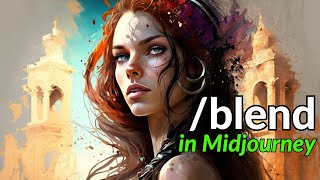
LARRUZ shows how to use MidJourney's /blend command to merge 2 to 5 images into new outputs. The command combines concepts and aesthetics from your source images but doesn't accept additional text, unlike using multiple image links in Imagine. Examples include blending a headphone with a portrait and applying painting styles to realistic faces.
Chapters
In this quick video, we are going to be looking at the Blend command in Vidjourney. So Blend command allows you to upload two to five different images, and then it looks at the concept and aesthetics of each image and merges them into a new image. So when you type in blend and click hit Enter. By default, it gives you the option of uploading two images. So in this case, let's say I want to blend this image and this image of a headphone. So let me first select the first image, then I'm going to select the second image, right? And all you have to do is hit Enter. Let's see what is the blending of these two images? Okay, here is the result. And it's actually pretty amazing because it understood the concept of the headphone and then a female face. And what it did was actually put the headphone for the female. So it's pretty amazing. Then you can see these colorful smokes coming out of it. The blend command works similar to the multiple image prompts using the Imagine commands, but you cannot add any other text to it. So let's say if we copy these links, we can use the imagine prompt, right? And then paste in the links to these two images are original images. And here a good thing is we can add the aspect ratio as well. So and say 16 by 9. Okay, so just using the image and prompt gives us very similar results. But now we can control the aspect ratio. So this looks pretty cool. Now let's see what happens if we try to blend this image with a certain style like this. Okay, so I'm going to type in slash blend. After this, we're going to look at how we can combine multiple images. Okay, let me first select the style image and then the image of the female. Okay, let's run this. It actually produced some cool effects in here. So just for reference, here was our style, and here is the image of the female that we wanted to use. And it produced like it blended in a way that it is abducting the style but still keeping the face realistic rather than a painting. So it's pretty awesome. Now let's see what happens if we try to blend a scenery with a character. So, for example, this is our scenery, and we want to blend it with this character. Okay, so I'm going to type blend and we select a scenery and then our character. All right, and just hit Enter. Okay, so here are the results. Let me pull up the original images. So our character, it did put a character in a similar scene to what we provided it, but then you it changes the background. So the background seems to be inspired. From this background, let me upscale the first image. So what's doing that? Let's see if we want to blend more than two images. So I'm going to go back. I will select this with the painting style that we chose. And now in order to add more than two images, you need to come here. Click at the end. Then it gives you the option of image 3, 4, and 5. So let's add image 3. I'm going to keep the scenery. I don't know what the result is going to be. I haven't tried this, so it's going to be a fun one. And image four, let me add the headphones. Okay. And apart from, like, you can actually add one more image. So I'm not going to do that. But you can also define the dimensions. Right. So if you select the dimensions now, it lets you define whether it you want it to be a portrait, a square, or a landscape. So let's say we will select first landscape, and then I'm going to try the portrait as well. All right. Let's see what the result is going to look like. I think it's going to be a fun one. Okay. So this is actually pretty cool because it kept the scenery, then it changed the face or the like, it transferred the style of the painting that we provided. So here. And it also added headphones. Right. And it's in landscape. I actually really like these images. They turned out to be great. What I'm going to do is I'm going to upscale, I guess, like the 2 and probably 3. Okay, let's upscale them. So 2 and 3, and maybe the first one as well. I also want to try this female image and blend it with the joker image. So let me do that, and let's see what the results look like. So there's a female image, and that's a joker image. I think it's going to be some kind of a comic villain. Female villain. Let's see. Okay, so this is interesting. It seems to be like a female joker. So it altered the female character based on the joker. So here was the female character. The hair is still kept the same way in the original image. And then we have a joker image. Right. So it has especially like the mouth area. It's definitely more inspired from the joker image. Now you can also blend, let's say animal as well, along with the characters that you want. So I'm going to do just two more tests. One is this cat. So cyberpunk cat. And then our original character. So let's see what the results would look like here. Okay. It's executing the prompt. Okay. This seems to be more inspired from the cat image. The poster is similar to our character, but it added, I think, more importance to the style and concept of the cat. A cyberpunk cat. Okay, I'm gonna do one more. One last test. So I want to blend. I think this is going to be an interesting one. So the female character, then the style that we had. And let's put an image 3 and put the headphones on. Okay. And let's change this to the first a portrait and then a landscape. All right. Okay, let's run this. Okay. So these actually turned out pretty great. This is an A portrait mode, and then I rent the same command in landscape mode as well. These are definitely something in depth I can use in my own work. So this was a quick video on how to blend different images. It's a really neat way of combining multiple images and the aesthetics, as well as concepts, and come up with some great images that you can potentially use. I hope you found this useful and like the content. Consider subscribing. Thanks for watching and as always, see you in the next one.