CG Dreams New Image Generator Beats EVERYTHING!
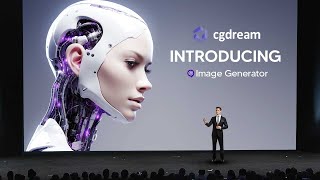
LARRUZ reviews CG Dream, a free AI image generator offering 1,200 images monthly or $10 for 24,000. The platform includes text prompts, adjustable filters, AI upscaling, and the ability to upload images or 3D models to guide composition.
Questions this video answers
1,200 images per month.
24,000 images per month for $10.
Up to five filters.
A 'times two' (X2) AI upscaling button.
Discord.
So welcome back to the AI Grid and in today's video I'll be showing.
You guys the most comprehensive AI image.
Generation tool that is completely free that.
You'Ll want to be using immediately.
Some are calling this a mid journey.
Killer and I'm about to show you guys why. So, introducing CG Dream, you can see.
That this is a remarkable AI image.
Generation platform that actually allows you the most control and customization of the outputs.
That I've ever seen. This is something truly remarkable.
And, and what's even crazier about this absolutely amazing platform is that if you head on over to the pricing tab right here, you can see that on the pricing tab this thing is absolutely free in an amazing tier. You can see that you can literally generate 1,200 images every single month without.
Even paying a dime.
But what's even cooler than that is that if you want to spend only $10, you can actually get 24,000 images every single month.
Now CG Dream have mentioned that they are going to be changing the price in the future, but they won't be ever removing the free tier. So when you're on CG Dream, what you firstly want to do is come to this text box that is at the bottom of the screen. So what I'm first going to do here is I'm going to firstly experiment with your average prompt and then I'm going to show you guys what makes CG Dream a pleasant experience. So I've typed in here post apocalyptic dystopian world and then what I'm going to go ahead and do is I'm going to go ahead and click Generate. So, so you can see right here, this is the image that has been generated and it looks pretty decent. Now there are many different things I can do here, but one of the things I'm going to go ahead and do is I'm going to go ahead and use the filters. So if I click Filters right here, you can see that it says add filters to create different styles and improve image quality. You can add up to five filters and these filters are all suggested based on your prompts. So what I'm going to do here is I'm going to add a filter called Sci Fi Environment and then I'm going to go ahead and click Generate. So now you can see with the filter applied the image is altered slightly. We have an image here that is now a lot more Sci Fi looking when it's a post apocalyptic dystopian world in comparison to the first image. If we scroll down here you can see that this image is a lot more sci fi. Taking a look at the first image, we can see that this actually looks like a city that doesn't really seem sci fi at all. It seems like your average run of the mill town that looks pretty post apocalyptic. But of course, if we look at this one, we can see that the background here actually has buildings that are really sci fi. Except this is a sci fi city that is worn down. Hence the reason we have the filters applied. And you can see how much they've changed them now because of course I've already applied this filter, that's why the effect is there. But what you can do with your filters, if you hover over the filter that you've currently applied, you can actually change the strength of this. So you can see here it says fine tune the filter intensity. Lower values offer subtle effects, while higher values amplify the filter's impact. Let's change this all the way to the extreme value and see what kind of output we get. You can see here, with the filter ramped up quite a lot, we get this image which is truly, truly sci fi. I do think that even in the foreground of the image we get some people that are looking around at these kind of strange structures. And the buildings do look a lot more sci fi in a sense that they even do have some dim lights in them. Let's try this. With the filter turned all the way down, you can see right here. With the filter turned all the way down, we can actually start to see a slow balance of sci fi being input into the image. For example, towards the back of the image, we can see this building here that looks a little bit Sci fi in terms of its design. Although it's barely visible, it's still somewhat noticeable. Now, once you've generated your image, there are also some other things that CG Dream offers. For example, a simple thing that you can do is change your number of variations. This allows you to get more images with every single time you click Generate. So I'm just going to click 4 here and then I'm going to click Generate. So you can see that I've been able to generate four images here. And since I do have the Sci Fi filter on and it's only tuned up a little bit, it's a very subtle touch that I do get. Within the images that you can see right here in the background of the image, we can see buildings that look like spikes or futuristic buildings that you might see in a future society. Now, one of the things you might want to do is because the image is initially generated, it's not always generated in extremely high resolution. If you want to increase the resolution, there's a button here that says times two and you can increase this resolution with the help of AI. Click X2 and you'll see that the resolution will increase. You can now see that this is a higher resolution image that has a lot more detail. This allows you to increase the resolution of your images that you want to use in further projects. Another nice feature that you can actually do with CG Dream is you can actually change the aspect ratio of the image. If you go on over to here, you can see that I can change the aspect ratio to landscape. So If I click 169 and then of course I click generate, you can now see that the images I'm going to generate are now in a landscape form. So here you can see I now have a bunch of different images that are in the 16 by 9 aspect ratio. And this is great because I can use this for a variety of different projects that I may work on. Now. Another thing that you can do with CG Dream, if you're not the best at writing your own prompts, you can see right here, my prompt is pretty basic. I've just typed in post apocalyptic dystopian world. What you can do is you can use this button right here. And. And what this will do is this will enrich your prompts, resulting in more visually appealing and coherent images. So if I click this button once, you're going to see now that the images that are going to be generated are a lot more visually appealing. So what you can see here is that it's managed to change this prompt. You can see it says the image depicts the post apocalyptic dystopian world with a sci fi environment. The scene shows a desolate cityscape with crumbling skyscrapers and twisted metal structures. It continues to go on to describe a bunch of different things, but you can see that the composition of our image is now a lot different to what we initially had. And I would argue it's a lot different to what we initially had, but for the better. You can see that the image composition actually seems a lot more balanced and the added character just gives the image a lot more depth and character to the scene. So now I'm going to show you guys two more features of CG Dream that separate it from the composition. The first thing is you can upload an image once you've uploaded your image. What you can do now is you can use this image as A driving image for. For the composition of your final image that you do want. So let's stick with our original prompt. And then of course, let's click Generate. So you can see here exactly how the driving image has managed to give us this final output. And what we can do as well is if we hover over this icon right here. Now if we hover over this right here, you can see we can change the resemblance to where if we put this all the way up, we're going to get an image that resembles the image we uploaded more. And if we put it all the way down, we're going to get an image that resembles it a lot less. So let's try it with the slider all the way up. And you can see that this is one of the images that I get here. And I really like this because it manages to maintain the composition of the original image that I uploaded, but it also adds things in a very dystopian way. So what CG Dream allows you to do is it allows you to control the composition of your images by using an image of yours that you upload and then, of course, adjust the sliders. So now let's take a look at the 3D model section. If we go ahead and click 3D models, you can see that we're presented with a variety of different 3D models. What you can essentially do here is just as we used an image to control our final output by using the composition to drive what features stand in what certain places, let's actually take a look at how we can use a 3D model to do the exact same thing. So, for example, you might want to click on an image that represents the item that you're going to create. Let's actually pick something that is very similar to our existing theme of a post apocalyptic world. So, for example, let's go ahead and click this right here. Now we're presented with something that actually kind of does look post apocalyptic anyway, but that doesn't really matter. The details of this 3D object aren't going to matter that much. What is going to matter though, is how the object is oriented. So what we can do is we can orient this in certain shapes. For example, I'll leave this here, and then what I'll do is I'll now click Generate. So once again, you can see right here exactly how the 3D object controls the output of our final image. We can see that this abandoned building right here is exactly the kind of shape orientation that we would ideally want. And as always, you can change the resemblance in order to get something that retains the image more or something that doesn't retain it as much. You can see if you manage to change the slider down just a little bit, you do get a little bit more creativity. And I think this is something that you probably do want to do if you want your images to have a bit more creativity. With the AI chiming in a bit now, one thing that you can do is you can also join the CG Dream community. If you just click the button right here that says Community. It's a discord community. And as you can see right here, you can discuss different prompts, different ideas and different things with the community. And I think this is pretty useful because you can actually look at the general chat, you can look at the prompts that are being showcased, and of course, if you have any issues, you can ask the help and you can watch a few tutorials there. So don't forget to click the link in the description to get started with CG Dream. I do think this is actually a good product that allows you to control your image output a lot more than many other AI systems, and I think this is going to be probably the choice for most creators in the future. With that being said, hopefully you enjoyed the video and I'll see you all in the next one.










