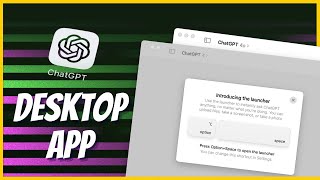
A single-speaker YouTube walkthrough (by LARRUZ) of the official ChatGPT desktop app for macOS (May 24, 2024). The video demonstrates installing and launching the app, using the launcher (Option+Space), starting queries, sidebar history and model switching (GPT-4o/4/3.5), uploading files/screenshots, voice setup (speech voices and headphone icon), and a screenshot-based code-understanding demo. The presenter notes several demo features are not yet available (GPT4o voice-to-voice, live desktop reading) and that some functionality appears limited to text I/O for GPT-4o.
Chapters
Just like everybody else, I was waiting to get access to ChatGPT desktop app. Now, if you go to the App Store on Mac and you type chatgpt for Mac, you're going to see a whole bunch of different apps which tells you that they're going to give you access to ChatGPT. But none of them are official apps, so don't download them. When I open ChatGPT website today I got this message. ChatGPT is now available for Mac OS plus users get early access. So let's download this and see how good the app is. Okay, so I'm going to drag it here. This will install the app. All right, so we're going to look at, look for Chat GPT. This should start the app. It says ChatGPT is downloaded from Internet. So we're going to say open. Now I need to log in. So I'm going to just log in with my email address. Okay. So when I logged in, it's showing me this. Introducing the launcher. And if you press option space, that is going to open the launcher. Okay. To get the ChatGPT app up and running, I'm going to press option and spacebar. So that opens up the small window where you can start typing. So let's ask something. Alright, so I'm going to ask it to tell me the difference distance between earth and the moon. And this opens up the whole app. And here's the answer that it started creating. Now, just like ChatGPT, you can see that all your previous chats are within this sidebar. Now, if you click on this, this shows you GPT4O, GPT4 and 3.5. And all of your GPTs are listed in here. So there is this icon which you can click. This will open up another window which has basically a bigger view of all the GPTs that are available within the desktop app. Now, if you want to start a new conversation, that's on the top right corner. So here just click on this button and I think it starts a new conversation. Now, similar to, I think the web version, we can also attach files or images. So let me click on this. So you can upload a file, upload photo, take screenshot, or take photo directly. And if I come to screenshots, it shows me all the different windows they are currently active. You can see I have a lot of them active. Okay. You can also have a voice conversation. So if you click on this headphone icon, it will actually ask you to do the setup. So you can choose different voices. In the beginning, I have already set this up. But let me show you how this looks like when you're setting it up for the first time. Okay, so if you go to Settings, you're going to see all your settings here. I'm going to check for updates in a little bit. But here's the voice. So you can click on the speech then voices. And these are the voices that are currently available. Hey there.
I've got a really great feeling about us teaming up. How can I jump in and help? Hey, it's great to meet you. How's your day going? I'm really looking forward to working.
Hey, I'm ready to hit the ground running. Okay. The sky voice is not available in this list. There are only four voices now. And similar to the web version, you can customize your chat GPT. If you click on this, you can provide custom instructions which this will follow. So this is pretty good. And you can also enable web browsing, enable code interpreter and Dall E. So this is pretty great. Alright, seems like you can have a voice input. So let's test this out. Can you tell me what's the distance between earth and the moon? And then we're going to click on this. So it basically transcribed our audio. I think it's using Whisper at the back end because I don't think GPT4O voice to voice chat is yet enabled on this. And now you can have like voice to voice conversations. So if you click on this microphone icon, can you tell me the distance between earth and moon?
The average distance between earth and the moon is about 384,400 kilometers or 2,38,855 miles.
Okay, so just like Chat GPT website or actually the Chat GPT app on both Android as well as iOS this works in a very similar fashion. Okay. To test its capability of uploading and understanding files. So I just uploaded a paper and we're gonna ask it to summarize this paper now. It is analyzing the paper now. There are a lot of features that are missing which were shown in the demo. So it's using GPT4O only for text input and text output. No speech input and speech out directly from GPT4O yet. Also in the demo they were showing it that you can just run it on the side and it will be able to look at your desktop. So those features are not yet available in the app. Okay, so I need to actually give it a screen recording permissions. So I will just give you give the app that. Okay. So you cannot really directly read the screen, but if you go to take screenshot and let's select a Python file. This actually takes the screenshot of that file and we can then ask questions. Alright, so I said what does this code implement? And let's see if it is able to understand the code from the screenshot or not. Okay, so I think it did a pretty good job at figuring out what is going on in the code. This is a code that I'm currently working on for voice assistant. So this enables you to basically talk to an LLM using your voice and the output is also audio. It's an open source project. Link to the GitHub repo is going to be in the description. Now, just like the web version, there is also this feature which will let you read anything that is on the screen. So let's try this out.
The code provided implements a simple voice assistant module that records audio and plays it back using the Pygame and keyboard libraries in Python. Here's a breakdown of the functionality. One import.
All right, so pretty neat. Anything that ChatGPT was able to generate in the form of text, you can just ask this to read it out loud. And just like the web version, you can also select another model if you want to continue the conversation. For example, if you want to continue this conversation with GPT4, you just click on that. Now, I think the web version actually lets you continue the conversation. In this case, I think it ran the same prompt again through GPT4. Alright, so this is a quick overview of what is in this updated desktop app. I think most of the functionality that is that was shown in the demo is actually missing. They will probably be releasing that in upcoming week, so I'll keep you posted if I notice something else. Hope you found this video useful. Thanks for watching and as always, see you in the next one.