Create AI Images with Your Face! (Free and Easy)
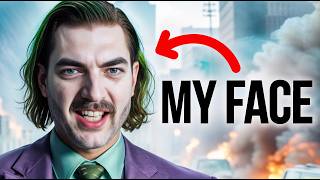
Matt Wolf shows how to use ArtFlow AI to train your face and generate images of yourself as different characters. Upload 20 photos, pick your style, and the free plan gives you credits to start. It's simpler than Dream Booth and takes minutes to set up.
Questions this video answers
100 credits per month.
One credit gives four image generations (one prompt = four images).
Yes — the first training of your face is free.
He said it might take 10 to 30 minutes to process (and observed it took about 15 minutes).
Exporting/animating the short clip used two credits.
Chapters
So I just got these images from my creative director, John. He was playing around with a new tool and said, look what I managed to generate. And he sent me these images with my face on them that look awesome. He made images of me as the Joker, and I think maybe Captain America and Iron man ish, as well as me as a wizard and maybe a vampire. I don't know. But they look really, really good. But before I go any deeper, let me address the two elephants in the room. Yes, I did get a cold while I was at ces, so. So my voice might be a little off because I'm still getting over it. And number two, yes, I'm wearing a sweater that looks like a rug. It's very cold and rainy here in San Diego today, so I busted out my cozy HubSpot sweater. This video's not sponsored by them. I mean, it's not sponsored at all. It's just a really comfortable sweater and I'm wearing it, so get over it. So after John sent me this initial set of images, he sent me some more. The prompt for these ones were Matt as a gorilla human hybrid. And apparently Matt as a gorilla human hybrid is just Dave Bautista. Here's some with Matt as a bodybuilder, flexing muscles, upper body. Now, you might be fooled into thinking these are AI, but these are actually real images. Just ignore the fact that there's a prompt and it looks like they were AI generated. These ones, totally legit. He also sent me these with Matt as a hockey player, smiling, missing a tooth. A. I think it struggled to knock a tooth out, but I definitely look like a hockey player now. In the past, to get images like this, you had to use a crazy, complicated Google Collab where you adjust a whole bunch of settings and tweak a bunch of stuff and upload a whole bunch of training images and decide how many epochs you want. And it's a pretty intense process. I did actually make a video about a year ago about how to train your own face into AI, and you can get much more custom and dialed in to the exact image you want using that method. And although these Google collabs look kind of complex and confusing, if you watch the video, it's really not that big of a deal. You just kind of follow the step by step process. However, John made these with a tool called ArtFlow, which takes all of the confusion and complicated steps out of using something like Google Collab. Now, like I mentioned, this video is not sponsored. ArtFlow has no idea I'm making this video. We just came across it. And we're very impressed by what it can do and how easy it actually was to do what it can do. Now, ArtFlow, which you can find over at ArtFlow AI, is actually designed to create consistent characters. If you played around a lot with Mid Journey or Dolly or tools like that, it is ridiculously hard to get any sort of consistency in the characters you create. Now, Stable Diffusion is capable of doing that. And from what I can tell, ArtFlow is using stable Diffusion underneath the hood. It's also most likely using Dream Booth, the the same exact technique that I used to train my other likeness into the AI under the hood as well. But once you create a consistent character, you can then generate images with that consistent character and even create videos with that consistent character. Now, ArtFlow itself isn't necessarily free. They do have a free plan that gets you a hundred credits a month, a handful of minutes in video, and it does actually have watermarks. If you're using the free plan, then they have other plans that give you more credits. However, from what I can tell, one credit gives you four image generations. So you give it a prompt, you get four images for that prompt, and that will use one credit. So 100 credits per month is roughly 400 image generations per month. And also to train your face into the AI, it's actually free for your first training. So if you just want to train yourself, it's free to do that. So I'm going to sign up for a free account real quick. And once I'm logged in, I'm going to click on Character Builder up in the left menu here. Go ahead and press the button to create a new character. It asked me to define the character. To start, I'll just put white middle aged male with dark brown hair and a beard. And then we have the Add Consistent Face button. And I can click Choose Face. And we have a whole bunch of existing faces that we can choose from. And under Characters we have a handful of characters that we can choose from. But let's go back to actors and click Train Actor. This is where we could train our own face into the platform here. Let's go ahead and click Create your AI actor. It's male actor age, adult actor name. I'll just put Matt Wolf as one word and then upload pictures. We can drag and drop up to 20 photos here. I just so happen to have 20 images of my face already in a folder on my computer from the last time I trained my face into an AI. So I'll just go ahead and use These same images here, drag and drop them all into our little box here. And now we've got 20 images of my face and I can click START TR. You can see it says it might take 10 to 30 minutes to process. So now we're just going to go ahead and let it run its process and we'll check back shortly. If you remember, when we were using the Google Collab Dream Booth method, you actually had to leave the browser open. You needed to sort of scroll around, you needed to make sure the page didn't time out. With this, it looks like you could just step away and when it's ready, you could come back and see what it's done. And it took about 15 minutes. You can see I now have the Matt Wolf male adult here. And if I tried to create another AI character, you can see it now asks me to upgrade. But that first training was free. So let's go ahead and click on Create Image next to my face. You can see over on the right side. It actually created a whole bunch of images. I didn't even prompt these. These are just some of the sort of demo images I guess it created, like these and these as a wizard and a couple with me as the Joker. Prompt on this one was Matt Wolf as an invincible superhero. Here's some more that it generated, some more that it generated that look like those vampires. Here's a few more. And some more of me in front of a TV with, you know, various backgrounds and stuff. So these were obviously using the same prompts as what John sent me here when he gave me the first example of what this is capable of. But let's just go ahead and click on Generate. We'll go ahead and leave our aspect ratio on 3, 2. They actually have this really cool director mode where if. Turn this on, you can actually choose how you want the character positioned in the image. We want a full shot where we've got the full body. We want it to be extreme close up, where we're just seeing the face. So we've got some options here. For our prompt, we can do at wolf. That's our sort of key word to make sure it's generating my face. We could do a prompt like Matt Wolf with purple hair and a shocked expression on his face. And then if we wanted, we can add some negative prompts. I'm going to go ahead and leave that. And then there's some styles. By default it has cinematograph, but if we add style, we've got digital art, cinematic fantasy, watercolor, oil painting, and just A ton of other potential styles that you can play with. We'll go ahead and leave it on Cinematic for this first test. And you can see if I click generate v2, it's going to use just one credit. Again, the free plan gives you a hundred credits a month. So let's go ahead and click Generate. And after about 20 seconds, it generated four images. Didn't do a great job with the shocked expression, but it did give me purple hair in a couple of them. And it even gives me the option to animate. So if I click Animate, it brings me to this animation studio here and I can enter some dialogue. I could have it say, subscribe to Matt Wolf on YouTube and if I click Export and Animate, you can see it will use two credits to make this short clip. And after a few seconds we get a video that looks like this. Subscribe to Matt Wolf on YouTube now. It's not perfect and it's definitely not my voice. You do have the option to upload your own audio file. So you could record an audio of yourself speaking, or create an audio file from 11 labs that's trained on your voice, pull it into the upload section here and actually make it sound like you. But still, what I'm most impressed with by this ArtFlow AI tool is the ability to quickly train your own face in and then generate any images you can imagine trained on your own face. Let's try one more time. This time I'm going to leave director mode off. Matt Wolf as Superman flying above a city skyline. And, well, it's made an attempt. As we know with AI art, sometimes it takes a few prompts to get exactly what you're looking for. Here's what it thinks I'd look like as the Hulk. Here's me as a newscaster, which is something I often create as part of my thumbnail strategy. And here's one of me as a Viking warrior. Now, again, I can't get them as quite dialed in and perfect like I can with Dream Booth and stable diffusion using something like automatic 1111 or comfy UI. But I can't generate some images that look like my face on whatever subject I'm trying to put them on, and is probably 10 times faster than trying to do it with Dream Booth. So if you just need a couple images here and there with your own face trained into the AI art flow, AI is perfect for that. And you can pretty much do everything you need to for free. Unless you need to train more than one model or you're planning on generating more than 400 images a month with it, in which case it's probably worth paying the extra few bucks and being able to create a lot more generations. Now, if you love nerding out about AI and the coolest AI tools as much as I do, make sure you check out FutureTools IO. This is the website where I curate all of the cool AI tools that I come across. I add new tools on a daily basis and it's got a really cool easy filtering system. So if you're a podcaster and you want to find just tools to help you with podcasting, you could just type podcast. It will narrow it down to 86 tools that help you with podcasting and then if you want to sort it by the tools that are the most popular for podcasting, you click Most Upvoted. You can see the most popular tools related to podcasting. You want to see exactly which tools I most recommend? Select Matt's Picks. Now you've got the most upvoted tools related to podcasting that I personally have played around with and have vetted myself. I also keep the AI News page up to date on a daily basis, so if you like staying in the loop with the AI News feature tools has you covered there as well. There's also a free newslet that I highly recommend joining as soon as you sign up, I'll give you access to the AI Income database, which is a database of a whole bunch of cool ways to make money using AI. And you'll be subscribed to the weekly newsletter where I will share just the five coolest AI tools that I come across and just a handful of the most important AI news articles for the week. It's totally free. You can sign up over at FutureTools IE, click Join the free newsletter and I will hook you up and give this video a like if you enjoyed it, you found it helpful, you found it useful and consider subscribing to this channel if you want more AI news, AI tutorials and just cool nerdy AI tech stuff because I make a lot of videos and if you like this one, you'll probably like the other ones. But that's all I got for you. I really, really appreciate you tuning in and watching this video again. I hope you found it useful and excited to see some of your images with your face on them because you played around with ArtFlow. That's it. That's all I got for you. Appreciate you. See you next video. Bye bye.










