Free AI Art Tool Let's You Build 3D Worlds!
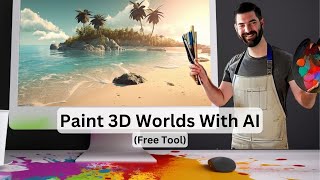
YouTube video by Matt Wolfe (uploaded March 21, 2023) showcasing under-the-radar generative-art tools. Demos include Face Landmark ControlNet (maps facial features to re-synthesize faces), Stable Diffusion Reimagine (free web tool for creating variations of images via Stable Diffusion on Clipdrop), and NVIDIA Canvas 1.4 (new Panorama feature, layer export to PSD, 3D preview and panoramic painting). The video walks through usage examples and closes with channel/newsletter promotion.
Chapters
There have been so many crazy advancements in AI lately that there's been a few things that have been completely overlooked, especially in the generative art and image space. In today's video, I want to show you a handful of tools that have been completely overshadowed by the likes of GPT4 and Midjourney version 5 and all of the crazy stuff that's happened over the last few weeks. Let's get into it. So the first one I want to show you is called Face Landmark Control Net. And what this is is you can upload a picture of a face and and it tries to match the various items on the face with whatever the prompt is. You can see some examples here. This face right here prompt a silly clown face. You get this crazy nightmare inducing image. But if you notice it traced where all the features of the face are, where the eyes are, the nose is, how the mouth is open. And then it tried to match similar features on whatever that is. Here's another one with a man wearing glasses. And the prompt is a photo of a woman wearing glasses. We, we take a look at this. You can see that it mapped where the eyes, the nose, the face are and then transposed it over to this woman wearing glasses here. Let's go ahead and upload our own image here. Here's a picture of me giving a cheesy smile and let's just say a woman wearing glasses smiling. And here's what we get. You can see that it's found where my eyes are, my nose, my mouth. And then it tried to give a similar facial pose to the woman here. Let's do the face of a very happy robot. Let's run this. It takes about 16 seconds or so every time it runs. And here's what we get with that. We got kind of a human face underneath the robot. And you know, it did find where my eyes and nose and tried to position them in the same place on this picture. But it's a work in progress. Let's get into the really cool stuff. This announcement kind of flew under the radar because this came out the Same Week as GPT4 and Midjourney version 5 and everything else that happened in that crazy, crazy week. But Stability AI released Stable Diffusion Reimagine. It's a tool where you can upload an image and it will create variations of that same image. It will reimagine that same image in different ways. So let's just jump in and take a look at what it can do. This is a completely free tool that you can use. It's available over at Clipdrop Co Stable Diffusion Dash reimagine. And you can just jump over here, don't even need to log in and you can start playing with it. So for example, if I take this image of my myself right here and let it just reimagine it, let's see what it comes back with. Okay, so it reimagined me in some interesting ways. Very flattering, very flattering. Let's go ahead and try some of our Mid Journey generations instead because it does really, really good with some cool AI generated images to give you some variations of those images. So here's one of my favorite images of an astronaut in space. I've always loved this generation for mid journey version 5 because I love how you can see through the glass to the astronaut's face. So let's see how it reimagines this. So we've got some other variations here that aren't bad. I mean, it's not quite the same level of quality that you're getting out of MidJourney version 5, but you got some reimagined versions of what we originally put in. Let's try this image of a woman holding a lightsaber. See what it generates with this one. And you can see that it tries to match the same kind of color scheme. Not quite the same quality we're getting out of Mid Journey, but you know, it'll reimagine it in some interesting ways. Now they do give some examples, and these are some cherry picked examples where you could expect the result to be pretty good because otherwise they wouldn't have cherry picked them. But here's one of like a bedroom and you can see how it reimagines this bedroom in multiple ways. This is the original. Here's some reimagined bedrooms that all look pretty dang good. Here's a landscape and you can see it's generating some variations of a very similar landscape. We've got this woman here. This, this is the original and here's some variations that it came up with. And here's just some kind of abstract art. And of course we get some more abstracty type art. What I want to do now, let's try some of my images that I actually made with stable diffusion because this is obviously stable diffusion under the hood. And I'm trying to put in some Mid Journey images. So let's see how it does with some stable diffusion images. Here's an image that I generated for myself for one of my thumbnails. This is a stable diffusion image. So let's see how it reimagines a stable diffusion image. All right. Yeah, they don't. Yeah, yeah, that's what we get there. Okay then. Four fingered version of me. Ish. Let's pull in one of these images. These are ones that I generated in stable diffusion for my animation video. And here's some reimagines of that. All right, so maybe this one's got a little bit of a ways to go before we're all super impressed by it Again, I like to show off early technology when it's still really, really in its infancy. And this is a tool that can look at an original image and try to reimagine this similar image. It looks like we could click on any one of these and do a reimagining of that reimagine. Actually, that one actually came out a little bit, I think. Let's try it again on this one. No, that one came out worse. All right, now let me show you the tool that I really wanted to make this video to show you, because I think this is the coolest of the tools that I'm going to show you today. Nvidia Canvas 1.4 is now available with Panorama. And this is a completely free tool from Nvidia. You can come over to Nvidia.com en-us studio canvas or you could just, you know, click the link below the video that I'm going to put for this and then you can download the beta. And it's a completely free tool. And what this tool allows you to do is you can actually just kind of paint images with actual real life materials and make scenery, but it also does it in layers so that you can actually export it into a tool like Photoshop and further improve your images. Now, Nvidia Canvas isn't brand new, but this panoramic landscape option is. I already downloaded this. Let's go ahead and take a peek at it. So first let me just show you the standard canvas here and show you what Nvidia Canvas does just by default. Let's click Continue. We have a blank slate over here and then over on the right you can see various materials. We have sky, we have clouds, we have hills, we have mountains, water, all sorts of materials here. And then we have variations of the sort of day or night or looking at the sky. There's some variations that are kind of like your default background here. Let's go ahead and start with this one that looks like kind of a clear sunny day. Let's select some our sand material here and let's just paint in some sand down here in the bottom of our picture. And let's take a look at what that looks like. It just added sand to our image here. I'm going to make my brush stroke a little bit bigger. Let's add a lot more sand. There we go. Now we have more sand here. Now let's go ahead and add a new layer just like you would in Photoshop. And let's make this a beach scene. Let's add some water to this. So we have the option for sea right here. Let's click on sea, and let's paint in some sea right here, overlapping our sand. And we'll make it go kind of all the way to the midpoint. So that's like our horizon line there. And now we' got some ocean overlapping our sand. Boom. It just painted a picture of a beach that follows the model that I have over here with our horizon about center on the image. Let's go ahead and add a new layer now. And let's add, like, a stone column here on either side so it kind of looks like we have our own exclusive, like, hidden beach. So I'll make like, a little stone column kind of coming all the way up the side like this. Like, now we got a little rock wall there. It looks like a cliff. Add one on our side here. Now it looks like we've got our own little hidden private beach. Let's make our stone column kind of curve in a little bit like this there. Now we've got our own private little beach with stone columns on the side. That's a little too clear today. So let's go ahead and add some clouds. I'll go ahead and click add layer here and click on the cloud texture. Let's paint in some happy little clouds up here. There we go. Now we got a cloud in our scene. Let's paint in another little happy little cloud here. Now I just added a cloud over here. I want a stream feeding into our ocean here. So let's go ahead and click on our river texture, and let's paint in a little mini river feeding into our ocean. All right, now we got a little waterway feeding into our ocean. All right, what would this look like at nighttime? Well, let's just click our styles up here and look at the nighttime version. All right, now we have the same image at nighttime. What about sunset? Here's what our scene looks like at sunset. I can click around on these different variations and see it at different times of day. Here's another sunset image. I really Think the nighttime image looks cool as well. Let me switch it back to daytime here. Let's add some bushes over here on the beach right in this area. Let's add another bush kind of near this stone column here. Now we got some bushes on our beach here. They could go all the way up against stone column like that. You can even paint over on this side if you want. I can actually paint them in on this side too. It's a little bit smoother doing it on this side over on the left. But you can actually paint your bushes in right here on this side too. And there we go. Now we've converted this child's drawing into something that actually looks like a realistic image. That's what Canvas does out of the box. Now if I want to come up here, I can click export and you can see I can export this as a PSD file and it will actually retain all the layers. And I can pull it right into Photoshop and continue to edit it even further. Let's go ahead and click new file. I'll discard the changes here. Let's do a panorama. This is what they just recently added in. You can see now it's sort of a top, bottom. And look at our 3D preview. We can actually look around our scene in 3D up here. So just like our other one, let's add sand. So this time I'm going to click on sand. Let's just go ahead and do the fill bucket and fill this whole green area with sand. There we go. Now just turn this whole green area with sand. If I come up here to my 3D now you can see I've got a whole Sandy 3D view up here. We need some ocean in it. So let's go ahead and go back to our. Let's use our line tool this time and make our a straight line of ocean going across here like this. Now you can see the beach off in the distance. Let's make the beach a little closer. Let's paint the beach kind of coming right up to us. This happy little waves coming into the shore just like that. And now we got the beach coming up close. If I look at my 3D scene here, I can actually look around at my beach on this 3D scene. Add some clouds up in the sky. Now we've got a bit of a cloudy day at the beach. Let's change the timing to like evening time like this. Now look at our 3D preview up here. We can actually look around our scene in 3D up here. Let's go Ahead and discard all of these changes and make a new panorama. This time. Let's make it in the snow. Let's go ahead and click snow. Let's do our paint bucket. Let's paint all the ground here with snow. Now we see snow down here. And let's put a giant mountain in the background here. So let's go our paintbrush. Let's put a big old mountain up here. Fill it all in. And this should add a nice little mountain off in the distance there. Just like. Like that. Erase the tip of the mountain there so you can actually see the top so it doesn't blend with the sky. And now it looks like we' a giant mountain peak in our 3D view over here. Let's add some smaller hills over here. Fill them in a little bit. Now we've got little hills kind of in the foreground. Look at our 3D view over here on the right. You can see our little hills in the foreground. Our giant mountain peak up there. Let's add some forest in it. Let's put some forest off on the edge here. Paint in some forest. This is our forest over here. Now we got a forest over on the edge of our scene. Could look at it right here. Paint in some more forest. Now we got a snowy forest landscape with a giant mountain off in the distance. Once again, I could click around and look at it in 3D over here on the right. Going to erase some of the top of this mountain. It looks like it's still looking a little bit too funky there. Paint a little more in like this. There we go. That's looking much more like a natural mountain off in the distance. Especially if you look on the 3D view here. Let's see how it would look in the evening time. Boom. There's our scene in the evening. Check out the 3D view up here in the top right. Let's add some clouds into the sky. Just like that. Now we got some clouds wandering around in the sky. Look at our 3D view. I could look up at our clouds. Look at that. Beautiful. And it all came from a drawing that looked like a two year old made it. Because that's about my artistic ability. Is about the ability of a two year old. Let's switch it to like sunset time here. Let's have it be a foggy day. Let's roll some fog in. Look at that. Now it's a foggy, weird, creepy day. See some of the mountain peeking through the fog. Just like you could see in my cartoon drawing here. So that's Nvidia Canvas, a completely free tool where you can go and scribble like a 5 year old and turn it into a 3D scene. If we watch this little video that they've got on their website here, you can actually see that this person, they made a 3D scene, added their clouds, added their oce. You can see the 3D there. And then what they did with it was they pulled it into Unreal Engine. Check this out. And they actually had their character run around with the scene that they created as the background to their Unreal Engine game. And just like I did, they just painted it like a 5 year old. So pretty cool stuff. Once again, that's called Nvidia Canvas. You can find that over at Nvidia.com en-us studio canvas. Just click on Download beta it it's completely free to use. You paint with actual real life materials and watch it convert into something that actually looks pretty dang cool. And now you can even do it in 3D kind of scenes where you could look around in it and maybe even export it to something like Unreal Engine and create a game where you run around in that world. Pretty cool stuff coming out of AI right now. It seems like every single day there's some sort of new advancement or cool tool or cool piece of research that's coming out that just takes things to the next level. So if you want to continue to stay in the loop on this stuff, make sure that you like this video and subscribe to this channel. That'll make sure you see more videos from me where I do it my best to try to keep you up to date with all the coolest advancements and all the new stuff that's coming out, with the occasional tutorial on how you can do some of this stuff yourself. Also, be sure to check out FutureTools IO. This is the site where I curate all the coolest tools that I come across as I come across them. I also have a free newsletter where if you know over 1200 tools is a little too much for you to sift through and look at every Friday I'll send you the top five tools that I came across this week and a handful of news articles, a handful of YouTube videos, and one cool way to make money with AI. It's basically the TLDR of the week in AI comes out every Friday and all you got to do is go to futuretools IO, click this, join the free newsletter and I'll hook you up. Thanks again for tuning in to another one of my nerdy AI Ramblings, where I just kind of show off some of the random and cool AI stuff that I've come across this week and hope you enjoyed it. I'll be making a lot more of them and I hope to see you in the next video. All right, thanks again. Bye. Bye, Sam.










