How To Use META AI (Complete Tutorial) Beginner Tutorial (LLAMA 3 Tutorial)
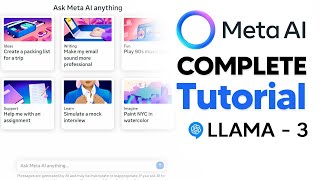
LARRUZ walks through Meta AI, covering how to access it (with a VPN workaround for restricted regions), use the chat interface, enable real-time web search, and generate code. The Imagine feature creates four image variants with an Animate function that makes short clips, though faces aren't perfect and you need to log in.
Chapters
So, welcome to this online tutorial. Today, Meta released their new Meta AI and this tutorial is going to be a comprehensive guide on everything you need to know. Now, first off, I will say the obvious, well, not obvious, that you might not be able to access this software if you are currently in the UK or anywhere in the eu. For some reason there are geographical restrictions which delay the release of this to everywhere. So what you will have to do is you will have to use a VPN and, and it does actually work because currently I'm in the United Kingdom and this is the screen that I'm usually presented with, but I'm still able to access it. Okay, so here we are and let's get straight into the tutorial because there's actually a few unique features that Meta didn't actually state, but I can show you all of them. So one of the first things to actually know about the software is that you don't actually need to sign into Meta AI in order to be able to use this very effectively. You can see right here that if you want to log in, you can, and if you don't want to log in, you don't need to. So the difference is between logging in and logging out. And you can log in on the bottom left hand corner of the screen. The only difference is, is that there are two. Okay, the first one is that you can save your conversations, which is something that you might want to do if you have a specific request. And number two is that if you try to imagine and you try to generate an image, you're not going to be able to do that. So if you, you can see right here, if I try to click, it's going to show you or please log in to generate images. So if you would like to normally talk, you can easily do that. You can literally click one of the prompts here and you can easily have a conversation. But for this tutorial, I'm going to be logging in, so I can actually show you how to use this software. Okay, so now that we're here, there are basically two main screens. You've got the new conversation screen and you've got the Imagine screen. Now on the new conversation screen, there are six mini prompts that you can use for anything. These six ones are just the basis of different things that you can do. You can see it's got ideas, writing, fun, support, learn, and of course, Imagine. Now the other section of this is called Imagine, which we'll get to in a moment, but you can see right here you can simply write anything so for example, I could say write me a blog post about the future of AGI and the content is delivered means that it's usually tailored for what humans really like. So you can see here it gave me some additional resources, it gave me some books, organizations, conferences. And then from here what I can do is if I can click like, which will indicate a good response because this was a pretty good response. And then I can copy this content to the clipboard. Now you can simply go over to any Word document and then you can paste it in and you can see we have everything that we need here. And this is something that I really do like. And if you want to additionally format it, you can click here merge formatting and you can click keeps text only. But I would say if you just want this for a document, maybe you want to actually copy and paste it or save the document. This is how you do that. Now, of course, one of the things that meta have actually spoken about, if I go ahead and create a new conversation, is I can go ahead and I can actually access real time data. So something I really like about this that you can do is you can say, give me, in fact, let's actually go back to the AGI future and I can say give me all the news or any news about AGI this week. And essentially what it has access to is this actually does have access to real time data with browsing with Bing. So currently you can see that meta AI is searching and it's going to continue searching for any articles. And then it says, okay, I couldn't find any news on AGI from this week. However, I did find a piece from January in which OpenAI CEO Sam Altman said that human level AI is coming but will change the world less than we think. And it gives you link to this. And so what you can do here is you can then click View Sources and then it's going to pop up with two links. And then of course if you click the links it's going to pop up and you can see right here it takes us instantly to this article. So I'm just going to ask it another question again so that you can see the real time capabilities. So once again I'm going to say, okay, what happened today in AI? And then I'm going to ask it what happened today in AI? Okay, so there we can see that it says, here are some of the latest news in AI Perception, an AI based tool. We've got researchers using AI to image the Earth's planetary boundary. We've got Washington Just blocking the use of AI enhanced video. And of course you can see that you can view your sources. So once again you can click View Sources and then you can go ahead and click on these. So real time information is something that is good with meta AI and with this technology. It is actually currently powered by Bing, which is Microsoft's actual browser. So I'm guessing that llama3 actually had some partnership there. So all you needed to do is just ask it what happened today, because this is actually quite like Chat GPT in the sense that it won't initially use browsing if you don't ask it to. So you do need to make sure that of course you do prompt it to use browsing, because if you don't then then it's not going to obviously do that. Now there's also something else that you can do with this software in terms of the text generation, but I think right now it is in a little bit of a weird state. I think they will improve this, especially when the 400 billion parameter model comes out later, in a couple of months. But this is something that you can do. So for example, you can say write me simple code in Python. And so here you can see I've asked write me simple code in Python and then it says here is simple hello world program in Python. And it says if you want a more traditional program with a main function, here you go. So this is not going to have the very best coding capabilities or the most insane coding capabilities. But what it does have is it does have very basic capabilities. Now, like I said before, in the future, when it is powered by the more powerful model, the 400 billion parameter one, I can suspect that these coding capabilities are going to be improved. And of course, if you're on any other platform, then this AI that you're currently using isn't going to be able to print the code because the format just isn't going to work. For example, if you're using it in Instagram DMs or on WhatsApp, it's just not going to work as well. But you can ask it many things. Now, something to note with the coding, which is quite strange, is that if you ask it certain things, for some reason it does kind of glitch out a bit. But like it will be able to print the entire code and then it will stop and then it will say, sorry, I can't help you with that. So if you do have a more advanced coding question, just try and ask it in a different way because it does have the ability, but sometimes it just doesn't answer the question. Okay. And I don't know why that is. I think right now it's just trying to be very safe. But in the future, I'm guessing they're going to solve this. Now, another thing that metaq can actually do with this software is you can actually use the Imagine feature. So with the Imagine feature, what this actually does is it actually allows you to generate images. So you can see right here, I'm going to select the one on the left and it says Visualize a time traveler. So it's going to use its image generation capabilities in order to generate images. Now, first of all, once I do that, it's going to generate four images in total. It doesn't take that long to generate these images. But you can see that if we just click the Expand button right here, we are able to get four quick images. Now, these images, I'm not exactly sure what is powering them because sometimes the images don't look good. Like for example, right here, we can see that the faces of these images don't exactly look good. And of course, if you find that an image is distressing or just inappropriate, you can click the top right here and you can click Report Harmful content, which is going to give them good feedback. Now, something that you can also see with these images is that in the bottom left there will be a watermark. I'm not sure how we remove that because they don't actually have a process at the moment, but of course they do have that watermark there in the bottom left hand corner. Now, I'm going to show you some other instances of this actually doing well. And this is where I asked it for a simple prompt of a McLaren 650s in London. And you can see that this actually does look a bit better because I know some people might be speculating on how good the image generation capabilities are. I just want to say that I think it depends on what you're actually generating because some images work well, whilst others don't work that well. Now with that, there are several things that you can do with that image. For example, there are two buttons at the bottom and two of these I can really use. So one of them I can click edit, and I can edit this image, and the other one I can click Animate. The first button, edit. It edits your image, but not in the way that you might think. So, for example, if I put, okay, make this car yellow, you're going to see that when I try to make this car yellow, it doesn't actually keep the same car. It gives me basically an entirely different image. So I'm going to show you guys that now I put make the car yellow and you're going to see exactly how it changes the actual image and not the specifics of that image. So you can see right here, it didn't even actually do this correctly, but you get the gist when you click Edit for some reason. Maybe in the future they'll change it, but. But it seems to just generate an entirely new image based on what you have requested. So that is something that you can have. Now, in addition, there is another button right here, which is of course the refresh button, which is regenerate. So if you get something that you don't like, just click regenerate. It'll take around 10 to 8 seconds and then you'll have this regenerated again. And then you can see we've got the actual color yellow. I guess orange and yellow is a little bit hard to. To distinguish. But you can see that the images aren't exactly the same because of course, this one is in the middle of the street, which is pretty crazy, but this one is driving by the street. Now, I think this is a good one because this leads me on to the next point where you can actually do with this software. So what you can actually do is you can actually animate this. So at the bottom you can see next to the edit button, there's an animate button. So if you click animate, it's going to go ahead, and you don't really have any creative control over this at the moment. You can you just click animate and then it's going to animate your image along with the background. Now, currently, like I said, you don't have any way to actually control the length, the duration, or the style. This is basically kind of like a gif, I guess you could say, because it's just a few frames long, it's around six frames long, and it's not that fluid. I mean, I did one here that looks a little bit better, but this is currently what they have at this stage in production. Of course, of course, it's not completely crazy, but this is the first demo of what future tools could be like. Now, if you do want, if you want to save the video, you can just click save video ads and then you're going to be able to save that video. Okay? And that is how you do it. Now you can of course, see that the video does actually lose quality from the initial image to the initial video. So I wouldn't try and use this too much. Maybe you want to do like something funny. I guess you want to make like a funny gif or something like that. That is something that you could potentially do. But some, for example, certain styles actually do look a lot better with certain things. For example, here you can see in the comic book style, this one doesn't actually look that bad in terms of the overall image. And when animating these ones, they actually do look a lot better. So I'm going to go ahead and animate this. But I'm guessing that it's just for the comic book style that these things do look pretty decent. And I guess you can see why I actually do like the animate feature so much is because it actually animates all four of the images. And it doesn't just animate one. And you can see at the back there, the car comes across this one here, this moves that way. And then of course the rest of them do move in interesting and different ways. And I think this is useful if you're trying to maybe mock up a storyboard really quickly and work really, really effectively in a. If there was anything I missed throughout this tutorial, I think I covered all the features. Of course, right now it is pretty basic, but I still find that some features are probably going to get some upgrades in the the future. And hopefully if you are in the uk, you're able to access this as well as some other countries as well. So if you enjoyed the video, don't forget to comment down below, letting me know any of the things I did miss or what you're going to be using this for in the future.










