How To Use New Google AI Studio (GoogleAI Tutorial) Complete Guide With Tips and Tricks
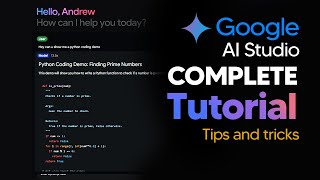
LARRUZ walks through Google AI Studio's core features: comparing Gemini models from 1.0 Pro to 1.5 Flash with context windows up to 1M tokens, building chat prompts with system instructions, indexing videos with timestamps, and tuning models with 100-500 examples from CSV or Sheets.
Chapters
So Google have finally released their Google AI Studio widely in EU and UK countries, and the models that are currently available are 1.5 Flash, their new really fast model, and of course their 1.5 Pro, which is the one that allows you for long context in a variety of different multimodal use cases. And I think this video is really important because it's going to show you the different use cases that you can use when you have a 1 million context window. So I've actually used this software quite a lot. So this is going to be a pretty easy tutorial. And if you do have any questions about this, don't forget to leave a comment below and I'll try my best to respond to any of the queries that you might have. So one of the things that you're going to notice when you come up to here is that there are actually three different models. So what you can see, well, there's actually a fourth one, but I'll explain that later. So there's actually three models here. We've got Gemini 1.0 Pro, which is pretty much a base model. This is a simple model that is, you know, used for a variety of different tasks. This one has a standard context length. You can see that it's got 30, 000 tokens there. So if you want to use this model for your standard tasks, this one is completely fine as you would use other things. However, Gemini 1.5 Pro is a lot better in terms of the capabilities. And you can see it's got the 1 million token copies context length that allows you to do a lot more within a context window. And in addition, the third model that we're going to be using in this video is of course, Gemini 1.5 flash. Now, Gemini 1.5 flash is rather fascinating because it allows you to have also a 1 million token context window. However, the only problem with Gemini 1.5 Flash is that it doesn't have the abilities of 1.5 Pro. Gemini 1.5 Flash is designed to be a very fast model that you can use for certain things. And I'll show you some of the use cases later on. So one of the things you want to do with Gemini 1.5 Pro, which is the main model that most people are going to want to be using, you're going to want to click here and you're going to want to click create a new prompt. Now you're going to be prompted with two different options of creating a prompt. You've got chat prompt and then you've got a structured Prompt. So I'm just going to go onto chat prompt because this is just going to be what we're using for now. And I'm just going to go on a 1.5 Pro. So now we can see here that we have our standard chat interface. So with this, essentially what you want to do is I'm just going to call this the Gemini demo. Okay, so this, you don't have to actually change this name, but I'm just going to change this for the video purposes. I'm just going to call this Gemini Demo. And then of course, right here what I can do is I can do my system instructions so I could say respond in a pirate themed manner. And this is just for the example. But with Gemini 1.5 Pro, what you can do is you can put something in the system instructions and then right here you can click save. And this is going to be something that can save you time when you want to test out different things. Because this is a large multimodal model, Google knows that what you want to do is you want to be able to test out a lot of things rapidly. And what you can do is you can just put something in here, which is essentially a way that you want the model to respond. So I can say respond in a parrot themed manner in a really upbeat way. And then at the top right, you can see right here there's this little save button and you just want to click save. And then now can you see, you can see that it says right now prompt saved. So when I go to view all I can see right here, my Gemini demo, I just click this. And then in my system instructions you can see right here, respond in a pirate themed manner in a really upbeat way. And I can say hello and it should respond in the way that I want. The reason you want to do this and you can see it says ahoy de mate, find day to be greeting. Yada yada yada. The reason you want to do this is because in future, when you are using the multimodal capabilities such as video, audio and of course text or image, this might save you time if you want to ask it certain questions in a certain way and you want to gauge how the model responds. So that is how you use the system instructions and how you can actually save a prompt. So now that we don't need to use this anymore, what I'm going to go ahead and do now is I'm going to head and going to do create new prompt. Then I'm going to do a structured prompt. Now this is a little bit different, but it is not that hard. So basically, with a structured prompt in the Gemini AI studio, basically what you're doing here is you're just giving the model examples of inputs and outputs that's going to kind of change how the model responses. Now, I tested this quite extensively and it does actually, actually work. So, for example, I could put this as the. Let's just say YouTube, the AI grid demo. The AI grid demo. And I'm going to click save. And then what I'm going to do is the optional style instructions for the model. I'm going to put U R. And right here you want to put what it's going to be acting as. Then if you are a senior title writer for a YouTube channel called the AI Grid, okay? And then I'm going to say you convert news into shocking headlines for maximum engagement. Okay? So this could be something that you want to do. Now, essentially the reason you want to do this is because you want to be able to have the model respond in a certain way. And I'll show you another way to do this in a moment, but this is a very basic way. So one of the things you're going to want to do here is in the input, you're going to want to change this. And then this is where we put titles. So, so this is the classification for our input. So if we were putting marketing copy, it would be there and then the output would be whatever we want the output to be. And we would put the new headline here. So, for example, we could put. We could put some examples here. So, for example, I could put Microsoft just revealed their new aipc. Then I could put the new headline is Microsoft shocks the Entire Industry with new new AI PC. Okay? Then I could put open AI reveals GPT5. Okay? And basically all I'm doing here is I'm inputting the information and then I'm inputting how it should respond. And basically what you want to do whilst doing this is you want to take into account these certain bits of information so that you get the response correctly. And I'll explain this further. But basically what I mean by that is that, for example, you know how I've just put in that Microsoft just revealed their new aipc. What it's going to do is it's going to look at, it's going to look at the key text here. So, so it's going to look at Microsoft and PC and then it's going to see how I've taken it from there and input it into there. So as you can see, Microsoft shocks the entire industry. I'm going to put open AI shocks the entire industry with new GPT5 model and then I could put Anthropics reveals state of the art Claude 4 and it surpasses GPT 5 that I could put in here. And this is what I want the kind of headline to be. So on the right hand side here, this is exactly where I want or what I want my response to be like. So you can see right here I put Anthropic reveals state of the art Claude 4 and it surpasses GPT 5 anthropic clause 4 just done the entire industry and basically I'm just using some examples now here's where you get to testing your prompt. So if you've written these, what you want to do is you want to then test your prompt with the information and, and you want to see if it actually works. So I want to put, let's see what other companies are. Google has just revealed their new Gemini 2 model and it's surpasses GPT5. So now then I'm going to put run output and then this right here, I click this button. So I click generate response and then I'm going to see it says Google just dropped a bomb. Gemini 2 crushes GPT5. So this is how it works and you can kind of test this if you want to by removing these examples. So if I remove these examples, I'm just going to go ahead and remove these, I'm going to remove these examples and then you can see it said Google just dropped a bomb Gemini two crushes GPT five. And then I'm going to just go ahead and run this again. We're going to see that it does your titles in a very, very different way. So it does your titles in a very, very different way that you might not expect. But the point here is that what this actually enables you to do is it enables you to format information in a very specific way that you might want to use. I think this is only useful if you have a very specific style of piece of information, a very specific output, and then you want to be able to use that in the future to be able to get that consistent kind of output. And whilst yes, you can do this with standard chat interfaces, the reason you're going to use this is because it covers a very different amount of examples that you're going to want to use. So for example, one of the examples that Google actually did use is they did this. So you can see right here it says identify all brand names mentioned in the input. Multiple products will be separated by commas. So on the left hand side we can see just a standard piece of text. And then on the right hand side you can see it outputs all of the brand names. Now, the reason that this is good and the reason that this actually works is because it has more examples. So the more examples you use, the better it's going to be. And what we can also see here is that the model is Gemini 1.5 flash because the output is fairly small and you want to use Gemini 1.5 flash if you're not entirely writing new content. This is literally just taking out the content from here, like Tesla, Google and Disney. And you can see it just writes out the username. And then we can see here that we can literally just click run right here. And it's going to give us the exact outputs that we need for this task. So this is something and an example of where you want a very basic task done at scale and you need a few examples, tools. This is exactly how you can utilize the model to, I guess you could say use it for certain use cases. And if you want more use cases, I'll have another video perhaps attached to this one or a link in the description that's going to show you guys all the different ways that you can use this. Now, with 1.5 Pro, of course, one of the key features is the context length. So what you can also do is you can test how good this is. So one of the things that you might want to test is you might want to test one of these sample videos. So when you are here, you can see that there are these sample videos and you can literally ask Gemini what this video is about. So you can say, what is this video about? And whilst yes, this does take take some time because it is a 10 minute long video and we can see on the right hand side the token length that is 177,000 tokens. And then we can see how long this takes to respond. Another thing as well is that something that most people don't realize is that Gemini 1.5 flash is also multimodal, just a lot faster. It's something that's used for different tasks. But with 1.5 Pro, this is of course the big task slash big model that you want to use for the majority of your long context queries. So here you can see we get our response and this response is pretty small. Now I'm guessing what we could do is, if we wanted to, we could also Click Rerun. We could also click Edit right here. So we could edit this response and we can edit that based on the entire thing that we want. And another thing that you should know is that often, for whatever reason, the responses in this system are not that long. So I would say since the responses are not that long, it's kind of best to ask Gemini 1.5 Pro to make its responses as long as possible. That's just a tip that I've noticed when working with videos and audios, because it usually just gives a very, very short description, which is much shorter than it would do if it was in a standard chat user interface. I'm not entirely sure why, but if you do want a lot more information, you can see right here. I was thinking that it was going to give a detailed information, but since I just said, what is this video about? It doesn't give me that much. Now you can see right here that I've asked it for a detailed explanation summary of what you see in the video, and it doesn't do that much of a great job. Now, I think what Gemini actually does excel at and what they showed us in the actual use cases video where they showed us a few demos and is that Gemini actually excels at being able to identify specific things that go on at specific times. So if you ask Google Gemini about a video and you ask it for something that happens at a specific time, then that is something that you can use this for, because it's able to identify all of the different frames and then give you a timestamp for what happens there and then able to give you further context on that. It's not something that you want to use kind of for like video summaries, but it's more of like a tool that you can use to find things in really long videos. So if you do want to upload a video yourself, you can just click your drive and then right here you just want to click upload. And that's how you upload your files. So what I'm uploading is a recent thing from Microsoft's demo about their new Copilot software. And I'm just going to ask a couple of questions about that demo because I want to know exactly where certain things appear. So I'm going to say at what timestamp do the zombies appear? And then I'm going to click Run. So I'm just going to wait for it to tell me when the zombies appear. So it says that the zombies appear at the timestamp 59 seconds. So I'm going to go ahead and check that. And here we have the video. So then I'm going to go ahead and all the way to 59 seconds. And then at 59 seconds the zombies just start to appear. So this I guess you could say is pretty, right? They don't appear exactly at 59 seconds, they appear like two seconds later. But this is actually the timestamp you want to be if you do want to find the correct thing. And this is basically just another video that you've probably already seen on my channel. But the point here is that this is something that can find specific things in certain videos and it's able to give you more context on that. Then you can see here I asked them what the video about and it says this video is about a person playing Minecraft, getting assistance from a Microsoft AI assistant and it's able to provide helpful tips, yada, yada yada. So you can see the Gemini 1.5 Pro is able to do long context understanding across videos, which is really, really useful. In addition, you could always use the sample videos to test the full movie of Sirlic Julia from 1924, this 30 minute thing. But I would say that, you know, it's going to take a longer time to respond because there is more footage. And another thing as well is that if you do open up a new chat right here, you can see that you don't actually get to save these chats. So if you do want to somehow save your interactions, just click the top right hand there to click Save and then that will save everything in the chat. So I'm going to go ahead and use a new chat prompt to show you guys some different use cases. So here I'm going to show you guys how to actually use the audio capabilities. So this is a video script that is basically Project Stargate. If you don't know it's a supercomputer that is going to be used to build AGI. You can see that this is actually around 16 minutes long. It's got 32000 tokens. And I'm going to ask it something about this audio. So I'm going to ask it what is this audio about? And then we're going to see how long this takes. Now what you can actually do is if you want something that's pretty quick and I wouldn't recommend this, you can use Gemini 1.5 flash. A 1.5 flash is a model that is much faster than Gemini 1.5 Pro. So I'm going to show you Gemini 1.5 Pro first. So I'm going to say, what is this audio about? And we're going to wait to see how long that takes. And we can see right here that in literally around 10 seconds it was able to give me this incredible, incredible response, which is much longer than the other one. So this seems to be really, really comprehensive in terms of its audio, you know, capabilities, it being able to summarize exactly what's going on. So audio capabilities are really, really cool. So what I'm going to do now is I'm going to just do the same with Flash. So what is this audio about? And maybe you'll see a marginal difference. So I'm just going to run this and we're going to see how quickly it's able to respond because 1.5 flash should usually be. Yep, you can see 1.5 flash is so quicker in how it responds. You can see 1.5 flash also does have shorter responses. You can see it talks about all of the phases of Project Stargate. So it's pretty, pretty similar. It just also costs a lot less than the 1.5 Pro. So if you're wondering I what I should be using in my kind of project, 1.5 flash is something that you use for quick image identification, quick audio recognition. Maybe you want to classify what the audio is rather than get detailed descriptions that are really necessary and you need to save money. That's where Flash comes in. You can easily identify an image saying, you know, it's a bird, it's a plane. This is an audio about, you know, for example, AI. This is a video about AGI. This is a video about asi. But if you need really, really specific descriptions, that's when you go to Gemini 1.5 Pro and that's when you ask it certain questions that actually take advantage of its much more capable system. So now something actually really cool that you can do with Gemini is that you can actually tune a model. So right here you can see you can click this button called New tuned model. So of course click ok. Then you can see right here we can then tune the model. So this is where you can basically have a model that is tuned on your data that's going to perform a lot better and adhere to your tasks in a certain way. So right here it says select data for tuning. You can tune a model from an existing prompt structure or create one by importing Google Sheets or a CSV, which is basically just an Excel file. Tuning only works with text at this time and we recommend using 100 to 500 examples. They have the entire tuning guide. But this is what I'm here for. So I would recommend not using one of the structured prompts because it's just a little bit confusing. Using. I would just choose an existing prompt and right here. And then of course, what you want to do is you want to click import. Now what you can do is this is what I did because I wanted to actually test this out. Well, I actually just asked Chat GPT to literally generate the data for the tuning, just to see how it works. And basically if you don't know how the data should be structured. So here you can see I asked it to do 20 examples for me, because 20 examples is just the base. But you can ask it to do 100 examples or you can just ask it to do 20 examples batch by batch. And it will do it. And then you just, just click this button to download it. Then this is what you can see in Google Sheets or Excel, whichever software you're using. And then this is what you'll have. You'll have the question and then the answer. So it's usually this is the format, it's just like input and the response. And then this is exactly what you'll need. So just double check this to make sure that this is right. And then you'll know that this is good. Okay, so then you just want to click import right here. Then you just click Insert. And then you just wait right here. Then you can see right here that this is what's coming. And then right here you can see you just want to do new input column. Then right here just new output column. Then of course just a prefix, just leave these both ticked. Then you just want to click import 20 training examples. And then you can see right here preview showing 1 of 20 and you'll know that that is currently working. Now, you don't need to go ahead and change any of these advanced settings. Usually they'll be completely fine. These advanced settings are only if you really want to just change things and just really experiment with stuff. But this is, you know, like it will automatically update based on the number of training examples that you have. Like, for example, it will Change this to 0.01 based on the fact that I only have 20 examples because you just need like a lower number if you want it to work more effectively. So this is the Tune model name. And I'm just going to put Gemini tuned model demo. And then we just want to click here tune. So once we click here Tune, that should be going. And then essentially what we do now is, since we just did that, we'll just wait for it to pop up. So you can see right here it is now in the queue and then we're just going ahead and click this and then we're just going to wait. Now, basically it has this graph and usually what will happen is the graph will stop or where it will plateau should be around the end of the epoch. If it doesn't, then that means something's kind of wrong and you just got to do it again. But essentially you can see right here that the epoch is around 5, which is pretty good. So you can see if you want to train this again, you can actually just stop it at 4 because it plateaus at around 4. There's no further improvement after 4. So you could literally just do that again and stop it at 4 if you want it to go a bit quicker. And of course you can experiment with other stuff. But now that we have our tuned model based on whatever thing that we want, you can see right here, we can see C tuned model. Or we go into a new chat. And then of course, for our new chat, we want to click View all. And then we want to click Gemini tuned model. And then it says use your tune model, Just use instruction prompt. And of course now we can just use that based on the training examples that we do have there. And this is exactly how we use Gemini 1.0 to be trained on specific examples. Now, if this tutorial did help you with how to actually use the software, please let me know if there are any questions that you do have about any of this stuff. I'll try my best to answer this. If there are any bugs and stuff, don't forget to use the comment section below as a place to share data and questions and comments. But after that, I will see you guys in the next video.










