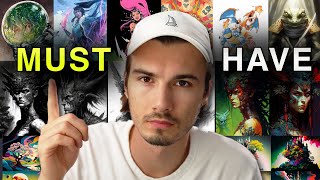
A Midjourney trick: add an artist's name to your prompt and the AI copies their style. The video walks through a spreadsheet of 1000+ artists organized by category, showing before-and-after examples of how it transforms your images.
Chapters
What if I told you that by adding one keyword to your prompts, you can go from creating average looking AI art to absolute masterpieces. Midjourney is an insanely powerful AI art generator. What you might not know is this advanced technique that I will be sharing today on how to get stunning results. No, seriously, this is by far one of the most powerful yet simple techniques that I ran into while using midjourney. And I'm not exaggerating here, look at some of these results before and after I added this one keyword. But hey, I don't want to stretch this out anymore. The keyword I'm talking about here is adding a artist. Yes, simply adding an artist's name will bring your artwork to a whole different level. To be more specific, it brings your artwork to the level of the artwork that artists produced. And in today's video, I will be showing you an incredible resource where you can visually Browse through over 1000 artists and pick the style that fits your creative vision. Now, to be perfectly clear, this resource has not been curated by me. This has been created by a person that goes by randolyn4785 on Discord. So all the props here go to him. And before we dive right in and show you some tips and tricks on how to get the most out of this excellent document, I want to quickly address how to implement this in your AI art generation as a beginner or advanced user. So, as you might be aware, the longer your prompts, the more specific the output will be. If you tell it to use the colors green and gray, it will use those colors, right? But if you add these artistic styles, it will use the color palette and the style of that artist. And what that means in practice is if you list the keywords green and gray, it will not be a generic green and gray anymore. In my experience, using these artist names is more like a template that you commit to, which is a fantastic thing because some of these styles are well defined and incredible and you can switch them up at any time. So with that being said, let's start exploring this resource and showing you how to put it to work immediately. So right off the bat, in the first tab called Characters, you can see the standard midjourney style. If you ask for characters, you're going to get this style by default. Alright, but this is where the power of the document comes in. When I zoom out, you're gonna see that we have over a hundred different artists that specialize in character creation. And now you can go ahead and simply pick One that suits you. Now, these black images are simply pictures that have not loaded. So if you reload the page, you'll get some of those. Also, there's a link to a copy cheat here, which sometimes works better. It really depends on how many people are using this right now. So let's just put this to work right away. What I'll do is I'll open up my Discord server and I'll go into the Channel AI Art tool. Cool. Now, I prefer this approach from going into the official Midjourney server because there you'll be getting new messages every second and the art you generate will get lost faster. So let's begin by saying imagine. As per usual, let's just say character, as in the tab that we're using here. That's my first tip. Shady Supercoder. Wearing a hoodie. Laptop, green, gray. Now this will be using Midjourney's default style. Alright, so this is what we get without defining an artist. Not great or terrible. Now let's pick one of these. So let's say I want this in the style of Michael Parks or Parkes. Not sure how to pronounce that. Michael Parkes. Either way, I'm gonna say Imagine, insert my keywords and then add the name of the artist. Will you look at that? That's just incredible. Instantly he looks more like a godly entity. Just like the style of this artist. I absolutely love this. Okay, now just out of curiosity, let's take that prompt and add another artist and see what we get. If we add Aegon Sheila to the mix here, his style is very different from what we just got here. And I can't wait to see the result of midjourney remixing these two. And there you go. Wow. I'm actually loving it. As you can see, the details of the characters, such as the face or the hands are defined just like Igor and Schiele's style, but the overall look and style still come from Michael Parks. Incredibly powerful stuff. But that's just where the fun begins. As you can see, there's multiple tabs here. So you can go to landscapes and get inspired by all of these various styles, or you can do cartoons, paintings, anime, sci fi, creatures, medium, time periods, fashion, print media styles or games. And this is the second category I want to demonstrate here because you have to realize that people nowadays, especially young people, have a stronger emotional connection to some of these game franchises and their look than they do to masterful artists that lived three to 400 years ago. And that's why I personally believe that this category in particular is very powerful. So let's rerun the same prompt we had here, but we'll add God of War. Alright, look at that. If a Greek God were to come down and hack a server, this is what it would look like. And the incredible thing here is there's hundreds of these in each category. And the very last thing we'll try here is taking this godly supercoder and adding the character style of Michael Parks to this as I simply love the materials and the look that provided. Look at this, this might just be me in 40 years. So did I over promise? I don't think so. One keyword changed the entire game when it comes to your output and you can pick the one that exactly fits your vision. I link the Excel sheet in the description below and to learn about more ways on to use Midjourney creatively, you'll want to check out this video.