This AI Tool MAY Replace Photoshop - within PlaygroundAI
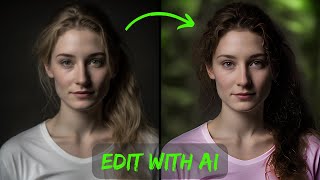
LARRUZ walks through Playground AI's text-prompt image editor, showing how to change hair color, swap backgrounds, add fireworks, and restore faces. The tool lets you edit with rough masks and instruction strength controls, and you get about 1,000 free images daily with commercial rights.
Questions this video answers
2023-03-03
Instruct pix2pix-style model
About 1,000 images per day (described as "almost" 1,000).
4x (upscale by four)
Chapters
In this video, I'm going to show you a new way of editing your images just using by text prompts. For example, you can change the hair color or completely change the hairstyle, change the color of the objects, add fire to the road and change the scene the way you want to learn this and a lot more. Watch the video till the end. So in a previous video, I showed you how to modify your images using simple text prompts using using this instruct pix2 pix model in the Hugging Face website. Now, Playground AI has implemented the same feature along with some powerful changes that we are going to explore in this video. It's a new web based image generator tool. They have some neat features and the best part is that it's almost free. So when I say almost free, they give you almost thousand images per day that you can create and you can actually commercially use them. So I'm going to play around with the number of images and show you different features. So let's first import our images. To import our images, go to this image import to edit. So the first image I'm going to import is this one. Now, if you want to make some changes to the image, simply write your prompt here. So let's say we want to make her hair purple. Okay? To run the prompt, simply go down and click Generate. So as a result, you would see that the model not only made her hair purple, but it also added a purplish shade to the T shirt as well as to the lipstick. But we don't want that. So this is a vanilla instruct pix2 pix model. We want only the hair to be modified. So in order to do that, let's cancel this, import the image again, and now we can add a mask. So simply come here, click on Add Mask and then select the area that you want to be modified. So let's say I'm going to increase the brush size. So here's how you can select the brush size and then you simply put a mask around the hair area. And so it doesn't have to be very accurate. So let's say we have a mask here. And now I can simply put the same instruction, make her hair purple. All right, let's see what happens now. Okay, so you see now that only the hair are purple, it didn't change the rest of the image because we masked that area. So it's a really powerful tool in that sense. Now there's an option of how does the model control the effect of your instruction? So if you come here, edit instruction strength so you can actually modify how much importance you want to give to your instruction compared to the original image. So let's say if you look at here, if you keep the value too high, right? So it will follow your instruction a lot closer. If the value is low, it will be a lot lower. Let's say we want to continue editing this image. So click on Edit this image. That will bring it here. So that's going to become your original image. Now let's say we don't really like the background. We want to modify the background. So what I'm going to do is I'm going to add a mask to the background. So simply select the background. I also selected some here, so I want to remove those. So select this eraser option and then let's see. I think this is better. Okay, now let's say the instructions are going to be put mountains in the background. Spelled it wrong. Okay, let's hit generate. And voila. We have mountains in the background. So let's play around with the strength. If we take it to the highest point, so that's like 19. Let's see what impacts it's going to have. Okay. Not too bad, right? You can do a few more things as well. But I'm going to come and save changes. So let's say we have this image and we want to make her hair red. We want to do like multiple changes. But let's start with it. So I didn't really mask anything. So let's see what it does. Nice. Actually, it didn't really impact anything else. That's good. So let me save this changes. So now this is going to be a base image and we want to make her clothes green. Right click Generate. So now if you see it added a greenish 10 to the whole image. And if you notice, it also deformed the face a little bit. So we are going to take care of both of these issues. Let's go and add a mask. Adding a rough mask, it doesn't have to be very accurate. All right. So let's say that's my mask. Now let's run this again. Now it did, I think a much better job. Right. So we didn't specify what type of necklace, so it added something. But we can be like more exact in the description. So initially when I modified the color of the clothes, the instruction strength was pretty low. So let me go and make it higher. Then we are giving it a higher strength. And now you see the difference, right? Now I also want to. So let's say save the changes. If you want to improve the face. So there like these changes could introduce some deformities. So you can click on the face restoration now. Okay, so it actually added face restoration to it. Let me download this. So let's save it. If you want to upscale our restored image in which we did face restoration. So what I suggest is go to image to image, right? Upload that image, okay. And then keep the image strength very high. So let's go and bring it to let's say 95. That way it's going to give more importance to the composition of this image rather and will completely ignore the instruction. So let's say generate. All right. And now we can upscale it by four. Okay, upscaling is done. And you can simply download it and store the the new image. All right, so let's say we have this image. We want to make the put some water on the road and make the road muddy. So the instruction is going to make the road muddy. Okay, let's click generate and see what it does. Now you can actually see that it's a very powerful tool. You simply describe the effect that you want and it changes it. So again, in this case, like it really, we simply wanted to put mud on the road and it changed a whole scene. That's why this mask feature is very powerful, because all you have to do is let's say we select the road, right? We leave the rest intact. So for example, here sadly highlighted the road, and I want to simply modify the road. So click generate again. You might have to play around with this strength. Like if you don't really see the desired impact, then you need to modify the strength. And it actually did a pretty good job. You remove the mask. That's the new one. So let's say we also want to change the color of the car. So now I simply mask the car and ask it to make the color of the card red. It's context aware, so it knows what things we are trying to modify. So you see here, I think it did a pretty nice decent job. Save changes, right? And then go to actions upscale by 4% 4 times and we can store the resultant image. So let's say we have this image and we want to add fireworks to this image, right? So first add a mask. So let's say this is the sky and you want to add fireworks around this area. So let's say add fireworks to the sky. Okay, now click generate. So it seems like it didn't really do anything. We might have to increase the strength of the instruction. So let me take it to 16 click generate again and let's see what it does. So as you can see that you will have to play around with the instruction strength. Okay, now it did add some fireworks like a small firework here. But it actually looks pretty neat. Okay, so let's say we want to add fire to the road. Let's see what it does it with. Simple instructor picks model. Okay. Not what I expected. I simply put a lot of stuff into the background. Let's see if we bring down the strength to a small value. Let's run it again. Let's see it completely ignored it. Maybe something around five will be good. Okay. No, it's not doing it. So let's see. We are going to do it using the mask method. I'm going to take the strength to 7.5. Let's generate it and let's see what the outcomes is. Okay, so it did put some small file here and similarly if you want to. Okay, let me change the color of the car. Now I want to make it red. So all I have to do is tell it make the color red. Okay. Nice. I hope you liked the video. Please consider subscribing and liking the video. It gives algorithm a signal. Thanks for watching. See you in the next one.










