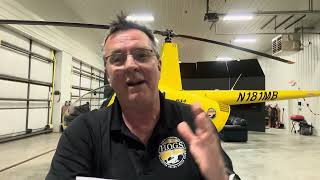
Kenny Keller shows how to set up a green screen for under $100 using a painted wall or cloth backdrop, then walks through removing the green in Camtasia by importing your video, placing a background underneath, and using Remove a Color to isolate and delete the green.
Questions this video answers
$25 (one gallon of paint from Lowe's).
About $75 (ordered from Amazon).
Pinnacle.
Camtasia.
'Remove a Color' in Visual Properties (pick the green and adjust sliders).
Chapters
All right, we're gonna do the selfie thing, and I'm gonna take you down the hall. We're talking about green screen. I'm gonna show you what I started with. It's really cool. I'm going down to my old office. The door's locked, and I can't get in, but I don't think there's anybody in there. So I'm going to stick the camera through a hole in the wall so you can see my original green screen. Yep. All right, here we go. That's my original green screen. Painted the whole wall with a gallon of paint from Lowe's. And there I had wires hanging from the ceiling, and I had all kinds of fun trying to light that green screen. So let's head back to our newer green screen. So that was my first green screen. And the cool thing about that, that paint I got from Lowe's, a gallon of paint for 25 bucks. And we went in with pictures of green screen. And we're showing this one guy, and he's trying to figure out what the right green is. And pretty soon, another Lowe's employee walks up and he goes, oh, that's just simple chroma key we've got that looks up the code, mixes it up, and boom, we were done. So that original green screen was cool. For $25, I was up and running with a green screen painted on the wall. Now, the trouble I had in that small room was I had trouble with lighting. And I had lights mounting on the wall, lights hanging from the ceiling. And no matter what I did, it was just always a struggle to try to get the lights just in the right place in order for the green screen to come out just quite right. But, hey, it got me started. It was cool. And I can remember being so excited over spending a whole $25 to be set up with my green screen. That part was cool. So now, over here on the wall, I have a cloth green screen I ordered off of Amazon. I believe it was $75. It's a pretty good size sheet. We actually cut it off with the floor. I wish we wouldn't have done that because it's big enough that we could have had the whole wall covered and been able to stand on it as well. But that's okay. You know, moving forward, this one works out really nice. I'm going to go over and grab the camera so I can show it to you. So what we did, a local airport employee said, oh, I got a big piece of pipe at home. He gave me the piece of pipe, ran out of the hardware and got a couple of units to use to hang the pipe. And then we simply sewed something on the end of it that we could slide the pipe through. Actually, you know what? That hole was already in there. We made a seam down there, I believe, on the bottom and sewed that up so it was nice and smooth. So that's it. And the beauty of this green screen is when I first came in, started trying to shoot green screen with it, you can see these lights that I have. These are Westcott lights. They're really nice units. But I was trying to make the green screen go the first time. And I'm doing fluorescent on, fluorescent off, turning on my Westcott lights, turning them off. And no matter what I did, the green screen wouldn't come out right. And by accident, the camera was rolling. And when I noticed that I shut the lights off and only had on the fluorescent lights around the ceiling, the green screen came out great. I found it by accident. And that's what I mentioned before. This ceiling is on an angle. There are brand new lights, new cover, so they're nice and bright. And because that ceiling is on an angle, I think is why that green screen comes out so well. The green screen is fine. I use it just depending. I mean, you already know what green screen is. You can put all kinds of backgrounds in it. You can put video in the background. It's a lot of fun to use. I've watched quite a few different videos on YouTube about how to properly light a green screen. And that's my recommendation to you, is if you want to mess with the green screen, depending on where you're doing it and what kind of room you're going to be using, you'll have to experiment with the lights a little bit to get it to work out. Right. But I originally did my screen recording, or I'm sorry, originally did my green screen in a program called Pinnacle. And it was a little harder to get that the lighting just perfect and make it work in Pinnacle. And then when I discovered that I could do it in Camtasia, it's really a pretty easy process. So let's go to Camtasia now and I'll show you how we do the green screen in Camtasia. Okay, so we're gonna go to import media, and I'm just gonna go grab something that we've shot recently that you've seen. We'll see what comes up here. There we go. Let's try a project that's that you've seen that didn't have the green screen. Let's try it just for fun, because I didn't take the time on these videos because I just kind of wanted you to see the raw background of what I do. So we're gonna slide this down to the timeline. So I'll just try a background. I'll go back to my server basketball court. Let's try that. So whatever you want in the background, you need to drag down to the first part of the timeline, the track one. Now, to remove the green part, all you do is click on the video, highlight it, and then go to visual Properties. Slide down, remove a color. Click. Click on this little thingy here. Click on the green that's closest to the green you think the background is. Select color. We're going to go over here and click. And boom. Looky there. Pretty cool, huh? Let's try on the next one. Same thing here. Remove a color. Oh, wow. That's pretty weird. Now, when things look funky, you can take these different sliders here and you can use these to clean up the green screen. There we go. Let's go ahead and let me sit down there. And there you go. That's how you do it. And then again, like I said, you got to kind of play with these a little bit. But if you just mess with them, you'll get it just right where you won't get that green halo around the edges, which is hard to get rid of sometimes. And there we go. I'm sitting on a basketball court working on my computer. Pretty cool, huh? And that's green screen. It's a lot of fun. I encourage you to mess around with it. You can do it without spending much money and kind of things you can come up with. During hovering flight. Also called tail rotor drift. It's one of the three T's that everybody screws up. Effective translational lift, transverse flow effect and transit. So you want to learn about an online business selling your information product online? That's what we're here to talk about. I'm going to show you all kinds of cool stuff and I'm going to tell you the story.