How To Build Your Online Business Chapter 9 Turn Your Video Into A Podcast
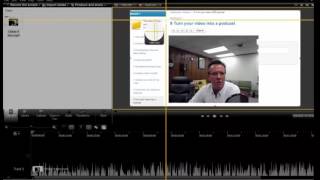
Kenny Keller and a co-host show how to extract audio from Camtasia videos and upload to Podomatic. They test a Logitech webcam mic against a Yeti microphone and explain why podcasts help convert viewers into paid members.
Chapters
Okay, now I'm going to show you how to turn a video into a podcast. Basically, we go into Camtasia and we'll.
Burn an MP3 file, and I'm going.
To show you how to do that and then show you how we upload.
It to Podomatic, which is the podcasting.
Company that I use. And on another note, I'm trying to keep you informed on what cameras and microphones I'm using. Just for fun, trying the Logitech C930E camera right now, along with the microphone that's in the camera. So this will give you an idea.
Of the difference between, like, the yeti.
Microphone, the microphone on a webcam, the quality of the webcam. So a little bit of experimentation here, and we'll see how it comes out. So I'll tell you a little bit about podcasts. When I started doing them about a year and a half ago, I had no clue what a podcast even was. I didn't know why it was important. I knew nothing about it. All I knew was the gurus that I watch that have never steered me wrong in anything that they've said a person with an online business should be doing, and they urged podcasting. Podcasting is growing leaps and bounds, so I jumped into it not knowing a thing about it. I actually enjoy it. Sometimes I just do a podcast for.
Fun and just record a subject I want to talk about.
Other times, I take videos that I've made, burn an MP3 file, and upload that as a podcast. And the podcasts are important, and a lot of people like them. People join my membership later because they'll say, hey, Kenny, I'm listening to your podcast. I've had guys say, I've listened to every single one of your podcasts, and I like what you do, and I like your attitude and the things you teach. I want to buy your online program. Happens consistently. So podcasting is important. It's growing in its popularity, so it's.
Really pretty easy to do.
It's actually kind of fun. So first, I'm going to show you how we burn the MP3 file for the podcast.
Okay, so now we're back to screen recording, and I am back to the Yeti. You should notice the difference from 30 seconds ago. That audio from that webcam. Pretty typical audio. You know, it works okay for some stuff, but webcam audio in general just isn't very good. So let's get to the screen recording for just a minute. I am going to import a picture that I just took of how I Started this screen capture. You click on record to screen. When you click record to screen, this is what you are going to see pop up. So I went to here and I just turned the webcam off. So I am just doing audio only. Click this arrow and you get a drop down. You can pick system audio. In this case I have the Yeti mic. So I just clicked on Yeti mic. So that's how you start the screen recording in Camtasia. And remember Camtasia, you can try out for free for 30 days, download for free. If you like it, you can purchase it. You can use other editing programs, but this is the one that I'm using and this is giving you a good idea. The basics. So now I'm going to show you how to make an MP3 file for a podcast in Camtasia. Going to delete that picture off the timeline there. Get that out of the clip bin. So I'm going to do is import the video that I just used for the beginning of this video that you just watched and we're going to use it and make an audio file. So I'm going back to Camtasia, the Camtasia file where everything you make in Camtasia goes to the Camtasia file. I called that online 9 intro. Right? There it is. Click on it. Click on it again. Brings it into the time or into what we call the Clip Bin in Camtasia. And we're simply going to slide that down here to the timeline. Slide it across. Now this is a video file. Now to make an MP3 file, which is what we're going to use to upload for the podcast, all we have to do is simply go up here to produce and share. We're going to go to custom settings. Click next. Go to MP3 audio only. Click next. Now you need to enter some information for itunes. If you use Podomatic like I do, everything automatically goes to itunes. So I go in here and we're just going to use the actual title for this project. This was the beginning of this video. So I called it online 9 intro. So I'm going to put in online 9 intro. Copy it. And I put that in keywords and description. That's under project information, Author information, Kenny Keller. My email, my home website, address, rights management. I put me and then additional info. I just put what the video is. Click ok, now we go to Next. I'm going to put the title right up here. Your title is going to be whatever it is, your file is whatever you want to name it. Online 9 intro. I'm going to click finish and boom. Rendering mp3 file. Look at that. Boom. It's done. We're going to use that file. I'm going to just close this. We go back into Camtasia, click Finish and always glance and make sure you know where it's going. This is production directory, user documents, Camtasia Studio. You can change this and send it wherever you want, but most everything I build in Camtasia I sent back to the Camtasia file. So it's easy to find. And I make so much stuff that sometimes they're named close. So I always look. What is it called? This online 9 intro.MP3. Okay, so I know I can go find that file to upload to the podcast. Click finish and there we go. That's easy. That's it. That's how you make an MP3 file. It is that simply easy. So now I'm going to go back to my web browser, which I use Chrome for everything. I can tell you Internet Explorer does not work good for a lot of these sites that we use for these different things. It just doesn't work very well. Chrome or Firefox is probably the browsers you're going to want to be using when you get using these systems. Podomatic. Okay, so here's Potomatic. Why do I use Podomatic? It's just the one I picked. I watched some tutorial videos free on YouTube about podcasting. They named several of them and this happens to be the one that I picked up. It cost me $9.95 a month. I'm nowhere near maxing out the bandwidth that's available for me to use or the storage. You can see right on your homepage what you're doing, where your overall ranking is right now out of. I forget how many thousands. Upon podcast, I'm ranked 539. It's up 241 from the previous day. And I'm number three in training. If I'm uploading very much content, that goes up. If I stop uploading content, it goes down. Just like YouTube, Facebook, anything you do, you need to be frequently, whether it's once a day, once every three days, once a week, whatever forms you're using, you need to be uploading new content, even if it's short and sweet, to the point. But you need to post often. So I'm going to show you how to publish a podcast, go to publish, podcast, create. And when it comes up, I use the old publishing flow. They have a new system, but for me, it doesn't seem to work very well. So I use the old publishing flow now with all these systems again, everything's always changing. People are always updating their sites. So it's a common thing that when you log in, you're going to be trying new things here and there. So again, that's why I'm showing the basics, showing you the nuts and bolts of how to do all these things and know that they're going to be similar. They may change a little bit over time, but that's just the way it is. So click on the Want to use old publishing flow. Going to put my title in online 9 intro. Now, in this case, this is a video I just made, so I don't have anything transcribed for it. But the typical video, if I have a transcription, I put that in here because it's searchable on Google. You can put anything you want in here. Drive them to your website, drive them to your blog, drive them to your sales page. Wherever you're wanting to take people that listen to your podcast. I mean, most generally you want to have your home link in there. At least a small description of the video, what it is. This one's not actually going to get posted because it's just. I'm showing you for an example, but you can put whatever you want in here, but at least put a brief description, put your whole transcription, if they're necessary, links to the page that you want to send them to. Then click Save and continue. Next I'm going to click Upload a file to go here. Select files. Going to go back to Documents, Find my Camtasia folder. There's going to be two Online nine intros, so I had to pause there for a moment. I couldn't find the file. Duh. It was in the same folder, the folder that says online9intro. There's the video that we used to make the mp3 file from and there's the mp3 file. So we click on mp3 file open and now it is uploading to Podomatic. So this is only a short couple minute video. So you can see it's loading pretty fast. Isn't going to take long if it's a longer video or a longer audio file. It's going to take longer to upload. So I just wait until it says I'm finished uploading. You can see it's done uploading. The progress. Click, I'm finished uploading this window. Now I need to upload a photo. You may have a photo you already want to use. Maybe you want to Clip a picture right from the video. That's what I do a lot of the time. So I'm going to go back to Camtasia and I'm going to show you something that I've been using for a long time that we haven't talked about yet. It's called Snagit. Snagit is simply a program to capture any image on your computer. So, So I click Snagit 11. I purchased it along with Camtasia when I bought Camtasia, comes from the same company. Click image. Then I can go up here and I can click whatever size of image I want. So let's say I'm going to click, going to move it so it captures nine. Turn your video into podcast, make it about the size I want, release the mouse. Then it's going to give me an opportunity to save the file, change it. I can change the size of this, make it bigger, make it smaller. I can put border around it by simply going to border, click a color, go back to border, click a width, whatever I want to do all kinds of stuff. Snagit is a great tool for capturing and making a picture out of anything that's on your screen. So I'm going to click Save and everything that I'm building right now goes to a file called OnePix because it's at the top of my folder in the server. So I'm going to save it. Let's call it online. Ninepic Save. Close that out, go back to our podomatic, upload a photo, choose file and go to my server, which is my storage. Yours is probably going to be just on your computer. Starting out, go to 1 Pix. I know I named it online 9 find it. Click the photo open and now the photo is in there. So save and continue shows the photo. Okay, so I'm good. Go to Tags, next Tags or anything you want to put in there to try to make you searchable. Everything I've been doing in the past three and a half years has been going for my helicopter online ground school. So this gives you suggested tags you've used in the past. So I can go in and use some of these. In this case, if I was just using this for a marketing video, I could put in whatever online marketing membership sites, basically keywords relative to whatever it is that you're doing, whatever you're teaching, whatever your niche is. So I keep all my podcasts clean. I don't do. I don't use any cuss words. If I do once in a great while, I'll bleep them out. If I don't cut them, I bleep them. So I'm going to select none. So none is already selected. I'm going to leave it on none because it's appropriate for all audiences. Save and continue. Now, here's what's cool. You can publish the podcast right now or you can schedule it. And I did that with the first 13 chapters of my book that I uploaded. I put up one new one every day for 13 days. And so you can click publish now or go on publish later. You can set the date once it comes up, pick the date and time you want it to go live. You can also just save it as a draft. So I'm going to go ahead and publish it. And then so I don't want to actually publish this because this is just in the demonstration. So I'm going to go save as a draft, save and continue. So there it is, it's saved, it's uploaded. I can save it for later, publish now, schedule it, whatever you want to do. And that's it. That's all there is to uploading a podcast. So if you want to go back and manage your podcast, you just go back to publish podcast manage. And here you go. It will list all of your podcasts in order. You can go back and edit, you can go back in view whatever you want to do. I'm going to go here and delete this one that we just made as a sample. Are you sure? Yep, I'm sure. Delete episode online 9. So let's view 1. Let's view Kenny's stupid weather decisions again. There's my picture. They can click on it. It'll play. I put a description in there, have a link to my Amazon book page. Because again, with these 13 podcasts based on 13 videos based on 13 chapters of my book, here's the link to take you back to my book page on Amazon. And that's it. That's the beauty of podcasting. I again, I don't listen to other podcasts, but I sure know that a lot of people are really into them. People enjoy listening to podcasts while they're driving in their car or on their iPhone or Android phone phone when they're out running, working out whatever the case may be. So now you know a little bit about YouTube, a little bit about blogs, a little bit about podcasting. So the next video we're going to talk about podcast posting this content out on social media. During hovering flight, also called tail rotor drift. It's one of the three T's that everybody screws up. Effective translational lift, transverse flow effect and transit. So you want to learn about an online business? Selling your information product online? That's what we're here to talk about. I'm going to show you all kinds of cool stuff, and I'm going to tell you the story.