How To Build Your Online Business Chapter 7 You Tube
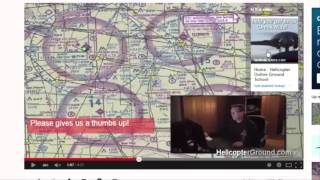
Kenny Keller explains how he uses YouTube to market his Helicopter Online Ground School. He reviews channel analytics (total views, recent views, estimated minutes watched ~31,000 in 30 days), subscriber value, and viewer attention (average watch ~2 minutes), and recommends short marketing videos (~2 minutes or less). He demonstrates annotations and YouTube Cards, thumbnails, title/description best practices (including transcribing video text into the description), upload visibility options (public, unlisted, private, scheduled), and calls-to-action that drive viewers to a 24-hour test drive/membership site. He also notes practical tips (ask for likes, use clear thumbnails, and transcribe videos — transcription service costs ~$1/minute).
Chapters
Okay, now let's talk about getting your videos to YouTube. I have my yeti right here on my mic stand with my P filter, and I'm using Camtasia screen recorder to record all of this. Later, another. In another presentation, I'm going to show you how that all works. Okay, so let's look around YouTube a little bit. I'm not going to dive real heavy into exactly how to use YouTube, because YouTube constantly changing this and it's kind of aggravating. But you know what, A lot of these different things are aggravating. And I can remember some of the training I watched in the beginning that said, you're gonna run into technical issues, whether it's computers crashing, things not working right. So just be prepared for that and know that that is part of this. Sad to say, but true. But if you go with the mindset that occasionally you're gonna into trouble, it's just the way that it is, you're going to be better off in the long run. So starting off what I want to show you some of the key things on this YouTube channel here, my main YouTube channel for my helicopter online ground school. Right Now I have 502,000 views. So I've broke a half a million views. I have 2,692 subscribers. So the power in this is I've done the math, and pretty much there's always someone somewhere watching one of my videos. So they're out there working for you 24 hours a day, seven days a week. When you're sleeping, when you're eating, when you're doing other things, your videos are out there working for you. And having subscribers, these people get a notification anytime you put out a new video. So what I want to show you next, as of right now, the way YouTube has this set up, you click in the corner, go to Creator Studio to get to your list of videos. And I want to take you right to analytics, because I want to show you something here that I think is really important. On the analytics page, you can see 13,472 views in the last 30 days. And I want you to look over here at estimated minutes watched. The point I want to make is, in general, people are only going to watch about two minutes of your video. This right now is a little bit high. 13,000 views would be normally about 26,000 minutes. This is a little bit higher than normal, but you can see at 31,000 minutes, on average, people are watching just a little over two minutes. So the point I'm getting at is for your Videos that you're going to put on YouTube for general marketing, to get your message out there, a good idea is probably to keep them about 2 minutes. 2 minutes or less doesn't mean you can't go longer, doesn't mean it can't be shorter. But we know in this world today, people's attention spans are not very long. So when you're producing your videos, my opinion is a good general rule of thumb is two minutes or less. I try to have the videos, the shorter videos, just marketing videos at like 1:58,159. So if somebody glances at the time when they start watching your video, they go, ah, okay, I'll go ahead and watch the video. I know when I watch other people's videos, I do the same thing. If I see it's four, five, six minutes long, seven minutes long, I'm not going to watch it. I don't want to sit there and take seven minutes out of my day. I want the short, to the point what their video is about. And I want to be done in less than two minutes and move on. Next thing I want to show you, below the views and minutes watched is your engagement. You can see how many people have liked, how many people have disliked. That's pretty normal. I got about 78 likes and two dislikes. You know, in the beginning I got upset when I would get a dislike on a video, but I can tell you now, after all this time, that's pretty average. You know, if you're getting 80 to 100 likes and you got a couple of dislikes in there, that's pretty normal. You know, if you have 78 likes and 78 dislikes, then that probably means your content is pretty crappy. And the next thing I want to show you is it lists your top 10 videos that are being watched, which this is very helpful with time. As time goes by, you can tell which videos they're watching, which ones they're not like. My number two video is an older video on class G airspace. I did a good job with that one. It gets lots of likes. Let's go take a look at it. So in this video, I had my own homemade little intro here. And I'm going to show you in another video how to build these intros. But just some basics right off the bat. I have a click here to subscribe. You want to give people that option to go ahead and click and subscribe to your channel. That way they'll be keeping track of what you're doing. This video, since February 2014, has 13,000 views, 72 likes, 1 dislike that's pretty good. And this video is kind of busy. There's a lot going on here. But you want to have a call to action. You know, I always have my website address on there. This one might be a little bit too busy. I'm trying to make them not quite so busy. But just giving you the point that check out our online ground school by clicking the link in the description box below. So right down here below the video I have several links where they can go to my author page for my book, take the 24 hour test drive for our ground school and then there's also another link for membership information and our website link. So you always need to have some kind of a call to action with your videos. I scrolled a little bit farther ahead in the video. Here's where they can click on this link to take them right to the page for my test drive to go in and look at my ground school which I'm going to go more into the test drive when I get talking about membership site. This is a very important piece of the puzzle is people have a chance to go in and look at my training for free for 24 hours and then if they're interested they can pursue it. If not, they do nothing and we part as friends. Now the cool thing is I can tell you people come back a month later, two months later. I've had one guy that came back and purchased my membership two years and two months after he took the test drive. So a lot of these strategies are long term. You know, we all want results right now and I'm guilty of everything wanting everything right now. But keep in mind most of these things you're doing is for the long term. So now I advanced a little further into the video, right? Here's a little link for Please give us a thumbs up. If you tell them to give you a like a lot of times they will do it. If you don't put one of these on your video, you will definitely have a lot less likes on that video that I can tell you in five years of doing this. That's a fact. If you don't tell them to give you a like you'll get some but you won't get near as many as giving them that call to action, telling them to give you a thumbs up. So these are called annotations, like the red box here and then this over here is what they call cards. This is something new. If somebody's on a desktop or a laptop, this is what you're going to want to be using to drive them to the page that you want to drive them to. But on mobile devices, that doesn't work so good. So YouTube has come up with what they call cards. So it'll still come up on a laptop or desktop, but on a mobile device, the cards is what's important. And that's why YouTube has designed these cards. So I'm going to give you some basics on how you set these up. Go down here to Info and Settings and for the annotations, click on Annotation. And you can see in this one, these are all annotations that I have set up. Whether it's, go to my. Take my test drive, give us a like Click here to subscribe. You can easily add and delete these annotations. You can move them around the timeline, you can stretch them, you can make them shorter, make them longer, whatever you want to do. And you make these right up here by clicking Add Annotation, you can make a speech bubble, a note, a title, a spotlight or a label. I pretty much use this note right here. And once you put the annotation on there, you can change the color, change the size. And you're going to want to experiment that depending on what your video looks like, on what sizes you want, what colors you want to use. I mainly use red with white letters. And I do that because One of the YouTube gurus I watch, that's what he does. So that's what I do. Now, the cards, you click up here on cards and this is pretty cool because you can add different things, take them to your associated website, fundraising merchandise, video or playlist, send them to another channel, and you simply click on the one you want to use. Like all. For example, I'll click video playlist to send them to another video, click create My other videos pop up in here. We'll just pick one randomly create card and it puts that card right here. You can put it anywhere along the timeline that you like. I've been putting the cards right towards the beginning. So now I take you back to the video and show you how the cards work. Appears a card and I have record checkride success. Checkride is their test. And that's what my customers are worried about and members and people that I want to bring into my business. So when they click on this, they see that they click on it. Up comes boom. Helicopter Online ground school get started today. If they click right on that, boom. It takes them right to a page where this is actually my homepage, where I have a Short video. And then here's the big get instant access button, where when they click, that takes them to my membership site and gives them an information video and an opportunity to join my membership. So you can see how powerful the YouTube video is. If they like your content, they like what you have to say, and they want to learn more about your membership site or whatever it is that you're selling or trying to bring a new customer into. So that's the beauty, the beauty of these videos. They're out there working for you 24 hours a day, seven days a week. It gives you a chance to bring people into your business, whether you're trying to sell them something, giving them a download, getting them to sign up to your email list, whatever it is you're working on and what you're trying to do. Okay, so now let's go to how you upload a video. We're going to dive more into Camtasia and setting up and making your videos and producing them. And I'm going to walk you through the steps of how you upload that video. Go up here to the right hand corner. Click Upload. Click on the arrow for select files to upload. My Camtasia file is underneath Documents. So I go to Camtasia Studio and find the video that I want to upload. So I'm just going to pick a random one here. Click on the video file, click open, and the video starts to upload. Now you can make a choice whether you want the video to be public. The video can be unlisted, meaning you can send it out. The general public can't see it, but people you send the link to can view it private, so only you can see it. And you can also schedule it to come out at a certain time, which is really cool. If you want to shoot a series of videos and have one released every other day, one a week, whatever the case may be. The scheduling videos is pretty. Is pretty handy. And I'm going to click private just so while I'm talking in case this thing uploads. Nobody can see it. It's already been uploaded once. So you can see here in the title, I have products. June 2015. So you want to think about when you put your title in there. Of course, these are keywords that are searchable. So I'd probably want to make it a little more. Put a little more information in there, like products. June 2015, helicopter online, ground school. Then what I do is I take whatever my title is, I put it down in the description box, and then I Put it in again. What's going to be actually at the bottom of the page? Because I'm going to transcribe this video and put the information in between these two lines here. What I want to tell you is don't bother uploading a video to YouTube if you're not going to put anything in the description box. YouTube and the search engines do not pick up the video. They pick up what is in your description box and your title. So what I do, if it's a very short video, I may just go ahead and transcribe it myself. Once the video is uploaded, I actually watch, watch the video and type word for word what I say in the video in the description box. Longer ones I send off to a lady who does transcriptions for me. She does them for a dollar a minute and I can tell you it is some of the best money I've spent is sending my videos off and having her transcribe these videos just because it's very simple to do. She gets them back to me right away. And you really need that text from the video. The things that you say need to be in the description box to help. So I'm going back to Video manager and we'll just pick a random one here. Click Edit. When it comes up, it's going to show you three different images you can pick for the thumbnail for your video. This has a helicopter in it, so I picked that one. If you want to upload your own thumbnail, a picture of whatever you want. You can click on custom thumbnail and add whatever image you want, but make sure it's relative. Don't put up a picture of something just to draw somebody in and then the picture doesn't match what you're talking about again. Then you're just upsetting your viewers. So that's a basic rundown on YouTube. That's kind of quick. But I wanted to give you the basics of kind of what I do and what I've done in the past. If you'd like some individual one on one help with the YouTube, all you got to do is give me a text, give me an email. We'll set up a time to work a little more with the YouTube and go a little more in depth. During hovering flight. Also called tail rotor drift. It's one of the three T's that everybody screws up. Effective translational lift, transverse flow effect and transit. So you want to learn about an online business selling your information product online? That's what we're here to talk about. I'm going to show you all kinds of cool stuff, and I'm going to tell you the story.