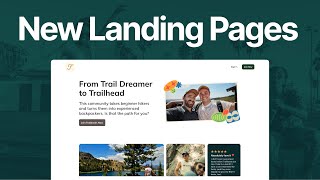
Kyle Ford walks through Mighty Networks' new landing page editor, showing how to build and publish pages with modules like headings, video, benefits lists, FAQs, and plan carousels. The editor lets you preview on desktop and mobile, switch between light and dark modes, and link buttons to checkout, sign up, or custom URLs.
Chapters
We're excited to announce our all new landing page and landing page editor feature. This is an example of something that you can make with our new editor using one of our demo networks called Trailheads. So if you want to try this out for yourself. If you have an existing landing page, you'll notice there is a new landing page sidebar section. So much more visible here. If you have existing page, it's now called a legacy landing page. You can still look at it, edit it, use the same legacy editor for a certain amount of time. We'll let everyone know when this eventually winds down, but that still exists. You can also then jump in and try out the new editor here by clicking Create a landing page. You can mess with it. Create your own draft of a new page. Only at the point where you publish it will your legacy landing page go away. So once you're ready, publish it and then you're in the new world. But until then, they can both coexist and you can kind of kick the tires on the new one. If you've never created a landing page before, you'll see in the landing page area on the sidebar here that there are options for your landing page. I've already started editing it, so I'm going to continue editing in a second. But this is where you'll actually publish it live. Once you're ready and you iterate it on your draft, you can preview it at any point or discard all your changes and kind of start with a default page. So I'm going to show you what I've been editing so far. I continue editing. The landing page editor is basically divided into sections. So you'll notice as I mouse over here, there are different kind of highlighted. It's a highlighted rectangle around each section that I'm actively editing. When I do that, in the upper right corner there's an edit option, a move option. So I can reorder any of these sections freely if I'd like to do that. I can copy it if I want to. Just start with an existing template and make some variations or delete it entirely. So if I hit edit, you'll notice I have options I can toggle on and off. So let's say I wanted what we call a super title. Could add that I can change, of course, any of the text here, replace images, change alignment. One thing I wanted to call out here is you have an optional button. So I could turn the button off if I want, but if I want it, I can choose where I would like the button to Go. So by default we have it going to a plan checkout flow. So if you have plans available for people to choose from, it can link to that. These are grayed out because my network isn't set up accordingly. But if I have a network that anyone can view content on it, you could have explore the network as a link through. You could have the ability to sign up. So make an account here. If signups are enabled or if I want total control, I can just put a custom URL in. So you could link to somewhere on mighty that you'd like to link to, or whether it's a specific plan totally up to you or somewhere externally. That's your call. So I'll cancel this for now. If I want to add a module, I hit insert new section in the middle here and you can see all the available modules here. So in addition to some of the ones that are pretty straightforward, a heading, some media with text, I have one called Media that is strictly a full width media example. So this could be an image you upload, a native video that you upload. If you want to have a welcome video or. Or if you have one hosted elsewhere, YouTube, Vimeo, et cetera, you can use a video URL as well. A few more I'll show you. I'm not going to go through all these. You can explore on your own. We have a benefits list with some nice checkboxes, check marks. You can go in here, edit them, rearrange them. Super easy to do. And then if I go, I'll scroll here. I've got some of these here. I even have a frequently asked questions module. So if I want to edit that, I can have some questions. People can expand and learn more about your network, why they might want to join. Super flexible there too. And then the final one I'll show is. Let me add. I'll add it up here. I can add a download app option. So if I want to do that and say I want to encourage my members to grab the app and that on the go can do that. And then can also add a carousel of your plans as well. So there's going to be some even more flexibility coming to this editor in the coming weeks and months. So it's only going to get better from here. As I noted before when I showed you the initial trailheads, you'll notice I'm editing here in light mode. It will work for both modes just like your network does. So it will automatically adapt to the mode set by the member or the prospective member that is browsing it'll. Look great in dark and light. You can also preview it. Right now I'm previewing desktop. You can go to the top, preview it on what it looks like on mobile. So people coming on mobile web to learn about your community. Easy to do there. So once I'm all set, I can go back to the page, publish it, and you're good to go. More to come, but we hope you enjoy the new landing pages. Sa.