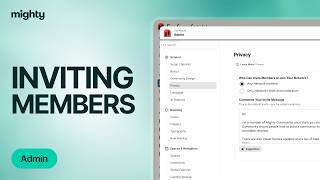
Kyle Ford walks through inviting members to your Mighty Network. You can customize invite copy in Admin, send invitations via link or email, upload a CSV, or import contacts. Invited members land on your network's landing page to create an account.
Chapters
It's easy to invite members to your mighty network and grow your community. First let's customize our invite copy. To do so, click on your profile photo in the top right corner and open up admin. From there click on Privacy and Access. Scroll down to the bottom to customize your invite message. There will be default invite copy available to you as soon as you create your mighty network. But if you want to add anything else in, like a promo code for limited time use, maybe your big purpose or a little message from you, go ahead and add this in here and click Save. From there you can go ahead and start inviting members to your mighty network. You're going to see a little button in the top right corner to invite. Click on this and from there you've got a few options. You can either copy this link immediately and send it out however you wish, whether it is in your email copy, on social media, via text, anything like that. Alternatively, you can go ahead and send emails invitations to do so. You can manually enter an email addresses here. You can upload a CSV file with email addresses or import your contacts directly. I highly recommend importing your contacts and sending out an invitation or an announcement about your mighty network as soon as you can to get the word out there. Chances are there's someone in your contacts that are a fit for your ideal member and if not, chances are they know somebody. If you want to add anything else to that round of email copy, go ahead and do so here to customize it further. That's all. That's how you invite members to your mighty network. Members will be brought to your landing page and they'll be able to create an account and join from there.