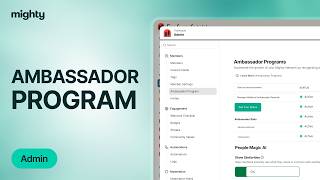
Kyle Ford shows how to set up Mighty Network's Ambassador program to reward members who refer others. Bronze tier starts at 2 referrals, Silver at 10, Gold at 25. You can automate badges, pop-ups, and custom rewards like course access or merch when members hit each level.
Chapters
The Mighty Ambassador program is a great way to drive organic growth in your mighty Network. To turn it on, head over to your admin and type in Ambassador program. From there, all you need to do is toggle it on. Your Ambassador program will automatically reward members with three different a bronze badge or medal when they invite and refer two people to your Mighty Network. They'll get a silver medal when they refer 10 people to your Mighty Network. And they will receive a gold medal or badge when they refer 25 people to your Mighty Network. As you can see here, in additional Ambassador Awards, you have the option to give your members more value when they refer members to your Mighty Network. Maybe you want to reward them with free access to a course, discounted membership or free merch. All you need to do is is tell them how to redeem these rewards and they'll automatically get a message about this when they reach each Ambassador level. Once you turn your Ambassador program on, feel free to send an announcement to your members to let them know how they can use the Ambassador program and the rewards that they can get. You can also set up custom rewards for your ambassadors. To do so, head over to your automations, then click to create a new automation. From there you can name it, name it something that you'll remember, then go ahead and select the trigger. For this example, my trigger is going to be that a member reached the Bronze Ambassador level. You can create a separate automation for each Ambassador level. Then you'll go ahead and select your action. Whether you want to give your members a custom badge, give them a display, pop up, send them a dm, or in this case, award them points. To award a member points, go ahead and select the number of points that you want to award them with. You can add a custom message if you want, then go ahead and click Create. As soon as you do so, members will receive these hundred points. As soon as they reach that bronze Ambassador level, feel free to get creative with the rewards. Remember that when you're creating an automation, you've got a bunch of really excellent options for your actions. So play around, get creative and think about how you want to thank your members for growing your mighty network.