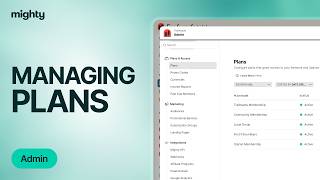
Kyle Ford walks through how to manage plans as an admin in Mighty Network. Set up free trials and screening questions, control which spaces members see, invite people to specific plans, and export member and income reports.
Chapters
It's easy to manage your plans whenever you want to make any edits to what's going on. To do so, click on your profile photo and click on Admin. From there, head to your plan list. You can click on a plan to view the visibility and sharing options, deciding whether you want it to appear on your global landing page or if you want to turn it off and make this inaccessible to people when they see your landing page on the Internet. You can manage your members in the member setting and in your settings button you can decide if you want to do something like adding a free trial or changing the length of your existing free trial. You can turn screening questions on or off if you decide you want to start asking members questions before they join, and you can also turn approvals on or off depending on if you want to start approving prospective members before they can join this plan. You can then manage the spaces in the plan by clicking Manage under Space Access. If you created a new space like a course and want to give your gold tier members access to that space, just add the space right here. Alternatively, if you decide that you no longer want to include access to a space in this plan, just click on the X button to remove it. You'll have the option to message all members whether you've added a space or removed a space, just to let them know you've also got the option of deciding where people land when they join this plan. For example, I would likely want people to go right into the community space so they can start engaging with other members on the plan. As soon as you confirm those changes, they will be live. When you click on the three dot menu of any plan, you'll see some more options whether you want to invite members directly to that plan with their email address. Take a look at your income report. Change that visibility message all members, which is great if you've got a new offer for them or if you're adding a different access. You can download your member information which will give you a list of all your members email addresses, their subscription interval, their names and more. And then you can manage the space in the plan, which like I just showed, allows you to add or remove spaces. If you want to duplicate the plan, to add it with a different price, or just switch some things around, click duplicate and you can always deactivate a plan if you decide you no longer want to use it. I only recommend deactivating plans that have zero members on it, like this example here. If you have a plan that does have members on it, like this plan right here before deactivating it. Make sure that you know that you will be removing members access from this plan. So if this plan provides access to your main mighty network, they will lose their membership. Instead, you can go ahead and click on the three dot menu next to the member name and select Move to Plan. From there you can go ahead and move them to a different plan. This is great if you want to consolidate your members onto a certain plan or switch around access at all.