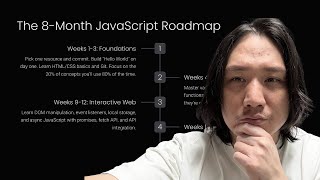
Create a landing page for your own business with react.js!

Phil Choi builds a React landing page for leftfield.com in a live-coding session. He sets up a navbar and footer, creates a hero section with a modal, adds a carousel and responsive content sections with phone mockups, and styles everything with Tailwind and Daisy UI. Firebase stores emails and the site deploys via S3 and CloudFront.
Chapters
Hey, what's up? We have to build a website for lead fill. You know, because I'm a programmer, you know, I can build it. So I, I guess I've been tasked to build this website. I'm pair programming with my homie Mini. We're gonna get this website done. We have a coming soon website on leftfill.com. if you go to leftfield.com you'll see like coming soon here some cool stuff. We got like particles here, particles here and stuff. But you know, coming soon website is pretty temporary, it's not permanent. So we have to build it and guess I have to build it. So let's do it. I've got Mini with me to pair program, I think.
Look at this, look at the setup right now. How beautiful is this?
It's beautiful. It's beautiful. So I got everything set up already. You know, I freaking got my Handy dandy. Oh wait, wait, let me do the hook real quick. So. So my name is Phil. I became a senior developer after the age of 30. If you want to comment like or if you want to tell a story about website that you built before, like comment and share. I read all my comments. We read all your comments and you know, let's get our discussion started and you know, we're gonna share this code and you guys can like, it's not gonna be like the full website, it's gonna be a layout and stuff. So I mean like we gotta still put the contents and stuff. So it'll be pretty like. What is this word? Like malleable to whatever you want to use it for.
So it's a good starting point for your own website.
Yeah. So like I already put all the docker files and docker compose files inside of here. Try to like, like the docker files to keep it running. I am going to run in S3 bucket, so I don't even need the docker files actually. So. But if you guys wanted to develop on there, I already installed like the handy Dandy Daisy UI and the tailwind and all that kind of stuff. So that's the stuff that we're going to use and like a dot M. I have my environment variables here. I have a couple, couple other stuff. The coming soon website, I. I had to install Firebase to kind of like make the make. So we can install store like emails in the fire store. So like I can put like, I don't know, Mini. Oh wow. But anyways, yeah, so that's.
Do you want to explain like, kind of like what the layouts will Be each section, baby.
Yeah. So Minnie showed me a website. I think it's from Content Bank.
Yeah, it's a. It's called Content Academy.
Oh, Content Academy.
Yeah.
Content academy.com. unleash your potential.
Second one. Second one.
Oh, the second one. All right, let's. But something like this, like a hero, a nav bar, some kind of carousel and some kind of layouts to kind of like show, like, left and right and left and right. But we'll kind of create something similar, like. Similar to this, like, layout. Yeah. Let's get started. So the first thing on this, I'm going to make a. I'm going to make a route called Playground. All right. I'm going to make a component called Playground. I don't know if you can see very well. So I. I have my app router. So my app router has the Coming soon here. And then that Coming soon is at this. At the base route. And then at the. And then I'm saying, hey, path. Nothing. Let's use the app layout inside of here. And all the. All these routes will use the app layout. And inside of there. And in the app layout, I have a div. And then the outlet is going to be output whatever route is currently selected. Hey, look, we're like on a date here. You see that?
Yeah, it's super beautiful. I'm square. You're a circle.
Like, you are square.
All shapes, dude.
You are square. And I'm. I'm curvy. Anyways.
Oh, my God.
So we got an outlet here. So if I go to Playground right now. Slash Playground. Oh, wait, wait, wait. No, no, no, no. Take that out. Take that out, please. We're on LOCALHOST. LOCALHOST 5173. And then we have the Coming soon website. And then if I go to Playground, it just says hello on the page. Right? All right, so the first thing that we need is some kind of nav bar on the top. So I basically already got a nav bar and I put in the components and the global components here. But all I did here was. I think I just went to Daisy, UI.com I looked at the components, see if I can make this little small and this a little bit bigger. That would hide you too much. All right, There you go. And then I go to, like, I could find something like navbar. And there you go. And there you go. And I like to look for the responsive ones. So I look for the responsive. Responsive. And there's one. So I just. I think I just took this and I copy pasted it. Same exact code. So I just took it and I just see how it's like button here. Just took it. Just copy paste it. Bam. There you go. And now in the app layout, I always want to see the nav bar. So I'll just import the navbar. Nav bar code. Help. And then now if I go to leftfield.com@playground, I see a nav bar here. You see that?
Yeah.
But actually, and now we get a little like responsiveness. If I open it up, the hamburger is gone. So that's pretty cool. But I probably need this to say let fill. Right? So let's go find that. Wherever it says Daisy ui, there's a button, button, ghost text, Excel. I'll just change that to let fill. Cool. So now it says left fill. And next I think we're gonna need some kind of. Let's finish out the layout. So the layout, we're probably gonna need a footer. So I think I already got a footer here. All I did here was I just went to tail. I went to Daisy ui. Same thing. I just put in footer. I just grabbed that. I grabbed the responsive one. Okay. There is no responsive one. I'll just grab any single one. Just a simple one footer with logo and social icons. That's cool. I'll copy paste this. This footer. I'll put it in here. All right, that's better. And I'll just copy paste. Don't tell me we cannot use this content because this is gold, man, to be honest. All right, so now we have Perfect. Now we have a footer and now we just have to put it into the app layout. So we just put footer. We import it from the global components that I have. And now we have a. Now we have a. Now we have a nav bar and we have a footer. Right. So this hashtag thing, maybe you want to turn into left fill logo. So let's. Let's do that. I think I already put the left logo in here in Assets and I guess that I get. I did not. So actually let's do that really quick. All right.
All kinds of stuff today, dude, doing all that.
All kinds of stuff. Actually, let's just take the one that is in the coming soon thing. So coming soon tsx. There is some let fill thing here. Let. You.
You. You just coded it?
Yeah, we. Yeah, coded it. So I take the H1 and then class name. We'll take the class name. Take the class names and everything. So we just go to the footer we'll find where that hashtag thing is. It's an svg, so we'll just remove that hashtag. Let me see. We'll remove that SVG and put this in there. And now it says let fill. Very beautiful. In the footer. And now we'll also change this to let fill. And let's change this to coding Safe lives.
He's speed running through this thing.
There you go. So now it says lead fill. Coding saves lives. And then we have these social links here. And I already made those inside of the coming soon website. So we'll just, we'll just yank those from the coming soon. I made something called social link buttons and I made social links. So I'll just copy paste that and we will go back to the footer and find where those SVGs are. There's some A tags and stuff. So I'll just take that from the A tag. Bam. Social links will add import from social links. I already made this social links JSON file, Jason. So it's this social links file. And then in the social link button I made a component. So that takes a key, an href and icon. So now we have the social links here. So if I press on this YouTube thing, I open the link right here, it'll open up the Leadfield website. So that's what we needed. So that looks fine. And we do have an Instagram. We are working on it. But the people following are the real ones. The people that are following are the real ones. That's all I have to say. That's all I have to, I have to say on that. Anyways, so now we have Instagram. So wherever we have app layout here, whatever we put in the outlet is going to be the route that we have, right? So just like for an example, inside this route, inside of this playground route. What if I made like a route at path? What do I call you? Sometimes I call you Million. Million. I call you Million. Million dollar Mini. No, I mean. All right, there you go. Million Dollars. And then I put an element here. And then let's just say that I put like a div here and then Million dollar Mini. Right? And then let's, let's go to that route. What is it? Million Dollar Mini. And now it'll say Million dollar Mini. And it, it only renders this part, right? Like if I put some pretty cool. Let's put some like height on it or something. Like Height is like 400 now it'll be like a full like little website, right? And then I could put like H1 million H2$H3. I guess the H1s are not. The H1s are not doing well. Anyways, we're going to leave that as a cookie for you guys to find for now. Anyways, there you go. So if you go to Million dollar Mini and we'll put a button that says click, I'm going to just say on click equals alert. You pressed on it. Cool. So now if you click on this. Oh, you pressed on it. Cool. So we'll leave that for you guys if you guys want to find that path. Anyways, we're going to work on playground for now. So now I am, I am right now basically in that router. I am displaying this playground element or component inside of this. Right. So let's close these out. So in Playground I'm just displaying div. Hello. Right, so what's the first thing I need? I probably need a hero. Right? And then. So let's go find a hero. Can you be my hero, baby? You know that song anyway?
No, I don't.
Oh really, Enrique? So we have it here.
Oh, oh, oh. Okay, okay, okay. I know the artist.
Okay, so we have heard of that song, dude. Yeah, chill that. Chill the heck out, dude. I'm talking here. No, I'm just kidding. All right, so now I, I always look for the responsive one, but it doesn't seem like there's a responsive one. So I'm just going to take this first one centered hero. Copy that. And then I already made a hero component. So it's just this, it's just a copy paste of this. But I added some dialogue as well. I'll let you guys look at the code and ask me questions if you guys have any questions. But basically like if I just copy pasted this here, right. It would look fine. Right? There you go, look. Hello there. Probably blah blah blah, right? But I need a button here. So this button actually needs to make an action. So then I actually put like a dialogue in there which is like a modal. So I made a hero component. So I'll just show you guys what that looks like. And I added some, I added some props in the hero to pass in like the. The what? The title, the description and the button text. Right. So I'm going to import the hero and then I'm going to say title equals lead fill description coding saves lives. And then the button text would just say click here. All right, so now it just says let fill coding saves. I'll just click here. And if I click on this It's. It pops up some pop up, right? So the way I did that was in the Hero I just added this HERO modal ref and I added that as a HTML dialog element. And I'm using this. And then I put this dialogue down here, which I just copy pasted from Daisy UI dialog somewhere here. It's called modal. So I just took the modal and then I just think I just copy paste like the first one, just this one right here. So I just copy pasted that dialogue and then I put the ref on the hero. Hero, modal, ref. And then I just say hero, current show, modal. That's about it. So that's. That's it. So right now we have the hero all done. And then after that when they first go on the website, you usually have like a full screen or something, right? So that's. That's what it's gonna look like. We're gonna put some video behind there or something like that. You guys can change. Change it to whatever you want. Does not matter. And then under there we need some kind of carousel. So I did find some carousel online. I. Let's see if I can find a carousel. Card, cards, code, pen. It's like find this card carousel. Not this one. This one looks like. Doesn't look good. I was gonna use a bad word, but just does not look good.
Want me to say it? No, I'm just kidding.
I don't want to get demonetized. Even though we're not like that kind of channel, we're not big enough yet. But yeah, yeah, we're earning that $1 per thousand views. You know what I mean, Minnie?
That's right, boys.
Anyways, card carousel, slider. Okay, like that one's cool. Something similar to this, right? We need like this kind of thing. I could just copy paste all this, you know.
Yeah, that's a lot of copy pasting though. CSS and js.
Yeah, but you know what? I already made one, you know. So there's a carousel in here. So I'm just gonna show. I'm gonna just put the carousel that I made in here. Yeah, and then you guys can kind of edit it want. And the carousel, I'll just import it from the globals and right under it it kind of looks nice, right?
Like I like it, I like it.
Yeah, it looks nice. We're gonna put, you know, testimonials, you know, discord stuff in here and all that kind of stuff. It'll look freaking awesome.
And guys, please fill up the WINS channel. You know what I'm saying?
Channel or just reach out to us and just talk to us. Like, don't be shy, because I think everyone that's reached out, we always made time for them. No mini.
No, Today included. Me know, like, someone reached out. You know, we gave our time. You know, Phil's here for you guys, so just don't be afraid to reach out. You're doing a disservice to yourself if you don't reach out.
We're here for you guys. You know what I mean?
Definitely. Definitely. Your wins are our wins.
I'm gonna put this hoodie on. I'm gonna get my. I'm gonna be in my developer mode that I used to do, you know? Wow. Crap, dude, I'm not young anymore. Like this and just, like, sit here. No, I'm just kidding. So I got the. Let fill coding saves lives. I got to click here. The modal pops up. You can change this to whatever. You can change this carousel to whatever you want. And. And then next we probably need some kind of, like, left, right kind of thing. Right? So, yeah, like, we're basically almost done. We just go to Daisy. Why? I think there's some kind of layout. Layout part. So. Layouts and typography. Okay, Layout. And then maybe some kind of divider. So I'm going to need, like, this divider horizontal something, right? Responsive LG divider horizontal. And like I said, I always use the responsive stuff. So just grab the JSX here and then you start putting that stuff down here. You just copy paste it. Whoops. Now down here we have this content that'll be. That'll be responsive. Right? But that does not look good right now. I would just like to wrap it with a div. Maybe I'll just add some margin 4. Padding 4. That looks a lot better. Right? But why is it looking kind of like s. Oh, sorry, that was my bad. So padding four. But now it's coming out, right? And then we just need to. It has some kind of fixed. It has some kind of fixed BG base 300 or something. So we'll just. We'll just remove that. Bam. Bam. Oh, no, that's. That didn't do it. Kind of did it. Let's check it out. M4P4. And then we can actually remove this. Or so now we have this kind of grid thing where it goes. It goes. It's responsive. And then maybe I'll just add an M4 margin 4 just to kind of see what's going on. All right, that does not look good. All right, now it's in the center. All right, I think that looks fine. All right, cool. And then now we need to fill out the content inside. So I like this one, this KVD thing. So not a kvd, that's a keyboard. They have some kind of chat like code thing that looks like code. So right here. So we'll do like this. We'll do a multi line. We'll do like this. We'll grab this called mockup code. We'll put it on the left side and we'll say NPMI lead fill and installing. And then that sounds good. Now we have NPMI left field installing done on the left side. That looks cool. And then on the right side we'll put some kind of like mock up of the phone or something and we'll go back to tailwind Daisy. I'll look for it.
Yeah, the Daisy UI is pretty amazing.
I've been on Daisy, I've been on you. I've been on Daisy UI for a while now. Or like not a while because I don't do much web development. But yeah, it's really easy to set up and I think it's good. We can do a video on setting it up too. But if you guys ever watch the JS lesson plans that we did, the free JS course, I was like setting it up every week.
So check that out.
Anyways, we have, I think it's called artboard or let me see here, divider. Oh, phone mock up phone. There you go. It's gonna get the black phone jsx. Bam. And then on the right side, I'll just put this content here. Boom. And then. Whoa. Now it, now it looks a little bit off. So we kind of have to fix that. Let's see how it looks like this. Oh, we just take the. There's some height 32 on there that we need to take off. And on this one too. There you go. So now left side, right side looks nice. And then we can do. We can just copy paste this. So copy paste this guy. Bam. And we'll put it two more times. And the middle one, mockup code, see what it looks like. And now the mockup code on the middle one. Maybe we should make it on the other side. Right? So let's try to do that. Let's just, let's put first row. Just putting comments for ourselves. This div, where this div ends, that's going to be the second row. And now on this one is going to be the third row. Whoops. There you go now on the second row we want it to be switched over, so. Switched over. Sorry, that was a little bit weird. Switched over. No, chill. Uh hum. Anyways, so now we can just take that and then put the mock up phone on the other side. Boom.
And.
I think. Yeah, take this mock up code out. And now it's a little staggered. That does not look good. Or maybe that's a. You know what? It's not broken. It's a feature. I think the phone is a little bit too wide. My opinion. Right, so let's see how we can override that. Artboard demo. It has a width of 320. Let's try to bring it down to like 250. That's oh, 250px. That's still not doing it though, right?
Not bad. Yeah, a little bit it's better.
But it's not doing it though. We need to. I think maybe 300px. Oh my goodness. This is why I do not like css.
Dude. Just hit that arrow key, dude, until it works.
Right, right, right. That's smart. All right. All right. 2,260px. All right, so what we need to do is we need to hardcast. We need to do the. On the mockup phone, we need to do W 260. Right? That's how you do it. And then on the mockup phones. Where's the other mockup phone? There you go. If I refresh. Oh, that did not work. Wait, hold on. On the mock up phone, I put a. Hold on. I think I put it on the wrong one. Hold on.
Oh, it's the one above.
It's this one.
Okay.
W260. Whoops.
Nope, I think it's the one above.
No, it's the Artboard. Artboard one, dude.
Oh, okay.
But hold on, I'm just gonna do like. Wait, hold on. Let's just inspect it. Artboard demo phone, mockup phone 260. Hold on. We refresh. Holy shit. Sorry. W260. We're just going to remove all these W260s. We don't need them. And we're going to do some cheating now. Width 260px. Oh, that looks horrible now though.
Yeah.
All right, you know what we're gonna do? We're gonna do like this on the Artboard thing. This guy. There's three of them, right? One, two, three. Yeah. Now we just gotta put a style width 260.
There you go.
There you go. Now it looks fine and looks good enough, I guess for now. I don't feel too good about this.
Yeah, me neither.
There has to be a tailwind way to do it. But I don't.
I thought it was W260.
I thought it was W260 as well.
You have to write PX. No.
You know what, we're just going to keep it like this for now. If you guys have any solutions in tailwind, let me know because this is going to be. It's going to look. No, I mean this is fine. I guess I just. I don't like this inline style here, I guess.
Yeah, yeah, yeah.
The website looks nice, David.
Dude.
Yeah, blessed dude. This looks nice.
Yeah.
Now let's just say inside of here let's put. Let's put like let's put. This video will be up tomorrow morning or soon.
Yeah. For us. So it'll be like it'll be 8, 7pm Eastern.
7Pm Eastern. Yeah. And we will share the code too. Now I mean this doesn't look that great but I mean we'll do like this and then if I just git status, git add, git commit on a sam finished layout of. We'll do like this and then playground git status git add git commit them finished layout of lead fill/playground leadfill.com playground now git push now we already put the workflow so it should deploy it. So let's just give it a second, let it run. Let's see it running actually.
Yeah. So this layout is very good for like someone who's opening their own business.
Yeah.
You know this website really works well if you want to create a website like this. Just maybe this, this is a good starting point for you guys. So. So now this becomes of use.
Yeah, this action's running here. It's running NPM install NPM run build and it should deploy. And this has the docker files if you want to deploy it in a different way. But this is deployed on S3 bucket with cloud front and the ACM but the Amazon certificate manager to get the HTTPs so it should all be done and then now it's complete job. Now if we go to. Now if we go to leftfield.com it's all deployed, nothing's breaking. Leadfield.com playground there you go. Welcome to let Phil all uploaded. And now it says this video will be up soon 7pm EST and we will share the code too. So that's. Yes sir, that's all deployed. And yeah, what else there is this if you guys ever want to look Million dollar mini too. Wait all Right. Okay, cool. Nice pair. Programming today. So, like, we built a, like, quick website today. We're gonna have it live@Left Field.com, but right now Left Field.com is pointed at the coming soon website, which. Which is in the code. Anyways, around here. Coming soon. CSS and coming soon. And right now we're gonna put this. We're still working on getting the contents ready. Maybe we'll put like a video here. We'll put like, when you click here, we'll put some like, message like thanks for clicking. I don't know, and like some email list. Put some testimonials here. We'll make this look a little prettier. I'm sure it'll be different images and stuff, but I think you can get the gist of it. And we'll make this footer a little bit prettier. But yeah, we have the basis for a quick website. You know, a quick couple hundred dollars for, you know, building and deploying it if you can find the right client. And yeah, like, just remember, if I can do it, you can do it too. Coding save lives. Subscribe if you want.
More from Phil


day in the life of a software engineer | 5 hour productivity | building my dev agency 🔥


day in the life of a software engineer | 3 hour productivity | coding my 6-figure community startup

day in the life of a software engineer | 5 hour productivity | coding our sns startup app LFG



day in the life of a software engineer | 5 hour productivity | creating apps that makes big money