How I’d Build an AI Agent Swarm to Replace Employees
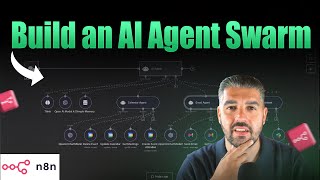
Michael Elliott walks through building AI agent swarms using NAN workflows to automate tasks like Slack messages, calendar management, and emails. He shows how multiple agents work together in a single workflow and demonstrates the debugging process for getting them to work efficiently.
Today I'm going to be showing you how to leverage the power of AI swarms. Being able to use multiple AI agents in flows inside of one workflow, which is critical, which is going to make the rest of the flow building techniques obsolete. If you take a look at this, this is a relatively. It's a recent NAN update that now allows us to have sub AI agents underneath our main AI agent. And what is critical about that is if you're experienced you'll know that used to create sub workflows and you would have to then build other scenario other workflow structures and then link them to one another. Now you can actually just create each individual agent inside of one workflow. And the beautiful thing about it is that each individual agent has its own system prompts and you can obviously add individual system messages and you can just make this tool extremely efficient. For this use case, I've chosen some relatively easy and basic tools that you'll all use in order to be able to assist you. At the end of this, I'm going to build a fresh one with you so that you know exactly how to go about doing this. But if you just take a look at the example that I've got on the screen, you'll see that it's a chat trigger. It's an AI agent model which I use chat GPT to produce me a a prompt. Obviously that's not the best way to go about it. You can use it, you can certainly use it for these sorts of cases and for basic prompts. It's easy. You want to do some, do some tailor into this, but you can very quickly knock this together. This is my point for you, for you to follow along once it gets to the build stage. But not only does the main AI agent have its own system prompts, so do these. So you're a calendar agent that can delete, create, delete and more functions of my calendar all attached as tools. The the email agent is your intelligent AI assistant that can read, get, get and get many emails from inbox upon instruction. And the Slack assistant, you're an intelligent writing assistant that sends and reads Slack messages when prompted. Okay, I only got the the sender slack message. I didn't add the the get message. It doesn't make any difference. Now inside of here the beautiful thing is you can do everything at once. So I'm going to start, I'm just going to stop talking and start running through some of these. So let's start with the creation of a Slack message. Please send a Slack message message to the Test 2 channel, which is a channel I created for use case here for the Test 2 channel, explaining that overnight we've onboarded a client and we want to. And we need to ensure welcome information is sent. So we send that. Okay. It's then going to do its thing. As you would normally see. It went, it bounced around. It went to individual, you know, you check this, check the memory for any reference. Went to its OpenAI model, then went down to the specific slack assistant, which was this because we asked it to send a Slack message. It used open. It used its own brain to be able to create the message. And if I show you, oops, if I show you my slack now, you'll be able to see that there is a message inside of there that showcases that overnight we've onboarded a client. We need to ensure that welcome information is sent out as soon as possible. Right? So that, that worked. We sent. We, we got it to send a, we got it to send a, a slight message. Now let's try and create a calendar invite. I'm just going to clear the logs just for, just so you can see it clearly. Please can you create a meeting with the Meeting today at 11am with Michael Elliot 1992 iCloud.com the meeting is in regards to how amazing the new AI swarms are. Please tell him this is mandatory. It will again go away. It will do its thing. You notice it goes to the calendar agent there. It's bouncing around, just doing its individual things, updating calendar creating attendees. It's done it successfully. The meeting has been scheduled today at 11am the topic is how amazing the new AI swarms are. Let me just look at my phone now. Let me just see what that, what that email says. Let's look at the output of, of that. So the, the meeting, the meeting is in my. Sorry, I shouldn't be looking at my emails. Should be looking at my calendar. If I look at my calendar, it's inside of my calendar for today, which is, which is perfect. There's no, there's no issue in, in regards to, to that. So you can see now that it's used the calendar. Now what we need to do from here is we need to synchronize these and ensure that they're running together, which can make it more complex. It gives the agent more food for thought. We're going to see if anything breaks. Okay? So please delete the event with Michael at 11:00am it got the meetings, it deleted the event. And that is the power of what the AI agent can do with a prompt. It can literally just do this. So now let's clear the logs again and let's really jump into to creating something quite specific. Let's see how it handles it. Even I'm not sure. Right, so please send an email to michaelrain.co.uk the email needs to tell Michael that there's a meeting happening at 10:30am at 2:00pm BST today. This meeting is to discuss performance. Once you've sent this me once you've sent this email please put. I mean I can spell please so I don't know why I right click that. Please put a message inside of the Slack channel Test two that updates the team that Michael now has a call at 2pm after that is done, please send a calendar invitation to michaeladtrain.co.uk in order to ensure that the in order to ensure that the meeting is booked in place. Now let's see what happens. So it's thinking it's running all of the individual AI assistants at once, which is the power of it all. If we go through these individual like the calendar agents, it created an event Michael Ad Train True organizer. Obviously it's my email that's connected. So the calendar event has been. Has been created. If we go to. You'll see what OpenAI well there was no open AI output but it did ran. It did run. If you look at that there when you look at this a calendar in but this is the output a calendar invitation has been created for Michael Elliott for me to discuss discuss performance. If you add more details such as a video call, link agenda or location, just let me know if we go to the Slack AI assistant we'll see that the output is true update. So Michael now has a call at 2pm automated with this you'll see that inside of the Slack channel that there's an update at 2pm that showcases that. And then in terms of the emails, the email should have been sent to to me. Oops on the inbox the email should have been sent to me Meeting reminder Performance discussion Dear Michael, if I just pop this back on my face for a moment I'll show you show you the email. Obviously I don't want to show you my whole inbox and it'll showcase it to you if you take a look at that. Dear Michael, I hope this message finds you well. I would like to inform you that there is a meeting scheduled today at 2pm to discuss performance. Please let me know if you'll be able to attend. Best regards your name so need to edit that you go inside of there. Sorry. That's what a basic agent would look like in the, in the olden days, if you like. Now I'm going to go in here. So when it sent the email, okay, it didn't send it didn't send it. Input my name. So please sign off every email as Michael Save. Now I'm going to send another quick email so you can see the sort of debugging that you will have to do when you go through this. Please send an email to michaeladtrain.co.uk. saying hello. It runs again. Flick to my face again. Refresh. There you go. You can see now that it says hello. Best regards, Michael. So you can see how you can manipulate this very basic, very, very basic feature. But there's no limit to how. I don't know why I've got that open just to show you the, the approach. But you can see now how you can create unlimited AI assistance. Right? You can literally create whatever you want. So let's get into the dive in, into the deep dive of this. So I'm going to create a new workflow and now we have this workflow ready to rock and roll. We're in a position where I'm going to run you through step by step how to build one of these AI swarms. I'll add two AI agents to it. I won't go too complex. The, the original one that I made was relatively basic. This will be even more basic, but then you can go away and use your tech stack to build whatever it is that you deem necessary. So this is how we're gonna, we're gonna do it. We're gonna go in there, we're gonna click the obnoxious button on chat message escape. We've now got the trigger which is the chat, which is down here in the corner to fire it off. In the follow up to this, I'm going to do something really complex that's going to be able to showcase to you step by step and I'll put them in the playlist on YouTube. So you can start with the very basic AI agents, then this one, then, then follow on ones from there and build on it as we go. So then inside of here we have the AI agent. So we want to select the AI agent there, the inputs, the chat input. No problem there. We do need to add a chat model. So OpenAI in my case, you can use whatever you want. The memory is simple memory, just the easiest way to do it. 500 why not? And then what we're going to do is we're going to add an AI agent, which is where you would normally add the Slack module here. But that, so like this is what, this is where you would normally go. The node that you would add next would be, would be slack, historically so. But here we want the AI agent tool, as you've just seen from the previous view. Now I'm going to be a little bit lazy here and I'm just going to steal whatever prompt these work. They're literally one sentence, two sentence. You'll be able to read it and I'll read it out as I paste it. You're an intelligent writing assistant that sends and reads Slack messages when prompted. Okay, so you hit that dynamic button there. You come through. I'm going to hit the space button. Slack AI agent rename. We're going to give it its own brain again because it does need its own brain to be able to function as I covered in the previous sort of overview. It doesn't need a memory, though. Even though you can connect this memory to that simple memory there, it doesn't need it. And I like to keep them separate because it all pulls from this. It pulls from the main AI agent. If you're observant, you'll notice that we haven't yet given the main AI agent a system prompt. And that's because I'm going to show you something that's, it's not cute, it's just lazy. But you know, most successful people are lazy because they find the quickest way to do things. And I'm going to showcase to you how in a basic flow like this, you could use it. So tools, let's go to Slack and in Slack we're going to allow it to send a message to a channel from a predefined list and we're going to have the, the message automated. Okay, this is my Slack credential. No idea why I called it that when I built it, but yeah, I'll, I'll rename it. But that's. If you haven't got a Slack credential, you'll need to create, create a new credential and connect your account. You go to API dots API.slack.com. is that right? API API.slack.com and you'll be able to, to connect Slack, but you can use anything here. You can have Google Sheets, just connect your Google Sheets, a Google Calendar, do whatever you want, which it'll make it. It'll make it a lot easier, easier for you. So send, send a message in Slack. So I'M going to command s this and now I'm going to say please send a Slack Message to the Test 2 channel saying this better have worked. It's going through. It's going into the tool. It's gone back to the tool. Of course not. It's going to ask me. Yeah, this is, this is, this is so. Because I was trying to skip ahead there. You'll see. I'll wait for the message response if it doesn't time out. But the main AI agent has no brain in order to be able to do it because you can please what you want to send a message saying so let me just say yes and I'll showcase this to you hopefully. I need to know the Slack workspace or have specific permissions. You have permissions but what you don't have is a brain to access it. Okay, so what we need to do is. I'm going to park that. That is a. So you'll have probably made that mistake as well. So that's good. I don't mind leaving things like that in. I'm no superhuman. I'm just extremely efficient when it comes to AI. So what we're going to do now is we're going to use. We're going to use the email agent and you're an intelligent AI assistant that can read, get and get many emails. Let's go back into our main flow. I'm just going to paste that in. It's literally one sentence. We're going to make that automatic. And this is now our email tool. Email AI agent. So we rename it. We follow the exact Same same steps OpenAI added there no memory as a tool. We want Gmail and we want Gmail to be able to send to subject A message can all be automated. If you haven't got your Gmail account connected again, create new credentials, sign in. Piece of cake. So okay, we've got that now we've got send a message in Gmail. Let's add. Let's add Gmail instead of send. We're going to get and we're going to have that and then I am going to just add. Get. Get many as well. Just to make sure that this allows us to be able to do what we want. You go back in, search for Gmail, add another node, click the AI again, go through this. It's going to change when I do this actually. Get many. Yeah, limit. Limit is. Let's just say, let's just put one. But you could pull as many as you want. We now have this, but this is why it wouldn't work previously because the main AI agent didn't have a brain. He didn't understand what to use, how to use what. And it's a really good example is why I'm going to leave it in this video. Because that when you do you're doing this, you have to remember that you have to provide a system prompt to the main agent that tells it to use the sub agents because otherwise it's stuck in its previous situation because it just has tools attached, it doesn't know where to go. I've screenshotted my flow and I'm going to paste it in here and I'm going to say you are an NAN workflow prompt engineer. I need a system prompt for the main AI agent inside of this flow to ensure it takes the appropriate action based on the input, the tools, the. The additional agents are sending Slack messages and sending emails. This should give us something workable that will allow us to do it. Let's see, let's just see if that works. It looks okay to me. Let's go in here. Add an option system message paste command S. Now let's try and say can you fetch the most recent email from my inbox? The most Recent inbox is ADTrain new inquiry message Inquiry from home page. It contains an inquiry message with details including a name, email and contact number. Would you like me to provide full context? No, no I would not. So I'm going to clear that. So there you go. The AI agent has worked. Can you please send a Slack message to channel test 2 saying there is a new inquiry, saying there is a new inquiry received. See if this now works because it fell over before. Yeah. So let me just load Slack up for you so I can show that to you again. You can see here that there's a new inquiry received. So you know you're in a position where the Slack message is working. And now let's get them to do both. Let's close this. So you refresh this please can you fetch me the latest email in my inbox first? Then can you please update Slack. Update the Slack channel test two to let team members know, team members, whatever team members know that there is a new inquiry. And finally let's keep it on separate lines just to keep this interesting. Then finally, can you send an email to michaelmoai.com saying there's a new inquiry. See what happens. You can see the agent working. It's going through, it's gone through everything. It's pulling these, it's pulling. Send a message, you can see in the log down here the exact route that it actually took. If I open this up, you can see this, get messages. I fetch the latest email in your inbox. It's from an upwork notification regarding the specialist. Okay, so it fetched the email. That's great. So that's. So that worked. The Slack message came through as you can see there. And I'm just gonna flick this back to my face just for one moment. I promise you it did send. Let's look at the output because it did send the email, but I'm not logged into that individual, individual Slack. So you see here the label. It. It shows that it was. It was sent. I would have loaded up the inbox, but I don't have the login password to handle. I don't want to keep you on my. Keep you on my. On my screen. So you can see inside of here. If we go into the logs, if we go into the logs that you can see exactly the process that it took. It went through each individual step. Started with simple memory, then used its own open chat model, went to the email agent, went through there from an OpenAI point of view, went to the Slack agent, OpenAI send a message, which it did, and then give us the response, the email agent. It got messages, it sent the message and then it got a message again and then responded with what that message was and all. And then it stored it all in the simple memory. Now, guys, I cannot explain to you the power of what this is. This is absolutely, ridiculously powerful. Once you get into that, you can imagine how deep this can go in. My next video is going to be something really sophisticated on this. So stick around like and subscribe. Comment on what you think that these. What the best parts about these agent flows are. But I hope that you've enjoyed this latest and greatest update from nan. It really is a boost to efficiency. But I also think that from a beginner standpoint, it makes it so much clearer what is happening, that if there are errors and debugs and things that go wrong, you can find them in one flow. You don't have to go and look through all these different tools and all of these individual areas. I wanted to show you the power of any NAN AI swarms. I've done that today. Take this away. Drop me a comment, let me know what you thought. If there's anything specific in terms of the AI agents that you find from a swarm perspective, ping it over to me. I would love to hear from you. Catch you soon. Cheers, guys. Bye.