Learn to build logos in Canva using three types: wordmarks (text), monograms (initials), and pictograms (icons). The tutorial shows two ways to start: customize a template or build from scratch with graphics and text, then create multiple style variations by adjusting fonts, colors, and layouts.
Chapters
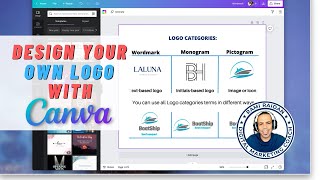
With Canva, creating your logo is very easy and simple. All what you need is to know the basic idea about the logo category and decide how your logo is going to be or look. You can create a wordmark logo. It's a text-based logo that contains the main name of the business and the slogan under it, like this. This one, La Luna Woman Fashion. Or you can create a monogram logo, which is initials-based logo. Usually it's the first letters of your name and your family name or the business name, like this one, BH. Or you can do a pictogram logo, which is image or icon-based, like this one. At the same time, you can use all logo categories terms in different ways. For example, this one here is an image and it's a wordmark and a slogan under it. You can have the same logo in a different style like this, the image on the side and placing the text on the other side, or you can simply just use the wordmark by itself. It's always recommended to create multiple styles for your logo so you can use them in different designs. Now we're going to create a new logo using Canva template logos. Go to homepage, press on Create a Design, search for logo, select the first one. On the left side, under Design tab, you can see all the logo under the Templates tab that you can use to create your logo. You see text-based logo, initial-based logo, image-based, so many different ideas that you can choose from. Or you can also here look at the category like circle logo, circular logos, and Name logo, so many other, like use the brand logo, initial. Make it easy on yourself and use the search. For example, I want to create a logo for a burger restaurant, so I'll type burger logo, and here's so many different options that I can choose from. Some logos contains two pages. Like two colors. I'll show you an example, like this one, Postburger. It comes same logo with two different colors. And here's the template style that includes all the, the font and the color used. You can apply both pages and make the adjustment to the text. Double-click on the text, rename it. Same thing, you can edit the slogan. You can change the color to whatever you want by pressing on, selecting the item and change the color. I'm gonna just edit this. Same thing with this one. This is like a black one on a colored background. Make sure to rename it too. And here's the template style. If you apply it, it will give you different options. Pause this video and go ahead and practice this. Create a new logo using Canva template, and on the next step, we're going to create a logo using Canva elements. From the top right corner, press on Create a Design, search for logo, and now a blank page open. So instead of using the templates, we're gonna use Elements, and here we're going to search for the logo we want to create. For example, I want to create the Same Burger logo, so I search for burger here, and under Graphics I see all, and here I choose what graphics I like. I can use it with my logo. Try to have many different options to choose from, and then you can filter what you want. So add more and more things that attracts you, like this one. And try to be creative, just add more and more things and filter, add the text. Like now I'm gonna add the text Burger and Bun. This is the name for the business. Play around with the position of the text, with the size, with the font. Alright, maybe I add just a bun. Let's see, can use a bun. I can use a barbecue. Always search for items related to your business or to your logo you're creating. You can also play with the colors. So like this one, select, change the color, maybe the black, I'll change it to orange. See? I'll add more elements. Let me see what I can combine together. This is a nice element that I can use in my logo, so I can center it. I can edit the text, center the text to it. Maybe I'll change the color. Nice. And I'll do another font. I'll match a different font for it, so I'll select the text and go to Fonts and And here I'll try something more like— let me search for like a retro font. If I'm creating a retro style logo for a retro style restaurant, I can match things together. This is a nice one. Make sure to resize it, make alignments. That's it. Maybe I'll change the color of the font to match the color of the fire. And yes, it's a beautiful one. Done in 2 minutes. So what you can do, clear the screen, and if you want to change the color, you can select this, duplicate it, press on Option and move so you can have another copy. And on this copy, I'm going to change the color. And then make a decision based on the color you like more. Another recommended way is to hand sketch your logo on a paper before using the computer to create your logo. By doing this, you will have better idea on what you want to create.