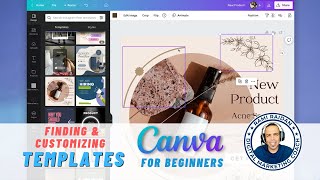
Learn how to find Canva templates using the search bar and customize them by double-clicking elements to edit text and images. Templates show official size indicators for Facebook, Instagram, TikTok, YouTube, and other platforms, though some require Canva Pro.
Chapters
In this session, I'm showing you how to quickly locate the template you want to use to create your design by pressing on the Search Your Content or Canvas here. For example, I want to use a Facebook post template, so here's the option. You see where you see Facebook logo, that means this is the official size. For the Facebook post. Or Instagram, same thing. If you see this, uh, Instagram logo, it shows you the size, like 1080, 1350. That's for a post. Or another square post, 1080 by 1080. Other things you can do also, TikTok videos or profile picture, story. So this is a very helpful, uh, search tool. You can also use a YouTube thumbnail. Yep, give you the right size, 1280 by 720. Another way to start creating by accessing the top button, create a design. Same thing, you can search for what you want to do. Like Instagram, it gives you all the options or what you're able to use as a template in Canva. Same thing if you want to use a document, you want to create an A4 document, you can do this. And let me give you an example of that. This is very helpful if you're creating a PDF or a page. So there's so many different templates you can use to create your document. I'm gonna search for, for example, real estate. I'm gonna create something similar to one of these. There's some templates that comes with 2 pages that you can use if you have more than 1 page to use. So let's select this. Here you can edit every element on the template. If you select— if you move your mouse over anything you see on the templates, you can edit it just by double-click on it. I'll cover more about this. You can do undo on the top. And let's search for something else. Like Instagram post. Same thing, you'll see the size of the design, like this one, Instagram square, 1080 by 1080. And here's the template for it. So many different templates that you can use. Just press on it and all the elements here you can edit by double-click on them or just click and select. Other way you can search for, like, real estate, an example. Again, if you're creating something for real estate, you'll see these templates. Some of them are Canva Pro subscribers, so you need to have a Pro account to use them. And same thing, you can edit the website here or the title down there and also change the photos. Again, you can search for the template you want here in the search bar, and in other sessions I'm going to cover how to search elements and add more graphics to your design.