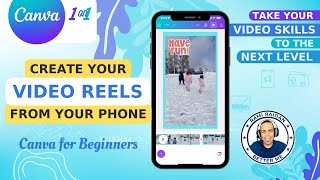
Rami Raiden shows how to make an Instagram Reel on your phone using Canva. Upload video clips from your camera roll, trim them with the split tool, add backgrounds and graphics from the Elements library, then export and share directly to Instagram or download to your device.
Chapters
Hey everyone, this is Rami Raiden. In this video, I'm showing you how to use Canva phone application to edit your videos, how to import your camera roll footage and use them to create your video reel or Instagram reel. And also, I'll show you how to add graphics to your video and cut scenes that you don't want. If you have an Android phone, you can go to the Google Play Store and download the Canva application. And if you have an iPhone, you can go to App Store and just search for Canva, download the application. Make sure to use this one with the purple logo. And here we go. Once the application opens, at the top you see the For You button, and next to it you see the docs, then the whiteboard, then the social media. Press this— on the social media you see Instagram, you can create Instagram posts, or Facebook, you can create Facebook post, Facebook cover, or LinkedIn. Here you can use LinkedIn background photos or LinkedIn posts, and down there you have the plus button. Once you press the plus button, you can search for what you want to create. So if you type Instagram Reel, you can choose the Instagram Reel, and this will give you the template to choose to create your Reel. There's so many different templates that you can use with the video. There's some Pro templates. You can also use the search up there in the menu to search for specific, uh, video. You type like, for example, nature, get a nature video that you can use to create your reel. But in this video, we're not going to use the template as I'm going to upload my own footage. You can slide down the template menu and see there's a blank video. Thank page here. You can access this menu again by pressing the purple button, and here you go to uploads and then to videos. If you have your video uploaded or ready to come, I'll see it here. If not, you can upload files and choose photo library, and here I'm going to choose albums and go directly to my videos on the phone. So I'm going to select 2 videos to upload to Canva. We'll wait a little. If you have your videos on the iCloud, so it will take a little bit to download, then the videos will start to upload to Canva so you can use them. You can see the bar here. It's uploading to Canva. It depends on the video length and the speed of your internet. Once it's ready, you can preview the video from here and then select it. It will go to the timeline. Here's the timeline. You can scroll to see the, the full video, and it will show you the length of the video. Like, this one is 24 seconds. You can scroll to see where you want to cut, make the cut for the scenes that you don't want by using this split. So you can cut the scene in half and then you still can move, adjust for the, the right scene you want. Like, if you see now, I made a cut and here it is. All right, one more thing. You can add a video by pressing the plus on the page, and this is the second video I'm adding. Same thing, you can adjust it. Once you press play and see the scene you want, by dragging right or left, and then make a split and clean the scenes that you don't want. Also, you can change the background by pressing on the white space and the color and choose the color you want for the background. Also, you can make your video as full screen as the background. You press on it and select replace background, so it will be a full screen with no other background in the back. So the second video here, I'm going to show you how to add an image as a background. You also can add an image, so press the plus button and go to Elements. From the search bar, you can type and search for the image you want. I'm gonna search for snow image to use as the background. Select photos. And I'm going to use this one. So press on it and go to more down there and select set image as background. So the image now in the background and my video in the front. You can move the video to the position you want. So the first video is a full screen, the second one with the photo background, and the third one I'm going to add a color. So Press on the white space and select color and choose the color you want. Going to choose, uh, just a different background color that match a little. And also you can move the video, resize it to have this little like a border. And now I want to show you how to add the graphics to the video. So you press on the plus button and go to Elements. And here go to Graphics and type, for example, snow. Select the graphic you want and it will be added to the timeline. It's a GIF video. You can add more like, uh, text graphics, like fun, and also add it there. If you want to use a different text or graphic on the video, you can split it in half and then delete the graphic from one side. Like now, I'm deleting, and you can add different one to the other side. So I deleted these two from this video and I'm adding something different. So let's choose something more from here. Alright, let's use this, uh, have fun. Some graphics are up Pro. You can't use them if you have a free account. So this one here, it's a different graphic from the other by using the Split Always and Delete. So let me use another example here. I want to use some love hearts on the final scene. Same thing, I can split, delete from the first one, select, delete, and keep it on the last scene. So if you want to see the video, here's the full-screen video with no background. And this is the second scene now coming. This is a cut with the image, and this is the third one with the colored background and graphic. This is with another graphic. I just made a split. And this is the third one with a different graphic. So play around with it, and once you're done, go to the top right menu and select Share Video. And here you have a lot of options to share. You can share directly to the social media, or you can simply just press download and download your video to your phone and then upload it from there. It will take a little bit time. I just fast-forwarded this. And here you can share it also to message, WhatsApp, or just save it to your phone. Thank you for watching, and now go and practice with your own video. And if you have any question, uh, just ask me in the comments or send me an email. Thank Thank you.